How to Convert PDF to Image: Complete Guide
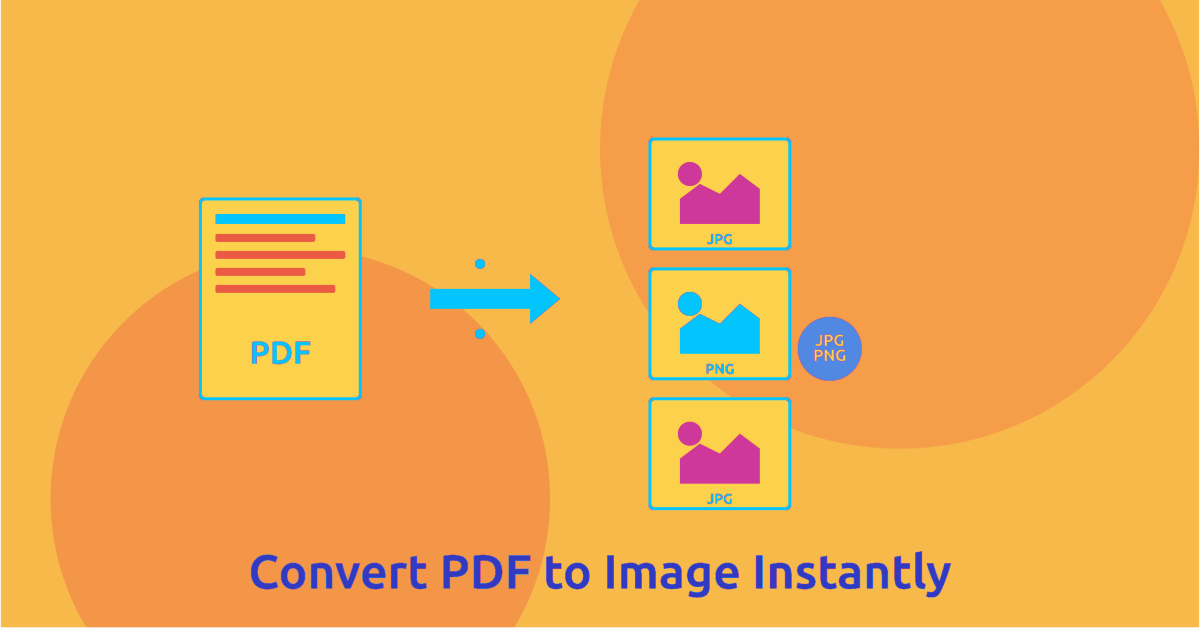
Converting PDF documents to image formats is essential for sharing content on social media, creating presentations, extracting diagrams, and making PDFs accessible in image-based workflows. Whether you need high-resolution images for printing or web-optimized files for online sharing, understanding PDF to image conversion ensures optimal results.
This comprehensive guide covers everything from basic single-page conversion to advanced batch processing techniques for professional PDF to image extraction.
Why Convert PDF to Image?
PDF to image conversion solves multiple content management challenges:
Social media sharing: Post PDF content as images on platforms that don't support PDFs
Presentation integration: Insert PDF pages into PowerPoint, Keynote, or Google Slides
Email compatibility: Send images instead of PDFs for better mobile viewing
Web publishing: Display PDF content on websites without PDF viewers
Screenshot replacement: Extract high-quality images instead of taking screenshots
Printing flexibility: Print specific pages as images with custom sizing
Editing capabilities: Edit PDF content in image editing software
Accessibility: Make content available in universally supported formats
Converting PDFs to images creates standalone files that can be viewed on any device without PDF reader software.
Understanding Image Formats
JPG (JPEG)
Best for: Photographs, complex graphics, web use
Advantages:
Smaller file sizes through compression
Universally supported across all platforms
Ideal for photos and images with gradients
Perfect for web publishing and email
Disadvantages:
Lossy compression (quality degradation)
No transparency support
Not ideal for text-heavy documents
Quality loss with repeated editing
PNG
Best for: Text documents, diagrams, graphics with transparency
Advantages:
Lossless compression (no quality loss)
Supports transparency (alpha channel)
Excellent for text and sharp edges
Perfect for logos and diagrams
Disadvantages:
Larger file sizes than JPG
Less efficient for photographs
Not ideal for very large images
Higher storage requirements
TIFF
Best for: Archival, printing, professional workflows
Advantages:
Highest quality preservation
Supports multiple pages in one file
Industry standard for archival
Excellent for professional printing
Disadvantages:
Very large file sizes
Limited web browser support
Requires specialized software
Not suitable for online sharing
How to Convert PDF to Image with PDFHaul
PDFHaul makes PDF to image conversion simple and flexible. Watch this demonstration:
Step 1: Upload Your PDF
Visit the PDF to Image tool and upload your document. PDFHaul supports:
Files up to 100MB
Multi-page documents
All PDF versions and formats
Scanned and digital PDFs
Step 2: Select Pages to Convert
Choose which pages to extract as images:
All Pages
Convert entire document to images
One image file per page
Maintains page order
Perfect for complete conversion
Specific Pages
Select individual pages (e.g., 1, 5, 10)
Choose page ranges (e.g., 3-8)
Extract non-consecutive pages
Ideal for selective conversion
Current Page Only
Convert single page quickly
Preview and convert
Fast extraction
Perfect for one-off needs
Use page preview to verify you're converting the correct pages before processing.
Step 3: Choose Image Format and Quality
Select output format and quality settings:
Format Options
JPG: Best for photos and web use (smaller files)
PNG: Best for text and transparency (higher quality)
Quality Settings
Standard (72 DPI): Web and screen viewing
High (150 DPI): Presentations and basic printing
Print (300 DPI): Professional printing and archival
Maximum (600 DPI): Large format printing and scanning
Step 4: Download Your Images
Click "Convert to Image" and download your files. PDFHaul provides:
Individual image downloads
ZIP archive for multiple pages
Original page numbering in filenames
Instant processing
Advanced Conversion Techniques
DPI and Resolution Guide
Understanding resolution for different use cases:
72 DPI (Web Standard)
Screen viewing and web publishing
Email attachments
Social media posts
Smallest file sizes
Fast loading times
150 DPI (Enhanced Quality)
PowerPoint presentations
Basic printing needs
Document sharing
Balanced size and quality
300 DPI (Print Standard)
Professional printing
Marketing materials
High-quality documents
Detailed graphics
Recommended for most uses
600+ DPI (Archival)
Large format printing
Professional photography
Detailed technical drawings
Maximum quality preservation
Very large file sizes
For most use cases, 300 DPI provides the best balance between quality and file size.
Batch Conversion Workflows
Convert multiple PDFs efficiently:
Consistent Settings
Upload multiple PDF files
Apply same format and quality settings
Process all files simultaneously
Download as organized ZIP archive
Mixed Requirements
Group PDFs by output requirements
Convert web-optimized batch at 72 DPI JPG
Convert print batch at 300 DPI PNG
Organize by use case
Automated Naming
Files named by source: Report_Page_1.jpg, Report_Page_2.jpg
Sequential numbering maintained
Easy organization and sorting
Consistent file structure
Quality Optimization Tips
Maximize image quality for specific needs:
Text Documents
Use PNG format for sharp text
300 DPI minimum for clarity
Avoid JPG for text-heavy content
Consider black and white for contracts
Photos and Graphics
JPG format acceptable for photographs
150-300 DPI for most uses
PNG for images with transparency
Higher DPI for enlargement needs
Mixed Content
PNG for documents with both text and images
300 DPI for versatility
Evaluate each page individually
Use preview to verify quality
Conversion Best Practices by Use Case
Social Media Sharing
For Instagram, Facebook, Twitter, LinkedIn:
Format: JPG
DPI: 72-150 DPI
Size: Optimize for platform (1080px width for Instagram)
Compression: Medium quality acceptable
Tip: Crop to highlight key content
Presentations
For PowerPoint, Keynote, Google Slides:
Format: PNG (for transparency) or JPG
DPI: 150 DPI
Size: Match slide dimensions (1920×1080 for HD)
Quality: High quality for projection
Tip: Extract diagrams separately
Web Publishing
For blogs, websites, documentation:
Format: JPG for photos, PNG for graphics
DPI: 72-96 DPI
Size: Optimize for web (max 1200px width)
Compression: Balance quality and loading speed
Tip: Use responsive image sizing
Printing
For physical prints, marketing materials:
Format: PNG
DPI: 300-600 DPI
Size: Match final print size
Quality: Maximum for professional results
Tip: Account for bleed and margins
Email Attachments
For sharing via email:
Format: JPG for smaller size
DPI: 96-150 DPI
Size: Keep total under 5MB
Compression: Medium quality
Tip: Resize if needed for email limits
Common Conversion Scenarios
Scenario 1: Extract Diagram from Technical Manual
Problem: Need high-quality diagram from page 47 of 200-page manual Solution:
Select page 47 only
Convert to PNG at 300 DPI
Maintains clarity and detail
Import into design software
Scenario 2: Share Report on Social Media
Problem: Want to share key findings from PDF report on LinkedIn Solution:
Extract summary page
Convert to JPG at 150 DPI
Optimize for 1200px width
Post as image with caption
Scenario 3: Create Presentation Slides
Problem: Need to incorporate PDF pages into PowerPoint Solution:
Convert relevant pages to PNG at 150 DPI
Maintains transparency if needed
Insert into slides as images
Edit and annotate in PowerPoint
Scenario 4: Print Individual Pages
Problem: Need to print selected pages from digital document Solution:
Extract pages as PNG at 300 DPI
Open in image viewer
Print with custom sizing
Better control than PDF printing
Scenario 5: Create Thumbnail Gallery
Problem: Need thumbnail images for PDF document library Solution:
Convert first page of each PDF
Use JPG at 72 DPI
Resize to thumbnail dimensions
Create visual document browser
File Size Management
Understanding and controlling output file sizes:
Factors Affecting File Size
Resolution (DPI)
72 DPI: 1-2 MB per page typical
150 DPI: 3-5 MB per page typical
300 DPI: 8-15 MB per page typical
600 DPI: 25-50 MB per page typical
Format Choice
JPG: 50-80% smaller than PNG
PNG: Larger but lossless
Content Complexity
Simple text: Smaller files
Complex graphics: Larger files
Photographs: Variable depending on format
Mixed content: Medium to large
Reducing File Size
Without Quality Loss
Use JPG for photographs
Use PNG only when transparency needed
Choose appropriate DPI for use case
Crop unnecessary margins
With Acceptable Quality Trade-off
Reduce DPI to 72-96 for web use
Apply moderate JPG compression
Convert color to grayscale if appropriate
Resize dimensions to actual needs
Avoid repeatedly converting and saving images as JPG—quality degrades with each save. Convert once and keep the original.
Troubleshooting Conversion Issues
Images Look Blurry or Pixelated
If converted images lack clarity:
Increase DPI setting (try 300 DPI)
Switch from JPG to PNG format
Check source PDF quality
Verify PDF isn't low-resolution scan
Solution: Use higher DPI and PNG format for text-heavy documents.
File Sizes Too Large
If images are excessively large:
Reduce DPI to minimum needed for use case
Use JPG instead of PNG for photos
Check if resolution is higher than necessary
Consider resizing image dimensions
Solution: Match DPI to actual use case—don't use 300 DPI for web viewing.
Colors Look Different
If colors don't match PDF:
Check color profile settings
Verify RGB vs CMYK mode
Look for color management options
Compare in consistent lighting
Solution: Use PNG format and ensure color profiles are embedded.
Transparent Backgrounds Become White
If transparency is lost:
PDF may not contain true transparency
JPG format doesn't support transparency
White background may be part of PDF
Solution: Use PNG format and verify PDF actually contains transparency layers.
Conversion Fails
If conversion won't complete:
Check PDF isn't password-protected
Verify file isn't corrupted
Ensure file size under limit
Try uploading again
Solution: Remove password protection or repair PDF before conversion.
Security and Privacy
Important security considerations:
Metadata Removal
Image files may retain PDF metadata
Author, creation date, software info included
Remove sensitive metadata before sharing
Use metadata cleaning tools if needed
Content Extraction
Anyone with image can view content
No password protection on images
Consider watermarking sensitive content
Review before public sharing
Original PDF Security
Converting bypasses PDF encryption
Images don't inherit PDF restrictions
Be mindful of copyright and permissions
Respect document access controls
PDFHaul processes conversions securely and doesn't store your files. All uploads and conversions are temporary and automatically deleted.
Combining with Other Operations
Maximize efficiency by combining conversion with other tools:
Convert + Compress
Convert PDF pages to images
Compress images for web use
Optimize file sizes further
Perfect for online publishing
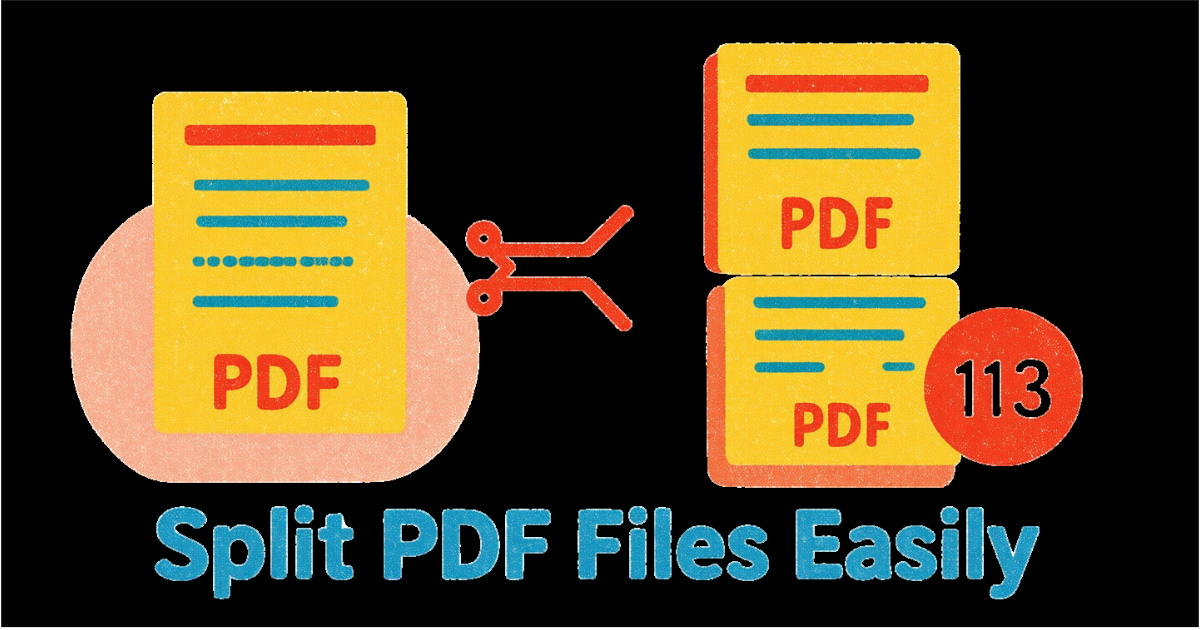
Split + Convert
Split PDF into sections
Convert each section to images
Organize by topic or chapter
Create image-based documentation
Rotate + Convert
Fix page orientation in PDF
Convert rotated pages to images
Ensure correct image orientation
Avoid rotated image files
Mobile vs Desktop Conversion
Desktop Conversion
Advantages:
Larger preview screens
Easier quality comparison
Better for batch processing
More precise settings control
Mobile Conversion
Advantages:
Convert on-the-go
Quick single-page extraction
Immediate sharing to social media
PDFHaul mobile-friendly interface
PDFHaul works seamlessly on all devices, providing full conversion functionality whether you're on desktop, tablet, or mobile.
Alternative Use Cases
Creative uses for PDF to image conversion:
Create Digital Flashcards
Convert textbook pages to images
One concept per page
Import into flashcard apps
Enhance studying efficiency
Build Image Portfolios
Convert portfolio PDF to individual images
Create online gallery
Share on visual platforms
Better mobile viewing
Extract Screenshots for Documentation
Convert software manuals to images
Include in help documentation
Create step-by-step tutorials
Better than screenshots
Make Visual Archives
Convert historical documents to images
Preserve in image databases
Create digital exhibitions
Enable visual search
When NOT to Convert
Avoid conversion in these situations:
Searchable text needed: PDFs retain text searchability, images don't
Interactive forms: Form fields lost in conversion
File size critical: PDFs often smaller than high-quality images
Print layouts important: PDF preserves exact formatting better
Hyperlinks needed: Links don't work in static images
Editability required: PDF text remains editable, image text doesn't
Conclusion
PDF to image conversion is a versatile skill that opens up numerous content sharing and publishing opportunities. With the right format, resolution, and quality settings, you can create perfect images for any use case while maintaining visual fidelity.
Key Takeaways:
Choose format based on content type (JPG for photos, PNG for text)
Match DPI to use case (72 for web, 300 for print)
Preview converted images before finalizing
Organize output files systematically
Consider file size vs quality trade-offs
Ready to convert your PDFs to images? Try PDFHaul's conversion tool now - free, fast, and high-quality.
Frequently Asked Questions
Q: Does converting PDF to image reduce quality?
A: Quality depends on your DPI and format settings. Using 300 DPI PNG produces images identical to the original PDF appearance.
Q: What's the best format for converting text documents?
A: PNG is best for text-heavy documents as it preserves sharp edges and clarity without compression artifacts.
Q: Can I convert password-protected PDFs to images?
A: You must unlock password-protected PDFs before conversion. After converting, images have no password protection.
Q: How many pages can I convert at once?
A: PDFHaul supports converting any number of pages from documents up to 100MB in size.
Q: Will converted images be searchable?
A: No, images don't contain searchable text. If you need searchable content, keep the original PDF or use OCR on the images.
Q: What DPI should I use for printing?
A: Use 300 DPI for standard printing and 600 DPI for large format or professional printing needs.
Written by PDFHaul Team
Expert team specializing in PDF processing and document management. We share practical tips, tutorials, and best practices to help you work smarter with PDFs.
View all articles