How to Convert Images to PDF: Complete Guide
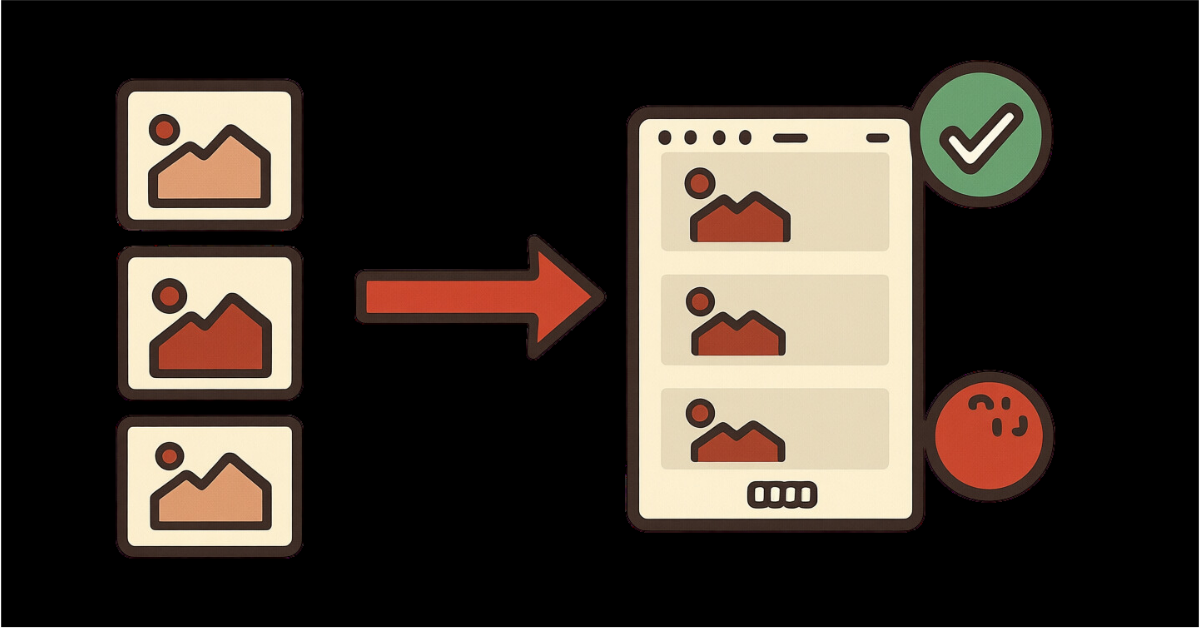
Converting images to PDF format is essential for creating professional documents, combining multiple photos into portfolios, sharing scanned documents, and ensuring universal file compatibility. Whether you're creating presentations, archiving photos, or preparing documents for submission, understanding image to PDF conversion ensures optimal results.
This comprehensive guide covers everything from single-image conversion to advanced multi-image PDF creation with custom layouts and quality optimization.
Why Convert Images to PDF?
Image to PDF conversion solves multiple document management challenges:
Universal compatibility: PDFs open on any device without special software
Multi-image documents: Combine multiple photos into single files
Professional presentation: Create polished portfolios and reports
File organization: Group related images logically
Prevent editing: PDF format protects image content
Consistent formatting: Maintain layout across platforms
Smaller file sizes: Compress multiple images efficiently
Easy sharing: Single file instead of multiple attachments
Print-ready documents: Professional printing without quality loss
PDFs created from images maintain original quality while providing better organization and universal accessibility than individual image files.
Understanding Image Formats
Source Image Formats
JPG/JPEG
Most common photo format
Compressed files with smaller sizes
Great for photographs
Lossy compression
Excellent for web and email
PNG
Lossless compression
Supports transparency
Ideal for graphics and logos
Larger file sizes
Perfect for diagrams and screenshots
TIFF
Uncompressed high-quality format
Professional photography standard
Very large file sizes
Excellent for archival
Best for professional printing
HEIC/HEIF
Modern iPhone photo format
Efficient compression
Smaller than JPG with better quality
Limited compatibility
Convert to PDF for universal access
WebP
Modern web format
Excellent compression
Not universally supported
Convert to PDF for sharing
How to Convert Images to PDF with PDFHaul
PDFHaul makes image to PDF conversion simple and flexible. Watch this demonstration:
Step 1: Upload Your Images
Visit the Image to PDF tool and upload your images. PDFHaul supports:
JPG, PNG, TIFF, HEIC, WebP, and more
Files up to 100MB total
Multiple images simultaneously
Drag-and-drop interface
Batch uploads
Step 2: Arrange Your Images
Organize images in your desired order:
Drag and Drop Reordering
Click and drag thumbnails
Rearrange page sequence
Preview order before conversion
Perfect control over layout
Add More Images
Insert additional images anytime
Combine from multiple folders
Mix different image formats
Build comprehensive documents
Remove Images
Delete unwanted images
Refine selection
Optimize final document
Quick adjustments
Preview your image order carefully—the sequence determines the final PDF page order.
Step 3: Configure PDF Settings
Customize your PDF output:
Page Orientation
Auto: Matches each image orientation
Portrait: Vertical layout (best for photos)
Landscape: Horizontal layout (best for wide images)
Page Size
A4: Standard document size
Letter: US standard
Custom: Match specific dimensions
Fit to Image: Preserve original dimensions
Image Quality
Standard: Balanced size and quality
High: Better quality, larger files
Maximum: No compression, largest files
Optimized: Smart compression for web
Margins
None: Full-bleed images
Small: Minimal white space
Medium: Standard document margins
Large: Wide borders for binding
Step 4: Convert and Download
Click "Create PDF" and download your document. PDFHaul provides:
Instant conversion
Original quality preservation
Optimized file sizes
Ready-to-share PDFs
Advanced Conversion Techniques
Multi-Image PDF Creation
Combine multiple images professionally:
Photo Portfolios
Upload 10-50 images
Arrange in presentation order
Use landscape orientation
Add cover image first
Create stunning visual documents
Scanned Document Assembly
Upload scanned pages in order
Ensure consistent orientation
Use portrait layout
Apply moderate compression
Recreate complete documents
Product Catalogs
One product image per page
Consistent sizing and margins
Logical product sequence
Professional presentation
Easy customer sharing
Report Illustration
Mix charts, graphs, and images
Organize by report section
Maintain visual hierarchy
Support narrative flow
Create comprehensive visual reports
Image Quality Optimization
Maximize PDF quality for specific needs:
High-Resolution Printing
Use maximum quality settings
Maintain original image dimensions
Choose TIFF sources when available
Avoid compression
Export at 300+ DPI equivalent
Web Sharing
Use optimized quality setting
Resize large images before upload
Apply moderate compression
Target 1-5 MB file size
Fast download and viewing
Email Attachments
Use standard quality
Compress to under 10 MB
Resize images to reasonable dimensions
Balance quality and size
Ensure deliverability
Archival Storage
Maximum quality preservation
No compression
Original dimensions
TIFF source preferred
Long-term accessibility
For professional results, use original high-resolution images and choose quality settings appropriate to your end use.
Page Layout Strategies
Single Image Per Page
Traditional document format
One image fills each page
Easy navigation
Clear presentation
Most common approach
Multiple Images Per Page
Grid layouts (2×2, 3×3)
Comparison views
Contact sheets
Space-efficient
Overview presentations
Mixed Layouts
Cover page followed by content
Title pages between sections
Variable image sizes
Custom arrangements
Professional publications
Conversion Best Practices by Use Case
Photo Albums
For family photos, events, travel:
Organization: Chronological or by theme
Orientation: Auto-detect for mixed photos
Quality: High for preservation
Size: A4 or Letter for printing
Margins: Small to medium for framing
Tip: Add cover image with album title
Business Documents
For invoices, receipts, forms:
Organization: Logical document order
Orientation: Portrait for most documents
Quality: Standard for file size efficiency
Size: Letter or A4 standard
Margins: Medium for professional appearance
Tip: Ensure text remains legible
Real Estate Listings
For property photos:
Organization: Exterior first, then room-by-room
Orientation: Landscape for most photos
Quality: High to showcase property
Size: A4 landscape
Margins: None for full-bleed impact
Tip: Lead with best exterior shot
Academic Submissions
For assignments, research:
Organization: Follow assignment requirements
Orientation: Portrait for standard pages
Quality: High for diagrams and charts
Size: Letter or A4 as specified
Margins: Medium to large for annotations
Tip: Number pages if required
Design Portfolios
For creative work, presentations:
Organization: Best work first
Orientation: Match artwork orientation
Quality: Maximum for detail showcase
Size: Custom to preserve dimensions
Margins: Minimal or none
Tip: Consistent image dimensions throughout
Common Conversion Scenarios
Scenario 1: Combine Phone Photos into Album
Problem: 50 vacation photos need organizing into shareable album Solution:
Upload all photos at once
Arrange chronologically by date
Use auto orientation
High quality for future printing
Create memorable photo book PDF
Scenario 2: Create Presentation from Screenshots
Problem: 15 screenshots need combining into presentation Solution:
Upload screenshots in sequence
Use landscape orientation
Standard quality for file size
Add title screenshot first
Professional presentation ready
Scenario 3: Digitize Paper Documents
Problem: Scanned contract pages need reassembly Solution:
Scan pages as JPG images
Upload in correct page order
Portrait orientation
High quality for legibility
Recreate original document
Scenario 4: Share Product Images
Problem: Client needs all product photos in one file Solution:
Upload product photos
One image per page
Landscape for better viewing
Optimize quality for email
Single-file delivery
Scenario 5: Create Before/After Comparison
Problem: Show renovation progress in document Solution:
Alternate before and after images
Consistent orientation
High quality for detail
A4 size for printing
Visual transformation story
File Size Management
Understanding and controlling PDF output sizes:
Factors Affecting File Size
Image Resolution
Original image dimensions
Higher resolution = larger files
Resize before upload if possible
Consider final use case
Image Format
TIFF creates largest PDFs
PNG larger than JPG
JPG most efficient for photos
Format impacts final size
Number of Images
More images = larger PDF
10 high-res images ≈ 20-50 MB
Consider splitting into multiple PDFs
Balance comprehensiveness and size
Quality Settings
Maximum quality: Largest files
Optimized: 50-70% size reduction
Standard: 70-80% reduction
Balance quality and size needs
Reducing File Size
Before Upload
Resize images to actual needs (e.g., 1920px width)
Convert TIFF to JPG for photos
Crop unnecessary portions
Remove duplicate images
During Conversion
Use optimized quality setting
Apply compression appropriately
Choose standard page sizes
Avoid maximum quality unless essential
After Conversion
Further compress PDF if needed
Use PDFHaul compression tool
Optimize for specific distribution
Test file sharing compatibility
Avoid converting already-compressed images at maximum quality—it creates unnecessarily large files without quality improvement.
Troubleshooting Conversion Issues
Images Appear Rotated Incorrectly
If images display sideways or upside down:
Check image EXIF orientation data
Rotate images before upload
Use image editing software to fix
Verify preview before conversion
Solution: Pre-rotate images in photo editor to correct orientation.
Image Quality Looks Poor
If converted images lack clarity:
Check original image resolution
Use higher quality settings
Avoid re-compressing compressed images
Upload original files when possible
Solution: Use original high-resolution images and high quality settings.
PDF File Size Too Large
If output PDF is excessively large:
Resize images before upload
Use optimized quality setting
Convert fewer images per PDF
Compress PDF after creation
Solution: Resize images to 1920×1080 or similar before uploading.
Images Don't Fit Page Properly
If images are cropped or distorted:
Use "Fit to Image" page size option
Match orientation to image
Check aspect ratio settings
Adjust margin settings
Solution: Use auto orientation and fit-to-image sizing.
Conversion Fails
If process won't complete:
Check total file size under 100 MB
Verify image formats supported
Try uploading fewer images
Refresh and try again
Solution: Upload images in smaller batches or compress images first.
Security and Privacy
Important security considerations:
Metadata Preservation
EXIF data from photos included in PDF
Location, date, camera info embedded
Remove sensitive metadata before upload
Use metadata cleaning tools if needed
Copyright Protection
PDFs easier to share than controlling multiple images
Consider watermarking valuable images
Add copyright notice as first page
Protect intellectual property
Password Protection
PDFHaul supports adding passwords after creation
Restrict editing and printing
Control document access
Protect sensitive image content
PDFHaul processes images securely and doesn't store your files. All uploads are temporary and automatically deleted after processing.
Combining with Other Operations
Maximize efficiency by combining conversion with other tools:
Convert + Compress
Convert images to PDF
Compress PDF to reduce size
Optimize for specific use
Perfect for email sharing
Convert + Merge
Convert image sets to separate PDFs
Merge PDFs into master document
Organize comprehensive collection
Create multi-section portfolios
Convert + Password Protect
Convert sensitive images to PDF
Apply password protection
Restrict unauthorized access
Secure document sharing
Mobile vs Desktop Conversion
Desktop Conversion
Advantages:
Easier to organize many images
Better preview capabilities
Precise drag-and-drop reordering
Larger workspace for complex documents
Mobile Conversion
Advantages:
Convert photos directly from camera
Immediate processing on-the-go
Quick document creation
PDFHaul fully mobile-responsive
PDFHaul works seamlessly on all devices, providing full image to PDF functionality whether you're on desktop, tablet, or mobile.
Creative Use Cases
Innovative applications for image to PDF conversion:
Recipe Collections
Photograph recipe cards
Convert to searchable PDF cookbook
Organize by meal type
Digital recipe preservation
Instruction Manuals
Photograph manual pages
Convert to portable PDF
Easier than scanning
Quick reference documents
Whiteboard Capture
Photo whiteboard sessions
Convert to meeting notes PDF
Share with team
Archive brainstorming
Art Portfolio
Photograph artwork
Create professional portfolio PDF
Share with galleries
Submission-ready format
Real Estate Flyers
Design flyer in image editor
Convert to PDF for printing
Maintain design integrity
Professional marketing materials
When NOT to Convert
Avoid conversion in these situations:
Need transparent backgrounds: PDFs may flatten transparency
Require image editing: Keep as images for editing flexibility
File size critical: Individual compressed images often smaller
Social media posting: Platforms prefer native image formats
Thumbnail generation: Images better for automated thumbnails
Responsive web design: Images better for responsive layouts
Conclusion
Converting images to PDF is a powerful document management skill that enables better organization, sharing, and preservation of visual content. With the right settings and techniques, you can create professional PDFs for any purpose while maintaining quality and controlling file sizes.
Key Takeaways:
Upload original high-resolution images for best results
Arrange images carefully before conversion
Choose quality settings based on end use
Use appropriate page orientation and sizing
Compress after conversion if needed
Ready to convert your images to PDF? Try PDFHaul's conversion tool now - free, fast, and professional quality.
Frequently Asked Questions
Q: Does converting images to PDF reduce quality?
A: No, with proper quality settings your images maintain their original quality. Use high or maximum quality for best results.
Q: How many images can I convert to PDF at once?
A: PDFHaul supports converting multiple images up to 100MB total file size, typically 50-200 images depending on resolution.
Q: Can I convert iPhone HEIC photos to PDF?
A: Yes, PDFHaul supports HEIC format and converts it seamlessly to PDF along with JPG, PNG, and other formats.
Q: Will the PDF maintain my image arrangement order?
A: Yes, images appear in the PDF exactly as you arrange them in the upload interface.
Q: Can I add more images after starting the conversion?
A: You can add more images before clicking "Create PDF." Once conversion starts, you'll need to create a new PDF to add more.
Q: What's the best page size for converting photos to PDF?
A: Use "Fit to Image" to preserve original dimensions, or A4/Letter for standard printing. Choose based on your intended use.
Written by PDFHaul Team
Expert team specializing in PDF processing and document management. We share practical tips, tutorials, and best practices to help you work smarter with PDFs.
View all articles