How to Remove Duplicate PDF Pages: Complete Guide
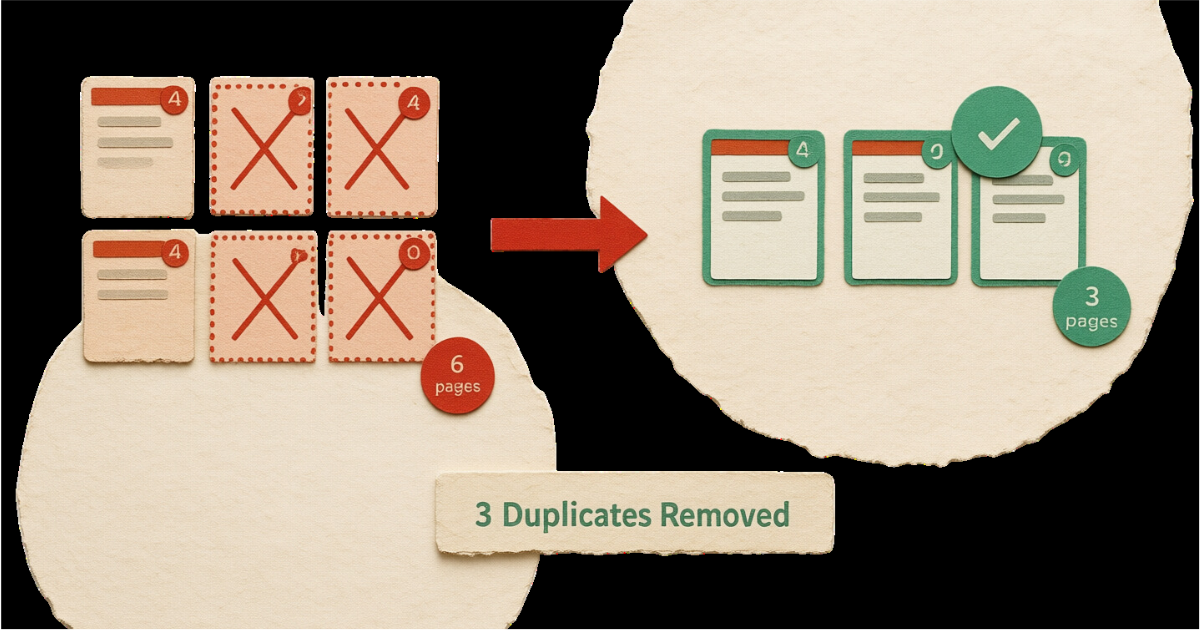
Duplicate pages in PDFs waste storage space, confuse readers, and create unprofessional documents. Whether caused by scanning errors, merge mistakes, or accidental copy-paste operations, knowing how to identify and remove duplicate pages efficiently ensures cleaner, more streamlined documents.
This comprehensive guide covers everything from automatic duplicate detection to advanced comparison techniques for perfect PDF cleanup.
Why Remove Duplicate Pages?
Removing duplicate pages solves multiple document management challenges:
Reduce file size: Duplicate pages bloat file sizes unnecessarily
Eliminate confusion: Repeated content disrupts reading flow
Professional appearance: Clean documents without redundancies
Faster navigation: Fewer pages to scroll through
Improved searchability: Single instances of content make finding information easier
Better printing: Save paper and toner costs
Streamlined sharing: Smaller, cleaner files for distribution
Storage efficiency: Reduced backup and archival requirements
Removing duplicate pages is completely safe—only exact duplicates are identified and removed, preserving all unique content without quality loss.
Understanding Duplicate Detection
Exact Duplicates
Completely identical pages:
Identical content byte-for-byte
Same text, images, and formatting
Same page dimensions
Perfect visual match
Highest confidence detection
Visual Duplicates
Pages that look identical:
Same visible content
May have minor metadata differences
Identical rendered appearance
Different creation timestamps
Very high confidence detection
Near Duplicates
Pages that are nearly the same:
Similar content with minor differences
Small text variations
Slightly different formatting
Changed dates or version numbers
Medium confidence detection
Partial Duplicates
Pages with significant overlap:
Shared sections of content
Different headers/footers
Modified paragraphs
Updated information
Low confidence detection
Configure detection sensitivity carefully to avoid removing pages with minor but important differences, such as version updates or date changes.
How to Remove Duplicate Pages with PDFHaul
PDFHaul makes duplicate page removal intelligent and accurate. Watch this demonstration:
Step 1: Upload Your PDF
Visit the Remove Duplicates tool and upload your document. PDFHaul supports:
Files up to 100MB
Documents with unlimited pages
All PDF versions and formats
Scanned and digital PDFs
Step 2: Automatic Duplicate Detection
PDFHaul uses intelligent content-based detection:
How It Works
Analyzes page dimensions and rotation
Creates content fingerprints for each page
Compares structural elements
Identifies identical pages automatically
What Gets Detected
Exact duplicate pages
Pages with identical content
Structurally identical pages
Same dimensions and rotation
First Instance Preserved
Keeps the first occurrence of each page
Removes all subsequent duplicates
Maintains original page order
No manual configuration needed
PDFHaul automatically detects duplicates based on page content, dimensions, and structure - no manual settings required!
Step 3: Process and Download
Click "Remove Duplicates" and download your cleaned document:
Instant processing
Only duplicate copies removed
First instance preserved
Streamlined PDF ready
Advanced Duplicate Detection
Detection Algorithms
Understanding how duplicates are identified:
Content Hash Comparison
Creates digital fingerprint of each page
Compares hash values
Identifies exact matches
Fast and accurate
Visual Rendering Analysis
Renders each page as image
Compares pixel-by-pixel
Catches visual duplicates
Slower but comprehensive
Text Content Comparison
Extracts text from pages
Compares text strings
Ignores formatting differences
Good for text-heavy documents
Structural Analysis
Analyzes page structure
Compares element positions
Identifies layout duplicates
Detects template-based duplicates
Fine-Tuning Detection
Optimize detection for specific needs:
Similarity Threshold
Set percentage match required
100% = exact duplicates only
95%+ = near duplicates included
Lower = more aggressive detection
Ignore Metadata
Disregard creation dates
Skip modification times
Ignore page labels
Focus on content only
Content Regions
Specify areas to compare
Ignore headers/footers
Skip page numbers
Compare main content only
Page Range
Scan entire document
Or limit to specific page ranges
Useful for known problem areas
Targeted duplicate removal
For merged PDFs from multiple sources, use visual match detection to catch duplicates that may have different metadata.
Common Duplicate Page Sources
Scanning Errors
How scanning creates duplicates:
Feeder Jams and Restarts
Scanner jams during batch scan
Operator restarts from earlier page
Creates overlap in scanned pages
Duplicates from re-scanning
Double-Feed Incidents
Two pages feed together
Scanner detects and rescans
Both attempts included in output
Accidental duplicates
Manual Re-Scanning
Uncertainty about which pages scanned
Operator rescans to be safe
Creates intentional duplicates
Needs cleanup afterward
Document Merging
Duplicates from combining PDFs:
Overlapping Ranges
Merge pages 1-50 from Doc A
Merge pages 45-100 from Doc B
Pages 45-50 appear twice
Accidental overlap
Multiple Source Versions
Same content from different sources
Different file names or metadata
Identical page content
Unintentional duplication
Copy-Paste Errors
Selecting and inserting pages
Accidentally paste same pages twice
Creates immediate duplicates
Easy to miss in large documents
Conversion and Export
Duplicates from format conversion:
Email Attachment Exports
Email with same attachment multiple times
All attachments exported to PDF
Duplicate content
Needs deduplication
Print to PDF
Accidentally printing same pages twice
Multiple print jobs combined
Duplicate page ranges
Operator error
Automated Processing
Scripts processing files
Logic errors create duplicates
Batch operations gone wrong
Systematic duplication
Removal Best Practices by Use Case
Scanned Documents
For digitized paper documents:
Use visual match for scanned pages
Scanned duplicates rarely byte-identical
Check for page order after removal
Verify complete page count
Compare to original paper count
Merged PDFs
For combined documents:
Exact match for digital sources
Visual match for mixed sources
Review overlap areas carefully
Verify content continuity
Check for version differences
Archive Cleanup
For document repositories:
Systematic duplicate scanning
Batch process multiple files
Document removal decisions
Verify before deletion
Maintain removal logs
Legal Documents
For contracts and filings:
Conservative detection settings
Manual review of all matches
Document why duplicates exist
Keep originals until verified
Note all page removals
Reports and Presentations
For business documents:
Standard exact match detection
Check for intentional repetition
Verify slide/page sequence
Maintain narrative flow
Review before distribution
Common Duplicate Page Scenarios
Scenario 1: Scanner Jam Created Overlaps
Problem: 200-page scan has pages 75-90 duplicated due to feeder jam Solution:
Use visual match detection
Preview shows 15 duplicate pages
Verify they match pages 75-90
Remove duplicates to restore correct document
Scenario 2: Merged Documents Have Overlap
Problem: Combined two PDFs with 10 pages of overlap Solution:
Exact match detection finds duplicates
Review to confirm overlap section
Remove duplicate copies
Verify content flows correctly
Scenario 3: Accidentally Inserted Pages Twice
Problem: When assembling PDF, pasted pages 20-30 twice Solution:
Exact match easily identifies duplicates
Preview shows consecutive duplicates
Remove second instance
Check page numbering
Scenario 4: Multiple Versions of Same Page
Problem: Document has updated and original version of pages 5-10 Solution:
Near-duplicate detection finds similar pages
Manual review to choose correct version
Keep updated version, remove original
Or vice versa based on needs
Scenario 5: Email Attachments Merged
Problem: Saved same email attachment multiple times, merged into one PDF Solution:
Visual match finds all instances
All attachments identical
Keep one copy, remove rest
Significant size reduction
File Size Impact
Understanding size reduction from duplicate removal:
Expected Size Reduction
Digital Document Duplicates
Each duplicate page: 50KB-500KB typically
10 duplicates: 500KB-5MB saved
50 duplicates: 2.5MB-25MB saved
Significant for frequent duplication
Scanned Document Duplicates
Each duplicate: 200KB-2MB typically
10 duplicates: 2MB-20MB saved
50 duplicates: 10MB-100MB saved
Major impact on file size
Mixed Content Duplicates
Variable based on page content
Image-heavy pages larger impact
Text-only pages smaller impact
Average 100KB-1MB per page
Combining with Other Optimization
Maximum file size reduction:
Remove Duplicates First
Eliminate redundant pages
Reduce total content
Prepare for further optimization
Foundation for cleanup
Then Remove Empty Pages
Clean up any blank pages
Further reduce page count
Streamline document
Additional savings
Finally Compress
Compress remaining content
Optimize images and elements
Maximum size reduction
Final streamlined file
Troubleshooting Detection Issues
False Positives (Unique Pages Marked as Duplicates)
If non-duplicate pages are flagged:
Reduce detection sensitivity
Use exact match instead of visual
Check for template-based pages
Review comparison settings
Solution: Use exact match detection and manually review all flagged pages before deletion.
False Negatives (Duplicates Not Detected)
If duplicate pages aren't found:
Increase detection sensitivity
Use visual match instead of exact
Check for metadata differences
Lower similarity threshold
Solution: Use visual match detection or reduce similarity threshold to 95-98%.
Removes Important Page Versions
If updated versions are removed:
Detection can't distinguish versions
Manual review required
Keep more recent version
Document version differences
Solution: Manually review near-duplicates and choose which version to keep based on content differences.
Processing Takes Too Long
If duplicate detection is slow:
Large file or page count
Complex page content
Visual rendering is slow
System limitations
Solution: Split large PDFs, process sections separately, then merge cleaned sections.
Keeping the Right Copy
Choosing which duplicate to preserve:
First Instance (Default)
Advantages:
Maintains original page order
Predictable behavior
Simplest approach
Most common preference
Last Instance
Advantages:
May be more recent version
Includes any updates
Reflects final state
Useful for updated content
Best Quality
Advantages:
Highest resolution version
Best scan quality
Optimal rendering
Quality-focused approach
Manual Selection
Advantages:
Full control
Choose based on context
Review each duplicate group
Most accurate for important documents
PDFHaul automatically keeps the first instance by default, but you can manually select which copy to keep during the preview stage.
Security Considerations
Important factors when removing duplicates:
Content Verification
Ensure removed pages truly duplicates
Check for subtle important differences
Verify no information loss
Review before finalizing
Page References
Removing pages changes page numbers
Update any page number citations
Check cross-references
Verify index accuracy
Version Control
Track which version kept
Document duplicate removal
Maintain removal log
Note decision reasoning
Legal Documents
Extra caution required
Document all changes
Keep original backup
Verify legal requirements
Always keep a backup of the original PDF before removing duplicates, especially for important legal or financial documents.
Combining with Other Operations
Maximize efficiency by combining duplicate removal with:
Remove Duplicates + Remove Empty
Remove duplicate pages
Remove any empty pages
Complete content cleanup
Streamlined document
Remove Duplicates + Compress
Eliminate redundant pages
Compress remaining content
Maximum file size reduction
Optimized final file
Remove Duplicates + Reorder
Remove duplicate pages first
Reorder remaining pages
Logical final sequence
Clean organization
Merge + Remove Duplicates
Merge multiple PDFs
Remove duplicates from combined document
Clean consolidated file
Efficient workflow
Preventing Duplicate Pages
Avoid creating duplicates from the start:
Scanning Best Practices
Careful Feeding
Track which pages scanned
Mark last scanned page on restart
Use page separators
Prevent overlap scanning
Scanner Software
Enable duplicate detection
Use batch numbering
Review scans immediately
Catch issues early
Quality Control
Count scanned pages
Compare to original count
Review for duplicates
Clean up immediately
Merging Best Practices
Plan Page Ranges
Document which pages from each source
Avoid overlapping ranges
Create merge plan
Follow systematically
Track Sources
Note origin of each page range
Verify no duplicate sources
Check for different versions
Prevent redundancy
Review After Merge
Scan for duplicates immediately
Easier to catch early
Verify page count
Clean before distribution
Document Management
File Organization
Clear naming conventions
Version control systems
Avoid duplicate source files
Systematic storage
Collaboration
Communicate about duplicates
Share cleanup responsibility
Establish standards
Prevent creation
Mobile vs Desktop Duplicate Removal
Desktop Removal
Advantages:
Better preview of duplicates
Side-by-side comparison easier
More precise settings
Faster processing
Best for:
Large documents
Complex duplicate scenarios
Manual review needs
Professional work
Mobile Removal
Advantages:
Remove duplicates on-the-go
Quick processing
Simple interface
PDFHaul mobile-optimized
Best for:
Smaller documents
Clear duplicate cases
Quick cleanup
Immediate needs
PDFHaul works seamlessly on all devices, providing full duplicate removal functionality whether you're on desktop, tablet, or mobile.
When NOT to Remove Duplicates
Avoid duplicate removal in these situations:
Intentional Repetition: Teaching materials with repeated content Multiple Versions: Need to compare different versions side-by-side Legal Requirements: Certain filings require specific page counts Archival Copies: Historical documents preserving original format Template Pages: Forms or templates that naturally look identical
Conclusion
Removing duplicate PDF pages is an essential document cleanup skill that reduces file sizes, improves readability, and creates more professional documents. With the right detection settings and techniques, you can efficiently eliminate redundant pages while preserving all unique content.
Key Takeaways:
Start with exact match detection for safety
Preview all detected duplicates before deletion
Keep backups of important originals
Combine with other cleanup operations for maximum optimization
Implement scanning and merging practices to prevent duplicates
Ready to clean up your PDFs? Try PDFHaul's duplicate removal tool now - free, intelligent, and accurate.
Frequently Asked Questions
Q: Will removing duplicates affect my document quality?
A: No, removing duplicates only deletes redundant copies and doesn't affect the quality or content of remaining unique pages.
Q: How does the tool detect duplicate pages?
A: PDFHaul uses content hash comparison to identify duplicate pages based on page dimensions, rotation, and content structure.
Q: Which copy of a duplicate page is kept?
A: By default, the first instance is preserved and subsequent duplicates are removed.
Q: Can I undo duplicate removal if I make a mistake?
A: You should keep your original PDF as a backup. Download and verify the cleaned PDF before deleting your original.
Q: Will pages that look similar but have different content be removed?
A: No, only pages with identical content hashes are removed. Pages with even minor differences are kept.
Q: How much smaller will my file be after removing duplicates?
A: File size reduction depends on how many duplicates you have and their content. Each duplicate page typically represents 50KB-2MB of savings depending on content complexity.
Written by PDFHaul Team
Expert team specializing in PDF processing and document management. We share practical tips, tutorials, and best practices to help you work smarter with PDFs.
View all articles