How to Remove Empty Pages from a PDF
Complete Guide
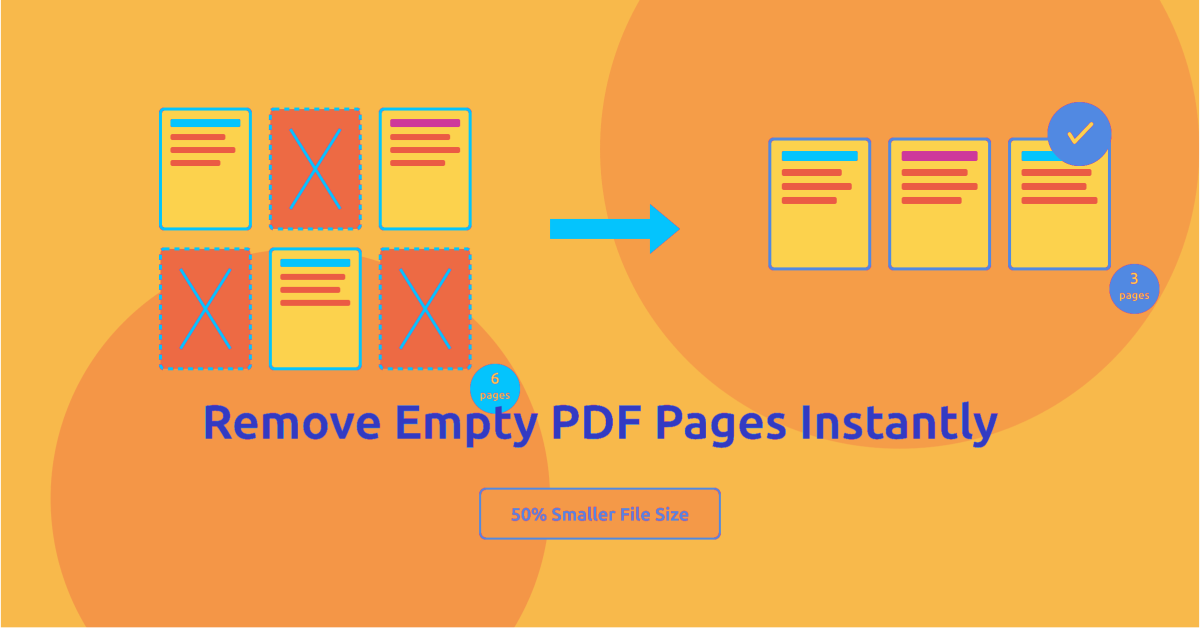
Empty and blank pages in PDFs create unnecessary file bloat, disrupt reading flow, and appear unprofessional. Whether they come from scanning artifacts, document conversion errors, or intentional separator pages, knowing how to remove empty pages efficiently ensures cleaner, more professional documents.
This guide covers:
Automatic blank page detection
Advanced filtering techniques
Detection settings and troubleshooting
Best practices for different document types
Why Remove Empty Pages?
Removing empty pages solves several document management problems:
Reduce file size – Empty pages still consume space
Improve readability – No interruptions from blank pages
Professional appearance – Clean, polished documents
Faster loading – Smaller files load quicker
Better printing – Save paper and ink costs
Easier navigation – Fewer pages to scroll through
Mobile viewing – Streamlined reading experience
Email efficiency – Smaller attachments send faster
Removing empty pages is completely safe. Only truly blank pages are deleted, while all real content remains unchanged.
Understanding Empty vs Blank Pages
Truly Empty Pages
Pages with absolutely no content:
No text
No images or graphics
No headers or footers
No watermarks
No hidden content
Completely white pages
Nearly Empty Pages
Pages that contain minimal content:
Only whitespace
Page numbers only
Header or footer only
A single space character
Hidden formatting marks
Nearly invisible content
Intentionally Blank Pages
Pages deliberately inserted into documents:
“This page intentionally left blank”
Separator pages
Chapter divider pages
Section breaks
Printing filler pages
Configure detection settings carefully so that pages containing headers, footers, or page numbers are not removed if they are important.
How to Remove Empty Pages with PDFHaul
Step 1: Upload Your PDF
Visit the Remove Empty Pages tool and upload your document.
PDFHaul supports:
Files up to 100MB
Unlimited pages
All PDF versions
Scanned and digital PDFs
Step 2: Configure Detection Settings
Choose how the tool defines an “empty” page.
Standard Detection
Removes completely blank pages
No text or images
Safe for most documents
Aggressive Detection
Removes pages with minimal content
Ignores headers or footers
Removes pages with only page numbers
Custom Thresholds
Define content threshold
Set whitespace percentage
Specify element minimums
More precise control
Always preview detected pages before final deletion.
Step 3: Preview Detected Pages
Visual Preview
See pages detected as empty
Verify they are actually blank
Unmark any false positives
Page List
View page numbers scheduled for removal
Check for unexpected selections
Adjust manually if necessary
Step 4: Remove and Download
Click Remove Empty Pages and download the cleaned document.
Benefits:
Instant processing
Only empty pages removed
Original quality preserved
Streamlined PDF ready for use
Advanced Empty Page Detection
Detection Algorithms
Content Analysis
The tool scans for:
Text elements
Images and graphics
Vector objects
Annotations
Whitespace Calculation
The system evaluates:
Blank area percentage
Content density
Threshold-based emptiness
Element Counting
Detection also checks:
Text characters
Images
Page objects
Minimum content requirements
Visual Rendering
Pages are rendered to detect:
Visible vs hidden content
Nearly invisible elements
Graphical artifacts
Fine-Tuning Detection
Ignore Headers and Footers
Pages containing only headers or footers can be considered empty.
Useful for:
Templates
Report formats
Standardized documents
Ignore Page Numbers
Removes pages that contain only page numbers.
Common use cases:
Book conversions
Separator pages
Formatting artifacts
Content Threshold
Set the minimum amount of content required for a page to be considered non-empty.
Whitespace Percentage
Example:
95% whitespace = empty page
Useful for detecting nearly blank pages.
Common Empty Page Sources
Scanning Errors
Auto-Feeder Gaps
Automatic feeders sometimes create blank scans between documents.
Double-Feed Detection
Scanners may insert blank pages to prevent jams.
Separator Sheets
Physical separators between documents may be scanned as blank pages.
Document Conversion
Word to PDF
Section breaks
Page break artifacts
Template formatting issues
PowerPoint to PDF
Hidden slides
Notes pages without content
Transition pages
Excel to PDF
Empty worksheets
Print area errors
Spreadsheet page breaks
Intentional Blank Pages
Some blank pages are deliberate.
Examples:
Double-sided printing alignment
Chapter start formatting
Section separators
Professional binding requirements
Removal Best Practices
Scanned Documents
Use aggressive detection
Check for faint signatures or stamps
Remove separator sheets
Verify page counts
Business Reports
Use standard detection
Keep intentional separators if needed
Maintain professional formatting
Legal Documents
Use conservative settings
Manually review detected pages
Preserve intentionally blank pages if required
E-books and Publications
Remove conversion artifacts
Keep chapter dividers if necessary
Optimize reading flow
Form Collections
Remove separator pages
Keep all form pages
Verify completeness
File Size Impact
Expected Size Reduction
Truly Empty Pages
10–50KB each
Nearly Empty Pages
Small but cumulative savings
Scanned Blank Pages
100KB–1MB per page
Example:
20 scanned blank pages could reduce file size by 2MB–20MB.
Best Optimization Workflow
Step 1 – Remove Empty Pages
Eliminate unnecessary pages first.
Step 2 – Compress the PDF
Apply compression to remaining content.
This produces maximum file size reduction.
Troubleshooting Detection Issues
False Positives
Content pages detected as empty.
Solution:
Reduce detection aggressiveness
Disable header/footer ignore
Use standard detection
False Negatives
Empty pages not detected.
Solution:
Increase detection sensitivity
Lower whitespace threshold
Important Pages Removed
Pages with page numbers or headers removed.
Solution:
Disable “ignore page numbers”
Manually review detections
Security Considerations
Before removing pages:
Verify no hidden content exists
Check for invisible watermarks
Ensure embedded data is preserved
Review document carefully
For legal documents:
Maintain the original file
Document any page removal
Preserve audit trail if required
Combining with Other PDF Operations
Remove Empty + Compress
Maximum file size reduction.
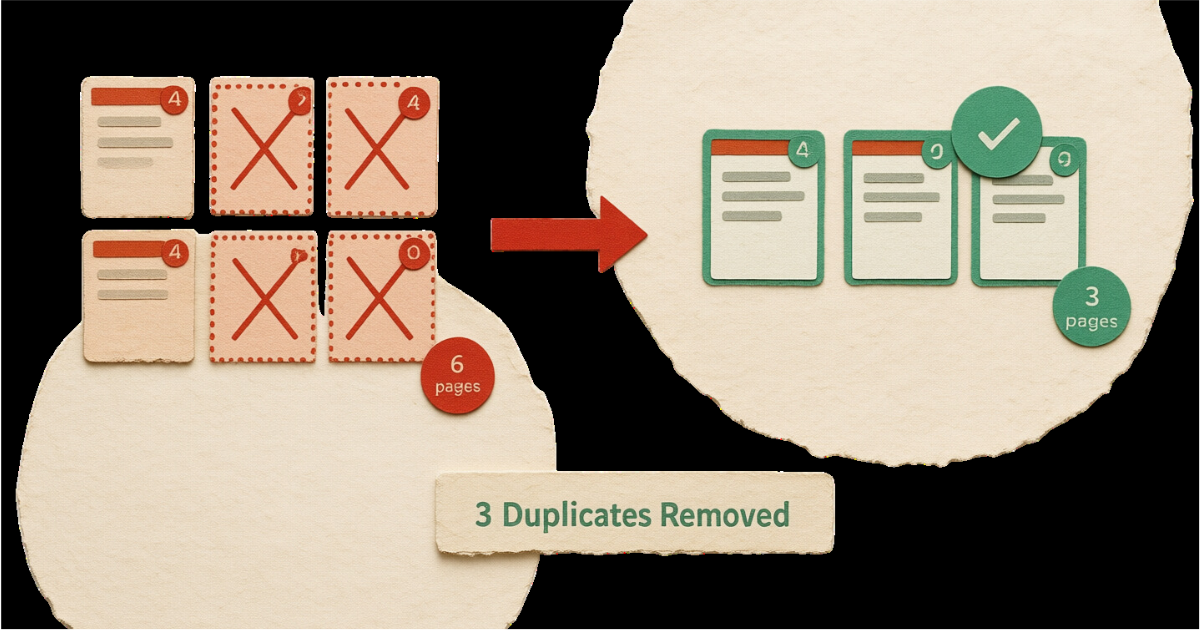
Remove Empty + Remove Duplicates
Complete document cleanup.
Remove Empty + Reorder Pages
Improves document organization.
Split + Remove Empty
Best for very large PDFs.
Preventing Empty Pages
Scanning Best Practices
Remove separator sheets before scanning
Enable blank page detection in scanners
Review scans immediately
Document Creation Best Practices
Word and Office Files
Remove unnecessary section breaks
Check page break settings
Print to PDF
Configure print ranges carefully
Review print preview
Digital Assembly
Use bookmarks instead of blank pages
Avoid digital separators
Mobile vs Desktop Removal
Desktop Advantages
Easier preview
Faster processing
Better settings control
Best for:
Large documents
Professional workflows
Mobile Advantages
Quick cleanup
On-the-go document editing
Simple interface
Best for:
Smaller PDFs
Quick fixes
When NOT to Remove Empty Pages
Avoid removal in these cases:
Print-ready documents requiring alignment
Books with intentional chapter blanks
Legal documents requiring specific page counts
Documents with page number references
Archival or historical records
Conclusion
Removing empty pages from PDFs is an essential document cleanup technique. It reduces file size, improves readability, and creates more professional documents.
Key Takeaways
Always preview detected pages before deletion
Choose detection settings based on document type
Keep backups of original files
Combine removal with compression for best results
Prevent empty pages during document creation
Frequently Asked Questions
Will removing empty pages affect document quality?
No. Only blank pages are removed, and all remaining content stays unchanged.
How does the tool detect empty pages?
The system scans each page for text, images, objects, and visual content to determine if it is blank.
Can I undo page removal?
Keep your original PDF as a backup. Verify the cleaned PDF before deleting the original file.
Will pages with headers or footers be removed?
No. Pages containing any text—including headers or footers—are not considered empty.
How much smaller will my file be?
Typically:
10–50KB saved per digital blank page
100KB–1MB saved per scanned blank page
Can password-protected PDFs be cleaned?
You must unlock the PDF first. After cleaning, password protection can be re-applied.
If you'd like, I can also optimize this specifically for SEO and AdSense approval (which matters a lot for PDFHaul given the low-value content warning you received). That involves:
semantic heading structure
search intent sections
schema-friendly formatting
internal linking strategy
reduced AI-style repetition
It would likely increase organic traffic potential significantly.
Written by PDFHaul Team
Expert team specializing in PDF processing and document management. We share practical tips, tutorials, and best practices to help you work smarter with PDFs.
View all articles