How to Compress PDF Files Without Losing Quality
PDF files can quickly become large and unwieldy, especially when containing high-resolution images, embedded fonts, or complex graphics. Whether you're sending documents via email, uploading to websites, or managing cloud storage costs, knowing how to compress PDFs effectively while maintaining quality is essential.
This comprehensive guide covers everything you need to know about PDF compression—from understanding compression methods to achieving optimal results.
Why PDF Compression Matters
Large PDF files create multiple challenges in today's digital workflow:
Email limitations: Most email providers restrict attachments to 25MB or less
Website performance: Large PDFs slow down page load times and user experience
Storage costs: Cloud storage fees add up quickly with large file collections
Download speeds: Users abandon slow-downloading files, impacting engagement
Mobile access: Large files consume mobile data and storage unnecessarily
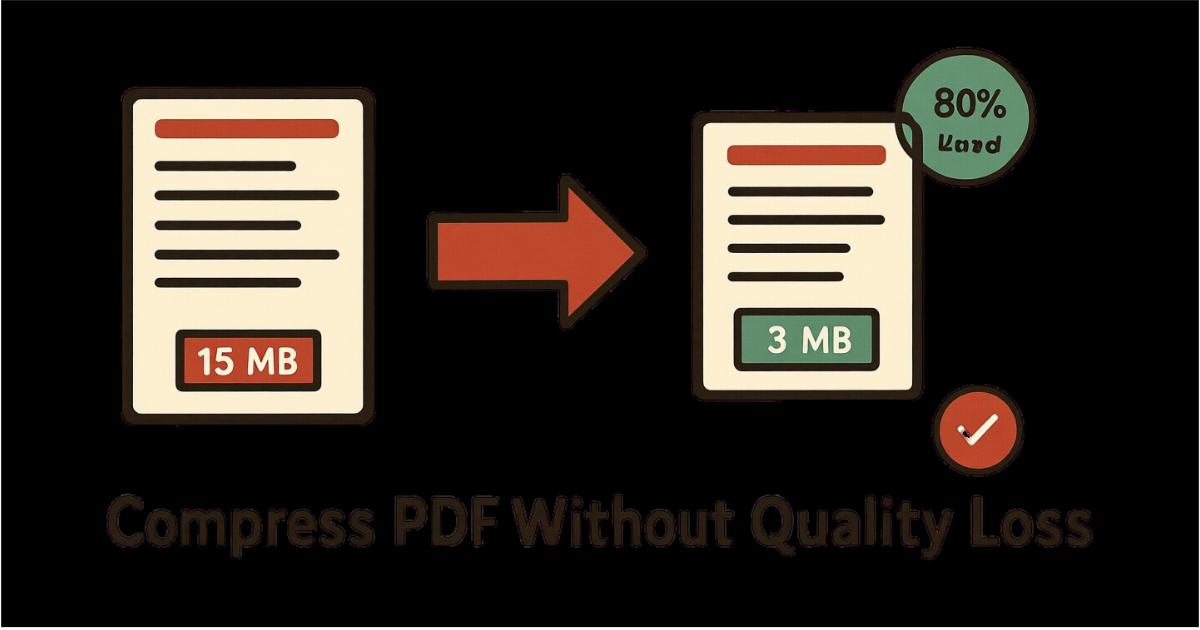
Modern PDF compression can reduce file sizes by 40-90% while maintaining visual quality indistinguishable from the original at normal viewing sizes.
Understanding PDF Compression
Lossless vs Lossy Compression
Lossless Compression Lossless compression reduces file size without discarding any data:
Removes redundant information and optimizes file structure
Typically achieves 10-30% size reduction
Perfect for documents requiring exact reproduction
Ideal for legal documents, contracts, and technical manuals
Original quality maintained completely
Lossy Compression Lossy compression achieves greater reduction by selectively discarding data:
Reduces image resolution and quality
Can achieve 50-90% size reduction
Best for general distribution and web publishing
Suitable for marketing materials, presentations, and reports
Minimal visual difference at normal viewing sizes
How to Compress PDFs with PDFHaul
PDFHaul provides intelligent PDF compression with optimal quality retention. Watch this demonstration:
Step 1: Upload Your PDF
Visit the PDF Compression tool and upload your file. PDFHaul supports:
Files up to 100MB in size
All PDF versions and formats
Password-protected PDFs (after unlocking)
Drag-and-drop or click to upload
Step 2: Select Compression Level
Choose the compression level that matches your needs:
Low Compression (Recommended for Print)
10-20% file size reduction
Maximum quality preservation
Suitable for professional printing
Best for documents with fine details
Medium Compression (Recommended for Most Users)
30-50% file size reduction
Excellent quality retention
Perfect balance of size and quality
Ideal for business documents and presentations
High Compression (Recommended for Web)
60-90% file size reduction
Optimized for screen viewing
Fastest downloads and uploads
Best for email attachments and web publishing
Start with Medium compression for most documents. You can always re-compress with higher settings if needed.
Step 3: Download Your Compressed PDF
Click "Compress PDF" and download your optimized file within seconds. PDFHaul processes files instantly with enterprise-grade compression algorithms.
Advanced Compression Techniques
Image Optimization
Images typically account for 80-95% of PDF file size. Optimize them effectively:
Resolution Management
Screen viewing: 72-96 DPI is sufficient
Office printing: 150-200 DPI recommended
Professional printing: 300 DPI required
Large format printing: 300-600 DPI needed
Image Format Selection
Photographs: JPEG compression works best
Graphics/diagrams: PNG compression maintains clarity
Line art: Monochrome compression reduces size dramatically
Screenshots: JPEG at 80-90% quality is ideal
Color Space Optimization
RGB for digital documents (smaller file size)
CMYK only for professional printing
Grayscale for black and white documents
Indexed color for simple graphics
Font Optimization
Embedded fonts increase PDF size significantly:
Remove unused font subsets
Use standard fonts when possible (Arial, Times New Roman, Helvetica)
Embed only used character subsets
Consider font subsetting for large documents
Removing embedded fonts may affect document appearance on systems without those fonts installed. Always test compressed files.
Structural Optimization
Optimize PDF internal structure:
Remove hidden layers and annotations
Flatten transparency and effects
Remove embedded thumbnails
Optimize PDF structure and cross-references
Remove unused objects and resources
Compression Best Practices by Use Case
Business Documents
For internal and external business communications:
Use Medium compression (30-50% reduction)
Maintain 150 DPI for images
Keep text crisp and readable
Test on multiple devices before distribution
Marketing Materials
For brochures, flyers, and promotional content:
Use Medium to High compression (40-70% reduction)
Optimize images at 96-150 DPI
Prioritize fast loading over maximum quality
A/B test compression levels with target audience
Legal Documents
For contracts, agreements, and official records:
Use Low or Lossless compression only
Preserve all metadata and properties
Maintain exact reproduction capability
Keep originals in secure storage
Web Publishing
For website downloads and online resources:
Use High compression (60-90% reduction)
Optimize for 72-96 DPI screen viewing
Prioritize fast download speeds
Consider progressive loading for large files
Email Attachments
For email distribution:
Target files under 10MB (5MB is safer)
Use High compression when possible
Split very large documents into multiple files
Consider cloud links for files over 10MB
Measuring Compression Success
Evaluate your compressed PDFs using these metrics:
File Size Reduction
Good: 30-50% reduction
Excellent: 50-70% reduction
Outstanding: 70%+ reduction
Visual Quality
Zoom to 100% and inspect details
Check text remains sharp and readable
Verify images maintain acceptable quality
Compare critical sections with original
Functionality Testing
Verify all links work correctly
Test form fields and interactive elements
Check bookmarks and table of contents
Ensure proper printing
A well-compressed PDF should be 40-60% smaller while appearing identical to the original at normal viewing magnification.
Common Compression Mistakes
Mistake 1: Over-Compressing Important Documents
Don't sacrifice readability for file size:
Legal documents should use minimal compression
Professional presentations need quality retention
Marketing materials represent your brand
Balance compression with document purpose
Mistake 2: Compressing Already Optimized Files
Repeatedly compressing PDFs can:
Actually increase file size
Introduce compression artifacts
Damage image quality progressively
Create corrupted files
Check PDF metadata before compressing. If it shows previous compression, use lower settings or skip compression.
Mistake 3: Ignoring Mobile Users
Mobile considerations matter:
Test downloads on mobile connections
Verify rendering on small screens
Check storage impact on devices
Consider progressive loading
Mistake 4: Not Testing Before Distribution
Always verify compressed files:
Open and review entire document
Test on target devices/platforms
Verify all features work correctly
Keep originals as backup
Troubleshooting Compression Issues
File Size Increased After Compression
This occurs when:
PDF was already heavily compressed
Lossless compression on optimized files
Adding metadata during compression
Solution: Use the original uncompressed file or skip compression.
Images Appear Degraded
If images look poor quality:
Compression level too aggressive
Resolution reduced too much
Wrong compression algorithm for image type
Solution: Re-compress with lower compression level or better settings.
Text Appears Blurry
Text should never blur with proper compression:
Issue may indicate font problems
Potential rasterization of vector text
Solution: Use Low compression and ensure fonts remain embedded.
Colors Look Different
Color shifts can occur from:
Color space conversion (RGB to CMYK or vice versa)
Image compression artifacts
Profile mismatches
Solution: Use color-preserving compression settings and maintain original color space.
Batch Compression Workflows
For compressing multiple PDFs efficiently:
Organize files by compression needs: Group similar documents together
Apply consistent settings: Use same compression level for similar content
Automate when possible: Set up regular compression schedules
Verify sample files: Check quality on representative samples before batch processing
Archive originals: Keep uncompressed versions in secure storage
PDFHaul supports processing up to 50 files simultaneously, making batch operations quick and efficient.
Security Considerations
Compression affects PDF security:
Encryption preserved: PDFHaul maintains PDF security settings
Password protection: Passwords remain effective after compression
Metadata retention: Sensitive metadata stays intact unless specifically removed
Digital signatures: May be invalidated by compression (re-sign after compressing)
Always remove sensitive metadata before compressing PDFs for public distribution.
When NOT to Compress
Some situations where compression should be avoided:
Print-ready files: Printers need original quality
Archival documents: Long-term storage requires uncompressed originals
Legally binding contracts: Avoid any alterations
Already optimized files: Check metadata first
Files under 1MB: Compression gains minimal
Conclusion
PDF compression is essential for efficient document management in modern workflows. With the right tools and techniques, you can achieve dramatic file size reductions while maintaining professional quality.
Key Takeaways:
Choose compression level based on document purpose
Start with Medium compression for most uses
Always test compressed files before distribution
Keep original files as backup
Use batch processing for efficiency
Ready to compress your PDFs? Try PDFHaul's compression tool now - free, fast, and secure.
Frequently Asked Questions
Q: How much can I compress a PDF without losing quality?
A: With Medium compression, you can typically reduce file size by 30-50% with no visible quality loss at normal viewing sizes.
Q: Is PDF compression reversible?
A: Lossless compression is reversible, but lossy compression permanently discards data. Always keep original files.
Q: Will compression affect PDF searchability?
A: No, text remains searchable after compression. Compression affects images and file structure, not text content.
Q: Can I compress password-protected PDFs?
A: You must unlock password-protected PDFs before compression. Security can be reapplied after compression.
Q: How long does PDF compression take?
A: Most PDFs compress in seconds. Large files (50MB+) may take 30-60 seconds depending on complexity.
Q: Does compression work on scanned PDFs?
A: Yes, compression is especially effective on scanned PDFs, which often contain large unoptimized images.
Written by PDFHaul Team
Expert team specializing in PDF processing and document management. We share practical tips, tutorials, and best practices to help you work smarter with PDFs.
View all articles