How to Merge PDF Files: Complete Guide for 2025
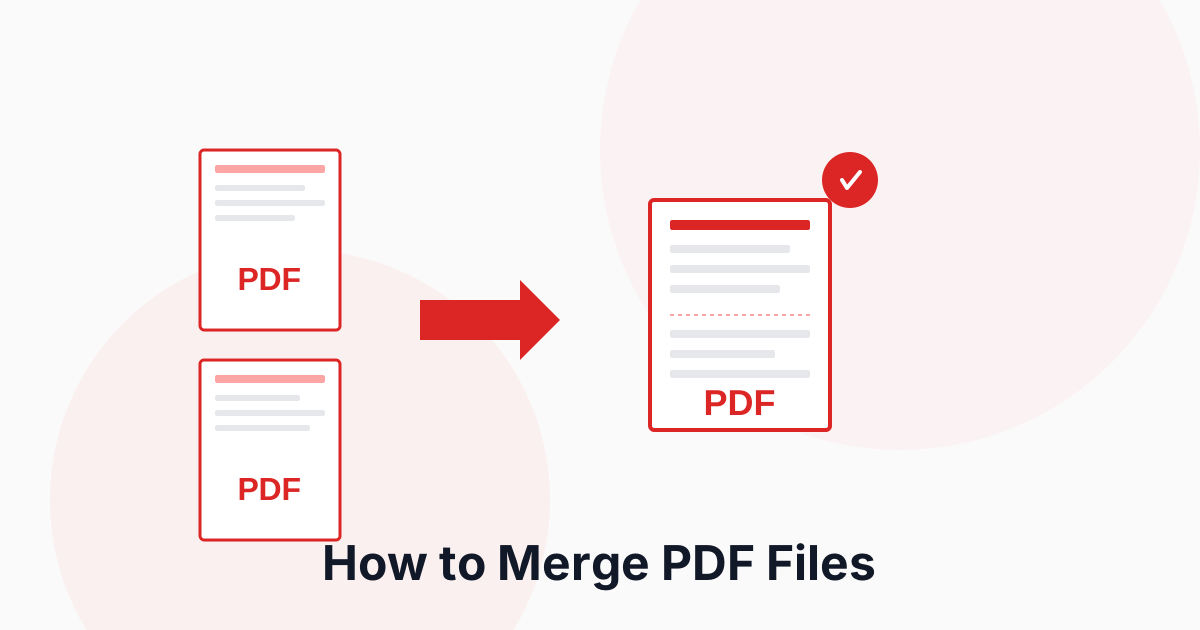
Merging multiple PDF files into a single document is one of the most common PDF tasks. Whether you're combining reports, consolidating invoices, or organizing research papers, knowing how to merge PDFs efficiently can save you significant time.
This guide will show you the easiest way to merge PDF files while maintaining quality and organization.
Why Merge PDF Files?
Combining PDFs offers several advantages:
- Better organization: Keep related documents together
- Easier sharing: Send one file instead of multiple attachments
- Professional presentation: Create polished, comprehensive reports
- Simplified storage: Reduce file clutter and improve discoverability
Merged PDFs maintain all original formatting, links, and bookmarks from the source documents.
How to Merge PDFs with PDFHaul
PDFHaul makes merging PDFs incredibly simple. Watch this quick demonstration:
Step 1: Upload Your PDFs
Visit the PDF Merge tool and upload the files you want to combine. You can:
- Drag and drop files
- Click to browse your computer
- Upload up to 50 files at once
Step 2: Arrange Your Files
Reorder your PDFs by dragging them into the desired sequence. The order you see is the order they'll be merged.
Pro Tip: Name your files with numbers (01, 02, 03) before uploading for automatic sorting.
Step 3: Merge and Download
Click "Merge PDFs" and download your combined document in seconds. It's that simple!
Best Practices for Merging PDFs
Organize Before You Merge
Take time to prepare your files:
- Review each PDF: Ensure all files are final versions
- Check file names: Use descriptive names for easy identification
- Remove duplicates: Don't merge the same content twice
- Verify page orientation: Mix of portrait/landscape is okay, but be aware
Optimize File Size
Large merged PDFs can be unwieldy:
- Compress individual files before merging
- Remove unnecessary pages from source PDFs
- Consider splitting very large merged documents into logical sections
Maintain Document Structure
For professional results:
- Keep related content together
- Use consistent page numbering
- Maintain chronological or logical order
- Add a table of contents if merging many documents
Common Use Cases
Business Reports
Combine multiple sections into one comprehensive report:
- Executive summary
- Financial data
- Charts and graphs
- Appendices
Academic Papers
Consolidate research materials:
- Literature review
- Methodology
- Results
- References
Invoice Consolidation
Monthly billing made simple:
- Merge all monthly invoices
- Create quarterly or annual compilations
- Simplify accounting and record-keeping
Portfolio Creation
Showcase your work professionally:
- Combine project samples
- Include case studies
- Add testimonials
- Create a cohesive presentation
Advanced Merging Techniques
Selective Page Merging
Don't need entire documents? Extract specific pages first:
- Use PDF Split tool to extract needed pages
- Merge only the relevant sections
- Delete temporary split files
Merging with Bookmarks
Preserve navigation in large documents:
- Original bookmarks are maintained
- Each merged PDF becomes a section
- Easy navigation through the combined document
PDFHaul automatically preserves bookmarks and links from your original documents.
Troubleshooting Common Issues
Merged PDF is Too Large
If your merged file is too big:
- Compress the final document using PDF Compress
- Remove high-resolution images before merging
- Consider splitting into multiple smaller merged documents
Pages Appear in Wrong Order
Double-check your file sequence:
- Review the preview before merging
- Use drag-and-drop to reorder
- Consider renaming files with numbers for clarity
Missing Content After Merge
If content is missing:
- Verify all source files are complete
- Check for corrupted PDFs in your source files
- Re-upload any problematic files
Merge PDF on Different Devices
Desktop Computers
PDFHaul works on all major browsers:
- Chrome, Firefox, Safari, Edge
- No software installation required
- Works on Windows, Mac, and Linux
Mobile Devices
Merge PDFs on the go:
- Fully responsive mobile interface
- Upload from your phone's storage or cloud
- Download directly to your device
Tablets
Perfect for reviewing and merging:
- Touch-friendly drag-and-drop interface
- View merged documents before downloading
- Works with iPad, Android tablets
Security and Privacy
Your documents are safe with PDFHaul:
- End-to-end encryption: Files are encrypted during processing
- Automatic deletion: All files deleted after 2 hours
- No storage: We don't keep your documents
- Secure connections: HTTPS encryption for all transfers
Never upload confidential documents to untrusted services. PDFHaul uses enterprise-grade security to protect your files.
Batch Merging Workflows
For regular merging tasks, establish a workflow:
- Create a naming convention: Use consistent file names
- Organize in folders: Group files by merge task
- Use templates: Keep merge sequences for recurring reports
- Automate when possible: Set up regular merge schedules
Conclusion
Merging PDF files doesn't have to be complicated or expensive. With PDFHaul, you can combine documents in seconds, maintain quality, and organize your files efficiently.
Key Takeaways:
- Organize files before merging for best results
- Use drag-and-drop to arrange document order
- Compress large merged PDFs for easier sharing
- PDFHaul is free, fast, and secure
Ready to merge your PDFs? Try PDFHaul's merge tool now - no signup required.
Stay Updated
Get the latest PDF tips, tricks, and tutorials delivered to your inbox.
No spam. Unsubscribe anytime.
Frequently Asked Questions
Q: Is there a limit to how many PDFs I can merge?
A: PDFHaul allows merging up to 50 PDF files at once, with each file up to 100MB.
Q: Will merging PDFs reduce quality?
A: No, merging is a lossless process. Your documents maintain their original quality.
Q: Can I merge password-protected PDFs?
A: You'll need to remove password protection before merging. Secure the merged document afterward if needed.
Q: How long does merging take?
A: Most merges complete in seconds, depending on file size and quantity.
Written by PDFHaul Team
Expert team specializing in PDF processing and document management. We share practical tips, tutorials, and best practices to help you work smarter with PDFs.
View all articles