How to Rotate PDF Pages: Complete Guide
Incorrect page orientation is one of the most common PDF frustrations. Whether dealing with scanned documents, imported files, or mixed-orientation presentations, knowing how to rotate PDF pages properly ensures professional document presentation and readability.
This comprehensive guide covers everything from basic single-page rotation to advanced batch processing techniques for optimal PDF orientation management.
Why PDF Page Rotation Matters
Proper page orientation is crucial for document usability:
- Readability: Sideways or upside-down pages frustrate readers
- Professionalism: Correct orientation reflects attention to detail
- Printing efficiency: Proper orientation prevents wasted paper and ink
- Screen viewing: Mobile and tablet users expect correct orientation
- Accessibility: Screen readers and assistive technology require proper orientation
- Presentations: Mixed orientations disrupt presentation flow
PDF rotation is permanent and lossless—pages are repositioned without quality loss or file corruption.
Understanding PDF Rotation Angles
Standard Rotation Angles
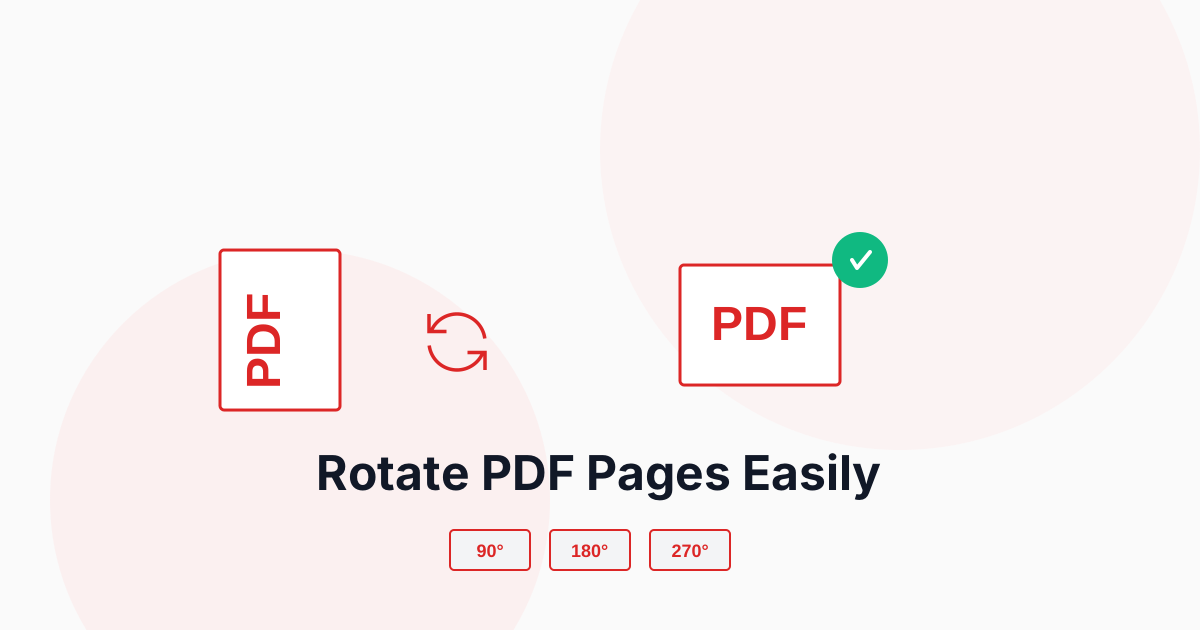
PDF pages can be rotated in 90-degree increments:
90° Clockwise (Right)
- Portrait to landscape (right side up)
- Most common for fixing scanned pages
- Useful for sideways text
180° (Upside Down)
- Flips pages completely
- Fixes upside-down scans
- Reverses page orientation
270° Clockwise (Left) / 90° Counter-Clockwise
- Portrait to landscape (left side up)
- Alternative to 90° rotation
- Fixes opposite-direction scans
Portrait vs Landscape
Understanding page orientations:
Portrait Orientation
- Vertical page layout (8.5" × 11")
- Standard for letters, reports, documents
- Typical book and article format
Landscape Orientation
- Horizontal page layout (11" × 8.5")
- Common for presentations, charts, tables
- Wide-format content display
How to Rotate PDFs with PDFHaul
PDFHaul provides flexible PDF rotation with precision control. Watch this demonstration:
Step 1: Upload Your PDF
Visit the PDF Rotate tool and upload your document. PDFHaul supports:
- Files up to 100MB
- Multi-page documents
- Mixed orientation PDFs
- Scanned and digital PDFs
Step 2: Select Pages to Rotate
Choose which pages need rotation:
All Pages
- Rotate entire document uniformly
- Fix consistently misoriented scans
- Quick correction for single-orientation issues
Specific Pages
- Select individual pages (e.g., 1, 5, 10)
- Rotate page ranges (e.g., 3-8)
- Fix mixed-orientation documents
Odd or Even Pages
- Rotate all odd pages (1, 3, 5...)
- Rotate all even pages (2, 4, 6...)
- Useful for duplex scanning corrections
Use the page preview to verify which pages need rotation before applying changes.
Step 3: Choose Rotation Angle
Select the appropriate rotation:
- 90° Right: Rotate clockwise quarter turn
- 180°: Flip upside down
- 90° Left: Rotate counter-clockwise quarter turn
Step 4: Apply and Download
Click "Rotate PDF" and download your corrected document. Changes are permanent and maintain all content quality.
Rotation Strategies
Rotate All Pages
When all pages need the same rotation:
Use Case: Consistently Oriented Scans
- Document scanned sideways or upside down
- All pages in same wrong orientation
- Select "All Pages" option
- Choose rotation angle (90°, 180°, or 270°)
Benefits
- Quick one-click fix
- Processes entire document at once
- No need to identify individual pages
Rotate Specific Pages
When only certain pages need rotation:
Use Case: Mixed Orientations
- Some pages upside down
- Specific sections scanned incorrectly
- Individual page corrections needed
How to Use
- Identify page numbers that need rotation
- Enter specific page numbers (e.g., 2, 5, 8-10)
- Select rotation angle
- Apply changes
Benefits
- Precise control
- Preserves correct pages unchanged
- Handles complex documents
What Gets Rotated
When you rotate pages, all content rotates together:
Page Content
- All text rotates with the page
- Images and graphics rotate
- Tables and charts rotate
- Annotations and comments rotate
Maintained Quality
- No quality loss during rotation
- Text remains searchable
- Links and bookmarks stay functional
- Form fields remain interactive
Common Rotation Scenarios
Scenario 1: Fix Scanned Book Pages
Problem: Book pages scanned sideways Solution:
- Determine if all pages need same rotation
- Apply 90° or 270° to all pages
- Verify text readability after rotation
Scenario 2: Correct Mixed Presentation
Problem: PowerPoint export with mixed orientations Solution:
- Identify landscape vs portrait slides
- Rotate landscape pages to match majority
- Or rotate portrait pages to landscape
Scenario 3: Fix Upside-Down Pages
Problem: Some pages accidentally upside down Solution:
- Select only affected pages
- Apply 180° rotation
- Verify page order remains correct
Scenario 4: Correct Duplex Scan Errors
Problem: Double-sided scan with alternating orientations Solution:
- Rotate all even pages 180°
- Keep odd pages unchanged
- Or vice versa depending on scan direction
Rotation Best Practices
Before Rotating
Check these factors first:
Preview Pages
- View each page orientation
- Identify rotation patterns
- Note any exceptions
Consider Final Use
- How will document be viewed?
- Print or screen viewing?
- Portrait or landscape preference?
Check Content Type
- Text-based documents
- Image-heavy files
- Forms and tables
- Mixed content
During Rotation
Follow these guidelines:
Start with Sample
- Rotate one page first
- Verify result before batch rotation
- Adjust if necessary
Use Consistent Angles
- Don't over-rotate (360° = no change)
- Use minimum necessary rotation
- Maintain document flow
Verify Page Order
- Rotation doesn't change page sequence
- Check logical content flow
- Ensure proper pagination
After Rotation
Verify these elements:
Content Integrity
- Text remains readable
- Images display correctly
- Tables and charts oriented properly
- Page numbers in right position
Functionality
- Links still work
- Bookmarks point correctly
- Form fields functional
- Annotations visible
File Properties
- File size unchanged
- Quality maintained
- Metadata preserved
- Compatibility intact
Always save rotated PDFs with new file names to preserve originals until you verify results.
Troubleshooting Rotation Issues
Pages Won't Rotate
If rotation fails:
- Check PDF isn't password-protected
- Verify file isn't corrupted
- Ensure you have edit permissions
- Try re-uploading file
Solution: Remove password protection or unlock PDF before rotating.
Rotation Applies to Wrong Pages
If wrong pages rotate:
- Double-check page selection
- Verify page numbering matches content
- Review page ranges carefully
Solution: Use page preview to confirm selection before applying rotation.
Content Looks Distorted
If content appears wrong after rotation:
- May be double-rotation issue
- Could indicate corrupt source file
- Might need different rotation angle
Solution: Undo rotation and try different angle, or use original file.
File Size Increased
If rotated file is larger:
- Shouldn't happen with simple rotation
- May indicate re-compression occurred
- Could be due to metadata addition
Solution: Use PDF compression to optimize file size after rotation.
Combining Rotation with Other Operations
Maximize efficiency by combining rotation with:
Rotate + Merge
- Rotate pages in multiple PDFs
- Merge into single document
- Ensure consistent orientation throughout
- Create unified professional document
Rotate + Split
- Rotate pages as needed
- Split into separate files
- Extract correctly oriented sections
- Distribute oriented documents
Rotate + Compress
- Rotate pages to correct orientation
- Compress rotated document
- Reduce file size while maintaining orientation
- Optimize for distribution
Preventing Rotation Issues
Avoid orientation problems from the start:
Scanning Best Practices
Consistent Document Feed
- Feed pages same direction
- Use document feeder settings
- Check scanner preview
- Adjust before bulk scanning
Scanner Settings
- Enable auto-rotation if available
- Set orientation detection
- Use OCR with orientation correction
- Save in correct orientation
Creating PDFs
From Word/Office
- Set page orientation before export
- Preview before creating PDF
- Use print preview to verify
- Check page setup settings
From Scans
- Preview scans before saving
- Rotate in scanning software
- Save with correct orientation
- Verify before moving files
From Images
- Check image EXIF orientation
- Rotate images before PDF creation
- Use consistent image orientation
- Verify preview before conversion
Mobile vs Desktop Rotation
Desktop Rotation
Advantages:
- Larger preview screens
- Easier page selection
- More precise control
- Better for complex documents
Mobile Rotation
Advantages:
- Convenient for quick fixes
- Great for single-page corrections
- Useful for on-the-go needs
- PDFHaul works perfectly on mobile
PDFHaul's responsive interface works seamlessly on all devices, providing full rotation functionality whether you're on desktop, tablet, or mobile.
When Rotation Isn't the Solution
Some issues require different approaches:
Crooked Scans: Need image straightening, not rotation Partial Page Rotation: Need PDF editing software Text Direction: May need OCR with language settings Watermarks: Require specialized removal tools Page Size Issues: Need resizing or cropping instead
Conclusion
PDF page rotation is a fundamental document management skill that ensures professional presentation and optimal readability. With the right tools and techniques, you can fix orientation issues quickly and maintain document quality.
Key Takeaways:
- Preview pages before rotating
- Use appropriate rotation angle for each situation
- Rotate in 90° increments only
- Verify results before finalizing
- Combine with other operations for efficiency
Ready to rotate your PDFs? Try PDFHaul's rotation tool now - free, fast, and precise.
Stay Updated
Get the latest PDF tips, tricks, and tutorials delivered to your inbox.
No spam. Unsubscribe anytime.
Frequently Asked Questions
Q: Does rotating PDFs reduce quality?
A: No, rotation is completely lossless. Pages are repositioned without any quality degradation or data loss.
Q: Can I rotate pages back if I make a mistake?
A: Yes, simply apply the opposite rotation (e.g., if you rotated 90° right, rotate 270° right to undo).
Q: Will rotation affect PDF file size?
A: No, simple rotation doesn't change file size. The content remains identical, just repositioned.
Q: Can I rotate password-protected PDFs?
A: You must unlock password-protected PDFs before rotation. After rotating, you can re-apply password protection.
Q: How do I rotate just one page in a multi-page PDF?
A: Select the specific page number you want to rotate, choose your angle, and apply. Other pages remain unchanged.
Q: Will rotation break links and bookmarks?
A: No, internal links and bookmarks are preserved and continue to function correctly after rotation.
Written by PDFHaul Team
Expert team specializing in PDF processing and document management. We share practical tips, tutorials, and best practices to help you work smarter with PDFs.
View all articles