How to Remove Empty Pages from PDF: Complete Guide
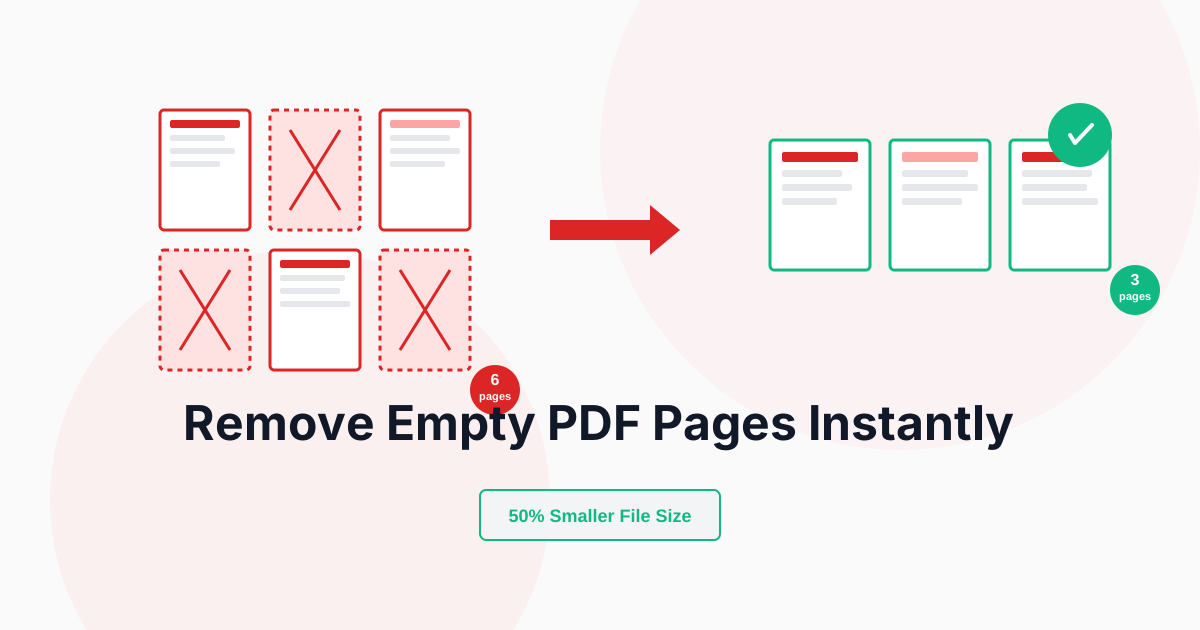
Empty and blank pages in PDFs create unnecessary file bloat, disrupt reading flow, and appear unprofessional. Whether dealing with scanning artifacts, document conversion errors, or intentional separator pages, knowing how to remove empty pages efficiently ensures cleaner, more professional documents.
This comprehensive guide covers everything from automatic blank page detection to advanced filtering techniques for perfect PDF cleanup.
Why Remove Empty Pages?
Removing empty pages solves multiple document management challenges:
- Reduce file size: Empty pages still consume space
- Improve readability: No interruptions from blank pages
- Professional appearance: Clean, polished documents
- Faster loading: Smaller files load quicker
- Better printing: Save paper and ink costs
- Easier navigation: Fewer pages to scroll through
- Mobile viewing: Streamlined reading experience
- Email efficiency: Smaller attachments send faster
Removing empty pages is completely safe—only truly blank pages are deleted, preserving all actual content without quality loss.
Understanding Empty vs Blank Pages
Truly Empty Pages
Pages with absolutely no content:
- No text of any kind
- No images or graphics
- No headers or footers
- No watermarks
- No hidden content
- Completely white/blank
Nearly Empty Pages
Pages with minimal content:
- Only whitespace
- Page numbers only
- Header/footer only
- Single space character
- Hidden formatting marks
- Nearly invisible content
Intentionally Blank Pages
Pages marked as blank:
- "This page intentionally left blank" text
- Separator pages in documents
- Chapter dividers
- Section breaks
- Filler pages for printing
Configure detection settings carefully to avoid removing pages with headers, footers, or page numbers if those are important to preserve.
How to Remove Empty Pages with PDFHaul
PDFHaul makes empty page removal simple and intelligent. Watch this demonstration:
Step 1: Upload Your PDF
Visit the Remove Empty Pages tool and upload your document. PDFHaul supports:
- Files up to 100MB
- Documents with unlimited pages
- All PDF versions and formats
- Scanned and digital PDFs
Step 2: Configure Detection Settings
Customize what qualifies as "empty":
Standard Detection
- Removes completely blank pages
- No text or images
- Most common setting
- Safe for most documents
Aggressive Detection
- Removes pages with minimal content
- Ignores headers/footers only
- Removes page numbers only
- Maximum cleanup
Custom Thresholds
- Define content threshold
- Set whitespace percentage
- Specify element minimums
- Precise control
Preview detected empty pages before final deletion to verify the tool is identifying pages correctly.
Step 3: Preview Empty Pages
Review pages marked for deletion:
Visual Preview
- See all detected empty pages
- Verify they're truly empty
- Unmark any false positives
- Confirm before deletion
Page List
- View page numbers to be removed
- Check for unexpected selections
- Manually adjust if needed
- Final verification
Step 4: Remove and Download
Click "Remove Empty Pages" and download your cleaned document:
- Instant processing
- Only empty pages removed
- Original quality maintained
- Streamlined PDF ready
Advanced Empty Page Detection
Detection Algorithms
Understanding how empty pages are identified:
Content Analysis
- Scans for text elements
- Detects images and graphics
- Identifies vector content
- Checks for annotations
Whitespace Calculation
- Measures blank area percentage
- Calculates content density
- Determines effective emptiness
- Applies threshold rules
Element Counting
- Counts text characters
- Numbers of images
- Quantity of objects
- Minimum content rules
Visual Rendering
- Analyzes visual output
- Detects visible vs hidden content
- Identifies nearly-invisible elements
- Comprehensive detection
Fine-Tuning Detection
Optimize detection for specific needs:
Ignore Headers/Footers
- Pages with only headers/footers considered empty
- Common in templated documents
- Useful for cleaning formatted PDFs
- Reduces false content detection
Ignore Page Numbers
- Pages with only page numbers removed
- Cleans numbered blank separator pages
- Common in book conversions
- Streamlines navigation
Content Threshold
- Define minimum content amount
- Pages below threshold = empty
- Adjustable sensitivity
- Custom requirements
Whitespace Percentage
- Set maximum blank area allowed
- 95%+ whitespace = empty
- Catches nearly-blank pages
- Precise control
For scanned documents with artifacts, use aggressive detection to catch pages with scanning noise that appear blank visually.
Common Empty Page Sources
Scanning Errors
How scanning creates empty pages:
Auto-Feeder Gaps
- Feeder separates documents
- Creates blank scans between documents
- Multiple empty pages in sequence
- Common in batch scanning
Double-Feed Detection
- Scanner detects potential jam
- Inserts blank page as precaution
- Creates false pages
- Safety feature side effect
Page Separator Sheets
- Physical separators between sections
- Scanned as blank pages
- Need manual removal
- Organizational artifacts
Document Conversion
Empty pages from format conversion:
Word to PDF
- Section breaks create blank pages
- Page breaks add empty pages
- Template formatting issues
- Conversion artifacts
PowerPoint to PDF
- Hidden slides export as blank
- Transition pages appear empty
- Notes pages without content
- Presentation structure issues
Excel to PDF
- Empty worksheet pages
- Print area misconfiguration
- Page break issues
- Spreadsheet formatting
Intentional Blank Pages
Purposely inserted empty pages:
Printing Requirements
- Double-sided printing alignment
- Chapter starts on right page
- Section separators
- Professional binding
Digital Separators
- Visual breaks between sections
- Document organization
- Navigation aids
- Structure indicators
Removal Best Practices by Use Case
Scanned Documents
For digitized paper documents:
- Use aggressive detection for scanning artifacts
- Preview carefully for faint content
- Check for barely-visible stamps or signatures
- Remove separator sheets
- Verify page count matches original
Business Reports
For corporate documents:
- Standard detection sufficient
- Keep intentional separator pages if meaningful
- Remove accidental blanks
- Maintain professional appearance
- Verify section breaks intact
Legal Documents
For contracts and filings:
- Conservative detection settings
- Manual review of all detected pages
- Document any page removals
- Preserve "intentionally blank" pages if required
- Verify page number sequences
E-books and Publications
For digital publications:
- Remove conversion artifacts
- Keep chapter dividers if desired
- Eliminate accidental blanks
- Streamline reading experience
- Optimize file size
Form Collections
For multi-form PDFs:
- Remove separator pages between forms
- Keep all form pages
- Eliminate scanning gaps
- Consolidate into clean document
- Verify form completeness
Common Empty Page Scenarios
Scenario 1: Scanned Document with Separators
Problem: 100-page scanned document has 20 blank separator sheets Solution:
- Use standard detection
- Preview shows 20 blank pages
- Verify all are true separators
- Remove to create 80-page clean document
Scenario 2: Word Document Conversion
Problem: Converted report has blank pages after each section Solution:
- Likely section break artifacts
- Use standard detection
- Review to ensure not intentional
- Remove for streamlined PDF
Scenario 3: Batch Scanning Artifacts
Problem: 5 documents scanned together with gaps between each Solution:
- Multiple blanks between documents
- Use aggressive detection
- May need to split and clean separately
- Remove all gaps for consolidated document
Scenario 4: Nearly-Blank Pages
Problem: Pages appear blank but have faint watermark or artifact Solution:
- Standard detection may miss
- Use aggressive detection
- Preview carefully
- Remove if content not meaningful
Scenario 5: Book with Intentional Blanks
Problem: E-book has "this page intentionally left blank" pages Solution:
- Detection finds these pages
- Decision point: keep or remove?
- For digital reading: remove
- For print replica: keep
File Size Impact
Understanding size reduction from empty page removal:
Expected Size Reduction
Truly Empty Pages
- Small impact per page (10-50KB each)
- 20 empty pages ≈ 200KB-1MB reduction
- Modest but meaningful savings
- Better for many documents
Nearly-Empty Pages
- Similar to truly empty
- Minimal content doesn't add much size
- Cumulative savings add up
- Worthwhile cleanup
Scanned Blank Pages
- Larger impact (100KB-1MB each)
- Scanned blanks contain noise/artifacts
- Significant size savings possible
- 20 scanned blanks ≈ 2-20MB reduction
Combining with Compression
Maximum file size optimization:
Remove Empty Pages First
- Eliminate unnecessary pages
- Reduce total content
- Prepare for compression
- Foundational optimization
Then Compress
- Apply PDF compression
- Optimize remaining content
- Maximum size reduction
- Final streamlined file
Troubleshooting Detection Issues
False Positives (Content Pages Detected as Empty)
If content pages are marked for deletion:
- Reduce detection aggressiveness
- Check for very minimal content
- Disable header/footer ignore
- Review threshold settings
Solution: Use standard detection instead of aggressive, and preview all detected pages.
False Negatives (Empty Pages Not Detected)
If blank pages aren't found:
- Increase detection aggressiveness
- Check for hidden content
- Look for invisible elements
- Try custom threshold
Solution: Use aggressive detection or lower whitespace threshold.
Removes Important Nearly-Blank Pages
If pages with page numbers only are removed:
- Disable "ignore page numbers" option
- Use less aggressive detection
- Manually review all detected
- Preserve specific pages
Solution: Configure detection to preserve headers/footers and page numbers.
Process Too Slow
If detection takes too long:
- Large file size or page count
- Complex page analysis
- Multiple detection passes
- System limitations
Solution: Split large PDFs into sections, clean each separately, then merge back together.
Security Considerations
Important factors when removing pages:
Content Verification
- Ensure no hidden important content
- Check for invisible text or watermarks
- Verify no embedded data lost
- Review before finalizing
Page Number Impact
- Removing pages changes page count
- References to page numbers become incorrect
- Update any page number citations
- Reindex if necessary
Legal Documents
- Document any page removals
- Maintain original file as backup
- Note reason for removal
- Preserve audit trail
Always keep a backup of the original PDF before removing pages, especially for important documents or legal files.
Combining with Other Operations
Maximize efficiency by combining empty page removal with:
Remove Empty + Compress
- Remove all empty pages
- Compress remaining content
- Maximum file size reduction
- Optimized final document
Remove Empty + Remove Duplicates
- Remove blank pages
- Remove duplicate pages
- Complete document cleanup
- Streamlined PDF
Remove Empty + Reorder
- Remove unnecessary blanks
- Reorder remaining pages
- Logical final sequence
- Professional organization
Split + Remove Empty
- Split large PDF into sections
- Remove empty pages from each
- Merge cleaned sections
- Comprehensive cleanup
Preventing Empty Pages
Avoid creating empty pages from the start:
Scanning Best Practices
Remove Physical Separators
- Take out separator sheets before scanning
- Scan documents individually
- Eliminate gaps in scanning
- Clean input = clean output
Scanner Settings
- Enable blank page detection
- Use auto-skip for blanks
- Configure proper thresholds
- Prevent creation vs removal later
Quality Control
- Review scanned PDF immediately
- Remove blanks before archiving
- Verify page count expectations
- Catch issues early
Document Creation Best Practices
Word/Office Documents
- Remove unnecessary section breaks
- Check page break settings
- Preview before PDF export
- Eliminate blanks at source
Print to PDF Settings
- Configure print ranges carefully
- Exclude blank pages in print dialog
- Review print preview
- Selective page printing
Digital Assembly
- Plan page inclusion carefully
- Avoid inserting blank separators
- Use bookmarks instead of blank pages
- Digital-first thinking
Mobile vs Desktop Removal
Desktop Removal
Advantages:
- Better preview of detected pages
- Easier to review many pages
- More precise settings control
- Faster processing
Best for:
- Large documents
- Complex detection needs
- Professional work
- Detailed review
Mobile Removal
Advantages:
- Clean documents on-the-go
- Quick processing
- Simple interface
- PDFHaul mobile-optimized
Best for:
- Smaller documents
- Standard detection
- Quick cleanup
- Immediate needs
PDFHaul works seamlessly on all devices, providing full empty page removal functionality whether you're on desktop, tablet, or mobile.
When NOT to Remove Empty Pages
Avoid removal in these situations:
Print-Ready Documents: Blank pages for double-sided printing alignment Books and Manuals: Intentional blanks for chapter starts Legal Requirements: Documents requiring specific page counts Referenced Pages: Documents with page number citations Archival Copies: Historical documents preserving original format
Conclusion
Removing empty pages from PDFs is an essential document cleanup skill that reduces file sizes, improves readability, and creates more professional documents. With the right detection settings and techniques, you can efficiently eliminate unnecessary blank pages while preserving all important content.
Key Takeaways:
- Preview detected empty pages before deletion
- Choose appropriate detection settings for your document type
- Keep backups of important originals
- Combine with compression for maximum file size reduction
- Configure scanner settings to prevent empty page creation
Ready to clean up your PDFs? Try PDFHaul's empty page removal tool now - free, automatic, and intelligent.
Stay Updated
Get the latest PDF tips, tricks, and tutorials delivered to your inbox.
No spam. Unsubscribe anytime.
Frequently Asked Questions
Q: Will removing empty pages affect my document quality?
A: No, removing empty pages only deletes blank pages and doesn't affect the quality or content of remaining pages.
Q: How does the tool detect empty pages?
A: PDFHaul analyzes each page for text, images, and other content elements to identify truly blank pages.
Q: Can I undo empty page removal if I make a mistake?
A: You should keep your original PDF as a backup. Download and verify the cleaned PDF before deleting your original.
Q: Will pages with only headers or footers be removed?
A: Pages with any text content (including headers/footers) are not considered empty and will be kept.
Q: How much smaller will my file be after removing empty pages?
A: File size reduction depends on how many empty pages you remove. Each blank page typically saves 10-50KB for digital pages or 100KB-1MB for scanned pages.
Q: Can I remove empty pages from password-protected PDFs?
A: You must unlock password-protected PDFs before removing pages. After cleaning, you can reapply password protection.
Written by PDFHaul Team
Expert team specializing in PDF processing and document management. We share practical tips, tutorials, and best practices to help you work smarter with PDFs.
View all articles