How to Reorder PDF Pages: Complete Guide
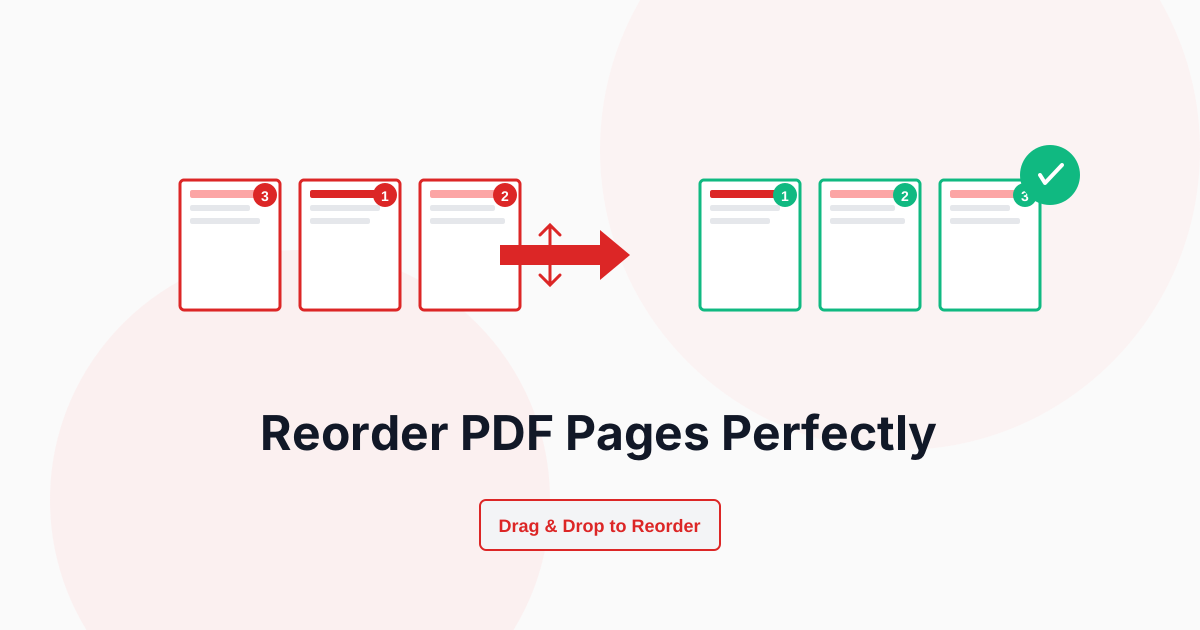
PDF page reordering is essential for fixing misplaced pages, reorganizing scanned documents, and creating logical document flow. Whether you're correcting scanning errors, restructuring reports, or assembling materials from multiple sources, knowing how to reorder PDF pages efficiently ensures professional document organization.
This comprehensive guide covers everything from basic page swapping to advanced batch reordering techniques for optimal PDF management.
Why Reorder PDF Pages?
Page reordering solves multiple document organization challenges:
- Fix scanning errors: Correct pages scanned out of sequence
- Improve document flow: Organize content logically
- Move important pages: Place executive summary or conclusions first
- Reorganize chapters: Restructure document sections
- Combine materials: Integrate pages from multiple sources
- Create custom versions: Resequence for specific audiences
- Fix upload mistakes: Correct page order after bulk upload
- Professional presentation: Ensure logical content progression
Reordering PDF pages is completely lossless—pages are moved without any quality degradation or content modification.
How PDFHaul Reordering Works
PDFHaul uses an intuitive drag-and-drop interface:
Visual Grid Interface
- All pages displayed as thumbnails
- Real page content visible in each thumbnail
- Grid layout for easy navigation
- Works with documents of any size
Drag and Drop Control
- Click and hold any page
- Drag to new position in grid
- Drop to reorder
- Real-time visual feedback
Live Preview
- See new page order as you work
- Page numbers update automatically
- Complete sequence shown in footer
- Verify before applying changes
How to Reorder PDFs with PDFHaul
PDFHaul makes PDF page reordering intuitive and precise. Watch this demonstration:
Step 1: Upload Your PDF
Visit the PDF Reorder tool and upload your document. PDFHaul supports:
- Files up to 100MB
- Documents with unlimited pages
- All PDF versions and formats
- Scanned and digital PDFs
Step 2: View Page Thumbnails
Review your document's current page order:
Thumbnail Preview
- See all pages at a glance
- Identify misplaced pages quickly
- Verify current sequence
- Plan your reordering strategy
Page Numbers
- Current position clearly labeled
- Easy identification
- Sequential numbering
- Visual reference
Take a moment to identify all pages that need repositioning before starting to reorder—this helps you work more efficiently.
Step 3: Reorder Pages
Open the reorder interface to see all pages at once:
The Reorder Interface
- Click "Open Reorder Interface" to open the full-page modal
- All pages displayed as actual PDF thumbnails in a grid
- Each thumbnail shows the real page content
- Thumbnails are pre-loaded for instant viewing
How to Reorder
- Click and hold any page thumbnail
- Drag to new position in the grid
- Release to drop page in new location
- Page numbers update automatically
- Repeat for all pages you want to move
Visual Feedback
- New position badge: Shows new page number (top-right corner)
- Original page label: Shows original page number (bottom center)
- Drag handle: Appears on hover to indicate draggable
- Live preview: Footer shows complete new page sequence
- Opacity change: Dragged page becomes semi-transparent
- Grid layout: 4-6 columns depending on screen size
The live preview at the bottom shows your complete new page order (e.g., "3, 1, 2, 4, 5...") so you can verify before applying changes.
Step 4: Download Reordered PDF
Click "Apply Reorder" and download your reorganized document:
- Instant processing
- Original quality maintained
- New page sequence applied
- Ready to use
Advanced Reordering Techniques
Complex Page Reorganization
Handle sophisticated reordering needs:
Multi-Page Moves
- Select multiple pages at once
- Move entire sections together
- Maintain relative page order
- Efficient bulk repositioning
Section Restructuring
- Identify logical sections
- Move complete chapters
- Resequence entire segments
- Preserve internal structure
Interleaving Pages
- Alternate pages from different sources
- Create comparison documents
- Build integrated materials
- Custom page patterns
Page Sequencing Patterns
Common reordering scenarios and solutions:
Ascending to Descending
- Original: 1, 2, 3, 4, 5
- New: 5, 4, 3, 2, 1
- Use: Reverse order function
- Common for: Certain scanning errors
Move Conclusion First
- Original: Intro, Body, Conclusion
- New: Conclusion, Intro, Body
- Use: Drag conclusion pages to start
- Common for: Executive summaries
Chapter Resequencing
- Original: Ch1, Ch2, Ch3, Ch4
- New: Ch3, Ch1, Ch4, Ch2
- Use: Drag entire chapter sections
- Common for: Custom reports
Fix Scanning Errors
- Original: 1, 3, 2, 5, 4, 6
- New: 1, 2, 3, 4, 5, 6
- Use: Swap individual pages
- Common for: Auto-feeder mistakes
For documents with many misplaced pages, create a written plan of your desired order before beginning to reorder.
Batch Reordering Strategies
Efficient techniques for large documents:
Zone Approach
- Divide document into sections
- Reorder within each section first
- Then reorder sections themselves
- Verify final sequence
Reference Method
- Create ordered list of desired sequence
- Work through list systematically
- Check off each repositioning
- Final verification pass
Iterative Refinement
- Make major structural changes first
- Then handle smaller adjustments
- Fine-tune final positions
- Verify logical flow
Reordering Best Practices by Use Case
Scanned Documents
For fixing scanning errors:
- Review entire document first
- Identify all out-of-sequence pages
- Note if pages are upside down (rotate separately)
- Check for duplicate or missing pages
- Reorder systematically from start to end
Reports and Presentations
For restructuring business documents:
- Place executive summary first
- Group related sections together
- Move appendices to end
- Position supporting data logically
- Ensure narrative flow
Legal Documents
For contract and filing organization:
- Maintain chronological order where required
- Group exhibits with relevant sections
- Position signature pages appropriately
- Preserve original page numbering references
- Document any reordering done
Academic Papers
For research and publication assembly:
- Standard order: Title, Abstract, Intro, Methods, Results, Discussion, References
- Position figures and tables near references
- Move appendices to end
- Group supplementary materials
- Follow journal formatting requirements
Multi-Source Assembly
For combining materials from different PDFs:
- Split source documents first
- Extract needed pages
- Plan final page sequence
- Merge and reorder together
- Verify cohesive flow
Common Reordering Scenarios
Scenario 1: Fix Duplex Scanning Error
Problem: Double-sided scanning resulted in odd pages followed by even pages Solution:
- Original order: 1, 3, 5, 7, 2, 4, 6, 8
- Interleave pages: 1, 2, 3, 4, 5, 6, 7, 8
- Use systematic drag-and-drop
- Verify correct sequence
Scenario 2: Move Executive Summary to Front
Problem: 50-page report has summary on pages 48-50 Solution:
- Select pages 48-50
- Move to position 1-3
- Original pages 1-47 shift to 4-50
- Professional document structure
Scenario 3: Reorganize Chapters
Problem: Book chapters need resequencing Solution:
- Identify chapter page ranges
- Move entire chapters as blocks
- Maintain internal chapter order
- Create new logical flow
Scenario 4: Fix Accidentally Reversed Pages
Problem: Pages 10-20 were scanned in reverse order Solution:
- Select pages 10-20
- Use reverse order function on selection
- Rest of document unchanged
- Corrected sequence
Scenario 5: Create Custom Client Version
Problem: Need to reorder standard report for specific client emphasis Solution:
- Identify client's priority sections
- Move those sections forward
- Retain all content
- Customized presentation
Visual Organization Tips
Make reordering easier with these techniques:
Use Page Thumbnails Effectively
Zoom Level
- Adjust thumbnail size for visibility
- Larger for detailed review
- Smaller for document overview
- Find your optimal working size
Visual Markers
- Identify distinctive page elements
- Use headers and footers as guides
- Recognize unique content
- Speed up page identification
Grid vs List View
- Grid: Better overview of many pages
- List: Easier for precise ordering
- Choose based on document size
- Switch views as needed
Track Your Changes
Keep Notes
- Document major reorderings
- Note original page positions
- Record reasoning for changes
- Maintain change log for important documents
Undo Capability
- Test reordering before finalizing
- Keep original PDF until verified
- Create versions if uncertain
- Easy rollback if needed
Troubleshooting Reordering Issues
Difficult to Identify Pages
If pages look similar:
- Zoom in on thumbnails
- Look for page numbers on pages
- Check headers and footers
- Read first few words of each page
Solution: Increase thumbnail size and look for unique text or images on each page.
Lose Track of Desired Order
If you forget your reordering plan:
- Start over with clear plan
- Write down desired sequence
- Work systematically
- Check off completed moves
Solution: Create written list of desired order before beginning.
Accidentally Move Wrong Pages
If you make a mistake:
- Use undo function immediately
- Reset to original order
- Start reordering again
- Work more slowly and carefully
Solution: Verify each move before proceeding to the next.
Large Documents Are Slow
If interface lags with many pages:
- Work in sections (split then merge)
- Use page number entry method
- Reduce thumbnail quality temporarily
- Process on desktop instead of mobile
Solution: Split large PDFs into manageable sections, reorder each, then merge back together.
Final Order Still Incorrect
If result isn't as intended:
- Compare with your written plan
- Identify remaining issues
- Upload and reorder again
- Double-check before finalizing
Solution: Always preview final result before saving and distributing.
Combining with Other Operations
Maximize efficiency by combining reordering with other tools:
Reorder + Rotate
- Reorder pages into correct sequence
- Rotate individual pages as needed
- Fix both order and orientation
- Complete document correction
Reorder + Split
- Reorder full document
- Split into logical sections
- Distribute sections separately
- Organized multi-file output
Reorder + Merge
- Extract pages from multiple PDFs
- Merge into single document
- Reorder combined pages
- Create custom compilation
Reorder + Delete
- Reorder to group unwanted pages
- Delete unnecessary sections
- Streamline document
- Efficient content curation
Preventing Reordering Needs
Avoid page order issues from the start:
Scanning Best Practices
Consistent Feeding
- Feed pages in correct order
- Check page orientation before scanning
- Use document feeder properly
- Preview before saving
Scanner Settings
- Enable page numbering
- Use sequential file naming
- Test with small batch first
- Verify before bulk scanning
Quality Control
- Review scanned PDF immediately
- Check page sequence
- Verify all pages present
- Rescan if needed rather than reorder
PDF Creation Best Practices
From Word/Office
- Organize document before export
- Use section breaks properly
- Verify print preview
- Check page order in outline view
From Multiple Sources
- Plan page sequence in advance
- Name files sequentially
- Merge in correct order initially
- Reduce need for reordering
Collaborative Documents
- Establish page organization standards
- Use clear section headings
- Number pages consistently
- Communicate structure to team
Mobile vs Desktop Reordering
Desktop Reordering
Advantages:
- Larger screen shows more pages
- Easier drag and drop
- Better for complex reordering
- Faster processing
Best for:
- Large documents
- Complex reorganization
- Professional work
- Detailed review
Mobile Reordering
Advantages:
- Reorder on-the-go
- Touch-based dragging
- Quick fixes anywhere
- PDFHaul mobile-optimized
Best for:
- Small documents
- Simple page swaps
- Emergency fixes
- Immediate needs
PDFHaul's responsive interface works seamlessly on all devices, adapting the reordering interface to your screen size for optimal usability.
When Reordering Isn't the Solution
Some issues require different approaches:
Page Numbering Issues: Need PDF editor to change printed page numbers Missing Pages: Require re-scanning or obtaining missing content Duplicate Pages: Use remove duplicates tool instead Content Organization: May need document restructuring, not just reordering Complex Layouts: Might need professional PDF editing software
Conclusion
PDF page reordering is a fundamental document management skill that ensures professional organization and logical content flow. With the right techniques and tools, you can transform disorganized PDFs into perfectly sequenced documents quickly and efficiently.
Key Takeaways:
- Plan your desired page order before beginning
- Use drag-and-drop for visual simplicity
- Work systematically through complex reorderings
- Preview final result before saving
- Combine with other operations for comprehensive document management
Ready to reorder your PDF pages? Try PDFHaul's reorder tool now - free, intuitive, and precise.
Stay Updated
Get the latest PDF tips, tricks, and tutorials delivered to your inbox.
No spam. Unsubscribe anytime.
Frequently Asked Questions
Q: Does reordering PDFs affect quality?
A: No, reordering is completely lossless. Pages are simply repositioned without any quality degradation or content modification.
Q: Can I undo reordering if I make a mistake?
A: You can close the reorder modal without applying changes, or keep your original PDF as backup before downloading the reordered version.
Q: How many pages can I reorder at once?
A: PDFHaul supports reordering documents up to 100MB with unlimited page count.
Q: Will reordering affect page numbers printed on pages?
A: No, printed page numbers remain unchanged. Only the sequence of pages in the PDF file changes.
Q: Can I reorder password-protected PDFs?
A: You must unlock password-protected PDFs before reordering. After reordering, you can reapply password protection.
Q: Will bookmarks and links still work after reordering?
A: Internal bookmarks and links are automatically updated to point to the new page positions.
Written by PDFHaul Team
Expert team specializing in PDF processing and document management. We share practical tips, tutorials, and best practices to help you work smarter with PDFs.
View all articles