Signing a PDF electronically has become a normal part of completing contracts, approving forms, accepting agreements, and handling business documents online. Instead of printing a document, signing it with a pen, scanning it, and sending it back, you can add your signature directly to the PDF.
But electronic PDF signing can be confusing.
Should you type your name or draw your signature? Is an electronic signature legally valid? What is the difference between an electronic signature and a digital signature? Can you sign a PDF without Adobe Acrobat? What should you do if the PDF will not let you add a signature?
This guide covers the entire process.
You will learn how to sign a PDF electronically, the different ways signatures can be added to PDFs, when electronic signatures are legally valid, how digital signatures differ from ordinary electronic signatures, and how to protect sensitive documents when using online PDF tools.
1. What Does It Mean to Sign a PDF Electronically?
An electronic signature, often shortened to e-signature, is an electronic method of showing that you agree with, approve, or acknowledge the contents of a document.
In a PDF, an electronic signature can take several forms.
You might:
• Draw your signature using a mouse, touchscreen, trackpad, or stylus.
• Type your name and have it displayed in a signature-style font.
• Upload an image of your handwritten signature.
• Add a signature that you previously created and saved.
• Use a dedicated electronic signature platform that records additional information about the signing process.
• Apply a certificate-based digital signature that can verify the document's authenticity and integrity.
These methods may look similar when you open the finished PDF, but technically they can work very differently.
Electronic signatures vs handwritten signatures
A traditional handwritten signature normally requires a physical document. You print the document, sign it with a pen, and give or send the signed copy to someone else.
An electronic signature removes the physical-paper requirement.
For example, imagine that someone emails you a PDF agreement.
The traditional process could involve:
1. Downloading the PDF.
2. Printing it.
3. Signing the printed copy.
4. Scanning the signed document.
5. Saving the scan as another PDF.
6. Emailing it back.
Electronic signing can reduce that process to:
7. Open the PDF.
8. Add your signature.
9. Save the signed PDF.
10. Send it back.
This is one reason electronic signatures have become common for business agreements, consent forms, applications, approvals, onboarding documents, and many other everyday documents.
Does typing your name count as an electronic signature?
In some circumstances, yes.
An electronic signature does not necessarily have to look like your handwritten signature. Typing your name, clicking an acceptance button, or using another electronic process can potentially function as an electronic signature depending on the circumstances, applicable law, and the parties' intent.
However, simply placing a name on a document does not automatically make every document legally binding.
The surrounding signing process matters.
Questions such as these can become important:
• Who signed the document?
• Did that person intend to sign it?
• Did the parties agree to conduct the transaction electronically?
• Can the signed document be retained and reproduced?
• Was the document changed after signing?
• Are there special legal requirements for that particular type of document?
For important legal documents, you should therefore consider more than how the signature looks.
2. How to Add a Signature to a PDF: 6 Methods Compared
There is no single method for electronically signing every PDF. The right approach depends on the document, the device you are using, and the level of verification required.
Here are the most common methods.
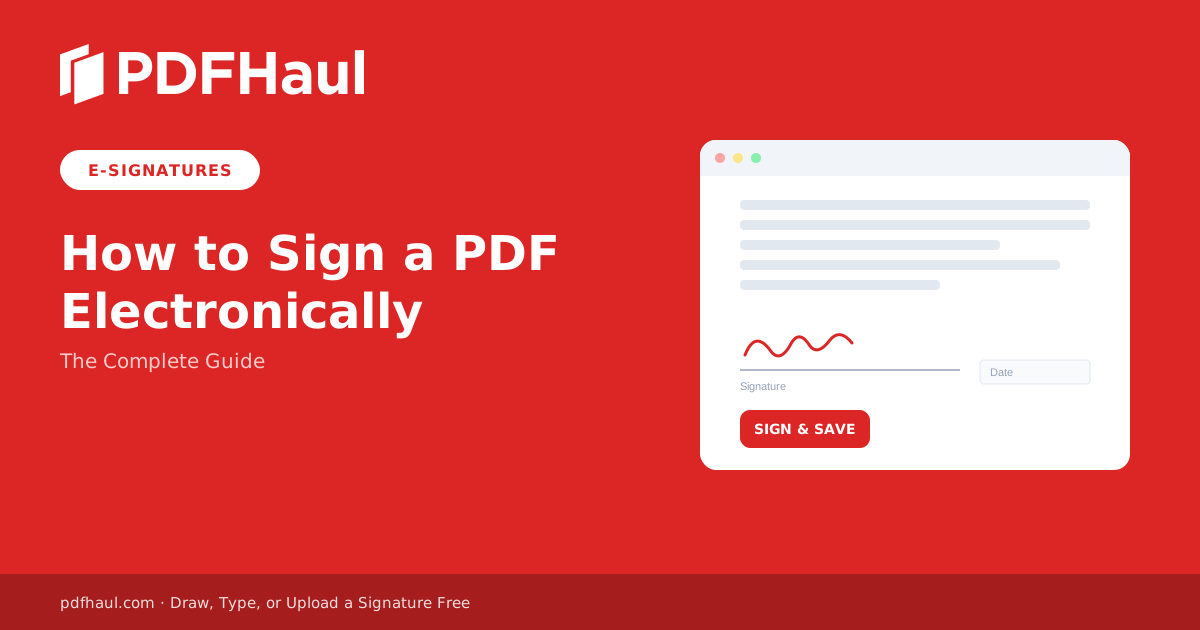
Method 1: Draw your signature
Drawing is one of the most familiar electronic signing methods because the finished result resembles a traditional handwritten signature.
You can usually draw using:
• A mouse
• A laptop trackpad
• A touchscreen
• A tablet
• A stylus
• Your finger on a smartphone
After drawing the signature, the PDF tool places it onto the page as an annotation or graphical element.
You can normally resize and reposition it before saving the document.
Drawing works particularly well on touchscreen devices because signing with your finger or stylus feels similar to signing paper.
Using a mouse can be less precise, but the signature does not normally need to be a perfect reproduction of your handwritten signature simply to look professional.
PDFHaul lets you draw a signature directly on the page. It's free and no account is required. Try it on the sign PDF tool.
Method 2: Type your signature
Some PDF editors let you type your name instead of drawing it.
The software may then display your name using a script-style font.
For example, you could enter:
John Smith
and the application would convert the text into a stylized signature.
This method is fast and useful when you are working on a computer without a touchscreen.
However, remember that the appearance of a signature is separate from the legal or technical evidence behind it. A realistic handwritten-looking font does not automatically provide stronger verification than ordinary typed text.
PDFHaul's type option renders your name in a script font, so this method works there too. Try it on the sign PDF tool.
Method 3: Upload a signature image
If you already have an image of your handwritten signature, some PDF tools allow you to upload it.
A common way to create one is to sign a blank piece of paper and create a clean digital image of the signature.
The image can then be inserted into the appropriate signature area.
Transparent PNG images are particularly useful because they can appear naturally over a signature line without a visible white rectangle surrounding the signature.
There is an important security consideration here.
A saved signature image is effectively a reusable copy of your signature. Anyone who gains access to the image may be able to place it onto another document.
Store signature images securely and avoid leaving them in shared folders, public cloud directories, or devices that other people can access.
PDFHaul supports uploading a signature image as well, alongside drawing and typing. Try it on the sign PDF tool.
Method 4: Use a saved signature
Many PDF applications allow you to create your signature once and reuse it later.
This can be convenient if you regularly sign documents.
Instead of drawing the signature every time, you select the saved version and place it on the document.
The tradeoff is similar to storing a signature image: convenience increases, but you need to protect the device or account where the signature is stored.
Method 5: Use a dedicated e-signature service
Electronic signature platforms can provide considerably more than a visual signature.
Depending on the service and signing process, they may record information such as:
• When the document was sent
• When it was opened
• When it was signed
• Who was invited to sign
• Authentication events
• Document identifiers
• Changes in document status
• An audit trail associated with the transaction
These features can be useful when evidence of the signing process matters.
For a simple permission form or internal approval, placing a signature directly into a PDF might be sufficient.
For a significant commercial agreement involving several parties, a dedicated signing workflow may be preferable.
Method 6: Use a certificate-based digital signature
Digital signatures are a more technical form of PDF signing.
Instead of simply placing a visual representation of your signature onto the document, a digital signature uses cryptographic technology.
The purpose is generally to provide stronger evidence about:
• The identity associated with the signing certificate
• Whether the PDF has been modified after it was digitally signed
Digital signatures are especially important in environments where document integrity and identity verification matter.
We will examine the difference between electronic and digital signatures in more detail later.
3. How to Sign a PDF Electronically Step by Step
The exact buttons differ between PDF editors, but the basic process is usually similar. If you already understand why signing methods and legal validity matter, this is the part you actually came for: a concrete walkthrough from opening the file to sending back a signed, verified copy. Following it in order helps you avoid the two most common mistakes, signing before reading and forgetting to check the saved file.
Step 1: Open the PDF
Start by opening the document in a PDF editor or signing tool.
Before adding anything, confirm that you have the correct document.
For important agreements, check details such as:
• Document title
• Names of the parties
• Dates
• Version numbers
• Page count
• Attachments or schedules
Signing the wrong version of a document can create unnecessary problems even if the signing process itself works perfectly.
Step 2: Read the document before signing
Do not treat the signature field as the first step.
Review the document before adding your signature.
At minimum, check the sections describing what you are agreeing to, important dates, payment obligations, cancellation provisions, renewal terms, and any blank spaces that are supposed to be completed.
For important legal or financial agreements, obtain appropriate professional advice if you do not understand the terms.
A PDF signing tool can help you place a signature. It cannot determine whether signing the agreement is a good decision.
Step 3: Find the signature area
Look for a section labeled something like:
• Signature
• Sign here
• Authorized signature
• Applicant signature
• Employee signature
• Client signature
Some PDFs contain interactive signature fields. Others simply contain a printed signature line.
If there is no interactive field, a PDF editor may still allow you to place a signature manually over the appropriate location.
Step 4: Choose your signature method
Select the signing or annotation feature in your PDF tool.
You may be given options such as:
Draw
Create the signature manually.
Type
Enter your name and display it as a signature.
Upload
Insert an existing signature image.
Saved signature
Select a signature you previously created.
Choose whichever method is appropriate for the document and signing requirements.
Step 5: Create or select the signature
If drawing, use your mouse, finger, stylus, or trackpad.
If typing, enter the name that should appear on the document.
If uploading an image, choose the correct signature file.
Check the preview before inserting it.
Step 6: Place the signature
Click or tap the signature area.
The signature should appear on the PDF.
Position it so that it fits naturally on or above the signature line.
Avoid covering important text.
Step 7: Resize the signature
Most PDF editors allow signatures to be resized.
Use the resize handles around the signature to make it fit the available space.
The signature should be large enough to read without covering surrounding information.
Step 8: Add the date if required
Many documents require both a signature and date.
The date might be:
• Entered into an existing form field
• Added using a text annotation
• Automatically recorded by a signing platform
• Included as part of a digital-signature process
Do not assume the visual signature automatically fills the date field.
Check the document carefully.
Step 9: Complete other required fields
A signature is often only one part of a form.
You might also need to provide:
• Printed name
• Initials
• Job title
• Company
• Address
• Date
• Witness information
• Additional acknowledgements
Scroll through the entire PDF before saving it.
Step 10: Save the signed PDF
Once everything is complete, save the document.
It can be useful to preserve the unsigned original and create a separate signed copy.
For example:
employment-agreement.pdf
could become:
employment-agreement-signed.pdf
This gives you both the original and completed versions.
Step 11: Reopen and verify the file
This small step is frequently overlooked.
Close the PDF and reopen the saved version.
Check that:
• The signature is still visible.
• The signature appears on the correct page.
• It is positioned correctly.
• Required dates and fields are present.
• No annotations disappeared.
• All pages are still included.
• The file opens normally.
If the document uses a digital signature, also check the signature-validation information displayed by a compatible PDF reader.
Only send the document after confirming that the saved copy is correct.
For routine documents where a visual signature is enough, whether drawn, typed, or uploaded, PDFHaul's sign PDF tool covers this entire workflow for free, with no account required. Files are auto-deleted after 2 hours.
4. How to Sign a PDF on Windows, Mac, iPhone, and Android
PDF signing is not limited to desktop computers.
You can sign documents on laptops, phones, and tablets, although the experience differs between devices. A signature drawn with a mouse looks very different from one drawn with a finger on a touchscreen, and some methods that work easily on a phone are awkward on a desktop, and the other way around. Knowing what to expect on your specific device before you start can save you from switching tools halfway through.
Signing a PDF on Windows
On a Windows computer, you generally have several options.
You can use:
• A browser-based PDF tool
• Desktop PDF software
• A browser with PDF annotation capabilities
• An electronic signature platform
A mouse is usually the least natural way to draw a signature.
If drawing is difficult, typing a signature or using a saved signature can be easier.
Some Windows laptops also support touchscreens and styluses, which make handwritten signatures considerably easier.
Signing a PDF on Mac
Mac users can sign PDFs using compatible PDF applications or browser-based tools.
Trackpads can be particularly useful because they provide more precise control than a traditional mouse.
You can also use signature images, typed signatures, or dedicated electronic signing services.
Signing a PDF on iPhone
Phones are surprisingly convenient for basic electronic signatures.
The touchscreen lets you draw your signature directly with your finger.
A typical mobile process looks like this:
11. Open the PDF.
12. Open the markup or editing tools.
13. Select the signature option.
14. Draw or select your signature.
15. Place it on the page.
16. Resize it.
17. Save or share the completed document.
The exact controls depend on the application being used.
Signing a PDF on Android
Android devices can also use PDF editing applications, browser-based tools, or dedicated signing services.
As with an iPhone, touchscreen input makes drawing signatures straightforward.
After signing, make sure the PDF is actually saved rather than assuming that the visible changes have automatically been written into the file.
Signing on a tablet
For frequent PDF signing, a tablet with a stylus can provide one of the most natural experiences.
You can review the document at a comfortable size and write directly on the screen.
This can be particularly useful for people who frequently annotate and sign forms.
Which device is best?
There is no universal winner.
A computer is often better for carefully reviewing long contracts.
A phone is convenient for quickly signing short documents.
A tablet combines a larger display with natural handwriting input.
For important agreements, the ability to comfortably read the entire document should matter more than the convenience of adding the signature itself.
5. Electronic Signature vs Digital Signature: Which One Do You Actually Need?
The terms electronic signature and digital signature are often used interchangeably, but they are not exactly the same.
Understanding the distinction is important when deciding how a PDF should be signed.
What is an electronic signature?
Electronic signature is a broad concept.
It describes an electronic action or process used to indicate intent to sign or agree.
Examples can include:
• Drawing a signature onto a PDF
• Typing your name
• Inserting a signature image
• Signing through an electronic signature service
• Clicking an electronic acceptance mechanism in an appropriate signing process
An electronic signature is therefore primarily about the act of signing electronically.
What is a digital signature?
A digital signature uses cryptography.
Typically, a digital signature is created using a digital certificate associated with the signer.
Behind the scenes, cryptographic techniques can be used to create a signature tied to the document's contents.
If the PDF changes after it is signed, compatible software can potentially detect the modification.
This gives digital signatures an important property: document integrity verification.
Why document integrity matters
Imagine that you electronically sign a five-page agreement.
Someone later modifies a number on page three.
A basic visual signature placed on page five may still look exactly the same. Looking at the signature image alone would not tell you that another part of the document had changed.
A properly implemented digital signature is designed to address this problem.
PDF software can verify whether the document has changed since the digital signature was applied.
Identity verification
Digital signatures can also use certificates to associate the signature with an identity.
However, the strength of that identity assurance depends on factors such as:
• Who issued the certificate
• How the certificate was obtained
• How the signer's identity was verified
• Whether the certificate is trusted
• Whether it was valid when used
A certificate is not automatically trustworthy simply because a PDF says it contains a digital signature.
Which should you use?
For ordinary documents where the recipient simply asks you to add a signature, a standard electronic signature may be sufficient.
Examples might include:
• Routine forms
• Internal approvals
• Basic acknowledgements
• Informal agreements
• Permission documents
Digital signatures become more useful when there is a stronger need to verify document integrity or signer identity.
Examples can include:
• Government workflows
• Regulated industries
• High-value transactions
• Formal corporate approvals
• Sensitive business documents
• Documents where modifications must be detectable
The correct method ultimately depends on the requirements of the recipient and the applicable rules for the transaction.
6. Are Electronic Signatures Legally Binding?
One of the most common questions about signing PDFs is whether an electronic signature is legally valid.
In many jurisdictions, electronic signatures can have legal effect and can be used for many types of transactions.
However, there is no universal rule that says every electronic mark placed on every PDF is automatically enforceable.
The legal analysis depends on factors including the jurisdiction, type of transaction, signing process, and evidence available.
Intent to sign
Intent is fundamental.
The signer should perform an action that demonstrates an intention to sign, approve, accept, or otherwise authenticate the document.
This is one reason dedicated electronic signature workflows often clearly tell users that they are signing an agreement.
Consent to electronic transactions
Depending on the applicable legal framework and circumstances, the parties' agreement or consent to conduct the transaction electronically can also matter.
Association between signature and document
A useful signing process should establish a connection between the signature and the document being signed.
The stronger that connection is, the easier it may be to demonstrate what was actually agreed to.
Record retention
Being able to retain and reproduce the completed document can also be important.
After signing an important PDF, keep a copy of the final document rather than relying exclusively on someone else to store it.
Evidence
Disputes about signatures frequently involve evidence.
Useful evidence may include:
• The signed PDF
• Emails between the parties
• Authentication records
• Timestamps
• Audit trails
• Certificate information
• Transaction records
• Document history
This is why the signing method should match the importance of the transaction.
Not every document can necessarily be handled the same way
Some documents or transactions may be subject to special rules, exclusions, witnessing requirements, notarization requirements, identity requirements, or specific signature standards.
The rules also vary between countries and, in some cases, states, provinces, territories, or industries.
For that reason, avoid assuming that because you successfully signed one type of PDF electronically, the same process is appropriate for every other legal document.
For high-value or legally significant transactions, confirm the applicable requirements or seek qualified legal advice.
7. How to Sign a PDF Safely and Protect Sensitive Information
Signing a PDF can involve sensitive documents.
Employment agreements, tax forms, financial documents, contracts, medical forms, applications, and identification documents can contain personal or confidential information.
Security should therefore be part of your signing workflow.
Know where your PDF is being processed
PDF tools generally process files in one of two places:
Locally on your device
Some applications perform editing without uploading the document to a remote server.
On a remote server
Many online PDF services upload the file for processing.
Server processing is not automatically unsafe, but you should understand what happens to your document.
Check file-retention policies
If an online service processes uploaded documents, find out how long those files are retained.
Look for clear answers to questions such as:
• Are uploaded files automatically deleted?
• How long are they retained?
• Are backups involved?
• Is the deletion period clearly documented?
• Can employees access uploaded documents?
Avoid uploading highly sensitive documents to an unfamiliar website without understanding its privacy and security practices.
Look for encrypted connections
Web-based signing services should use HTTPS so information is encrypted while travelling between your browser and the service.
However, HTTPS alone does not tell you everything about how files are stored or handled after upload.
Protect saved signature images
If you keep a reusable image of your handwritten signature, treat it as sensitive data.
Do not casually:
• Upload it to public storage.
• Share it in group chats.
• Leave it on shared computers.
• Attach it to unnecessary emails.
• Store it in publicly accessible folders.
Delete temporary copies when they are no longer needed.
Be careful on shared devices
Avoid saving reusable signatures on public or shared computers.
If you must sign a document using someone else's device, check whether the application stores signatures for future use.
Also remove downloaded copies of sensitive documents when appropriate and sign out of any accounts you used.
Verify recipients
Before emailing a signed PDF, confirm the recipient.
A PDF containing your signature may also contain addresses, financial information, employment information, identification numbers, or confidential business data.
Autocomplete makes it surprisingly easy to send a document to the wrong person.
Keep your own copy
After sending an important signed document, retain the exact version you sent.
This can help if there is later confusion about:
• Which version was signed
• What terms appeared in the document
• When it was completed
• Whether a page was missing
For particularly important transactions, preserve related correspondence and signing records as well.
8. PDF Signature Not Working? Common Problems and How to Fix Them
PDF signing does not always work smoothly.
A signature that will not save, a document that refuses to accept annotations, or a certificate that suddenly shows as invalid can turn a two-minute task into a frustrating one, especially when a deadline is involved. Most of these problems trace back to a small number of causes: document restrictions, unsupported viewers, or a step that got skipped earlier in the process. Here are some of the most common problems, along with what actually fixes each one.
The PDF will not let me add a signature
The document may have restrictions that prevent editing or annotations.
It may also contain special form controls that your current PDF viewer does not support.
Try opening the file in a PDF editor that supports the document's form and signature features.
If the document was intentionally locked by its creator, contact the sender rather than attempting to bypass restrictions.
The signature disappears after saving
This can happen when annotations are not properly saved into the PDF.
After signing:
18. Save the document.
19. Close it.
20. Reopen the saved file.
21. Confirm the signature remains visible.
Do this before sending the document.
The signature is too large
Select the signature and use its resize controls.
If you are using a signature image, excessive blank space around the image can also make positioning difficult.
Cropping unnecessary whitespace before inserting the image may help.
My signature has a white background
This commonly happens with JPEG signature images or screenshots.
A transparent PNG can produce a cleaner result.
Alternatively, use a PDF tool's built-in drawing feature instead of uploading an image.
The PDF opens in my browser but I cannot sign it
Not every browser PDF viewer supports the same editing features.
A browser may be able to display a PDF without supporting signature creation.
You may need to open the document in a dedicated PDF editor or another tool with signing capabilities.
The document says the digital signature is invalid
This issue is different from a visual signature looking incorrect.
Possible causes can include:
• The document changed after signing.
• The certificate cannot be validated.
• The certificate expired or was revoked.
• The PDF reader does not trust the certificate issuer.
• The signature uses unsupported technology.
• The validation environment cannot obtain required certificate information.
Do not simply add another visual signature to hide or replace an invalid digital signature.
If the document requires certificate-based signing, determine why validation failed.
The PDF is password protected
Some PDFs require a password to open, edit, or modify them.
If you are authorized to sign the document but do not have the required credentials, ask the sender for access or an appropriate signable version.
Do not attempt to bypass document security controls without authorization.
The signature is on the wrong page
Before saving, zoom out or check the page number.
Long forms often contain several similar signature sections.
Make sure you are signing the section intended for you.
The signed document looks different on another device
PDF viewers do not always render complex annotations identically.
Reopen the completed document in another widely used PDF reader when the document is particularly important.
If your editor provides an appropriate method to make annotations part of the final PDF representation, that can sometimes improve compatibility. Be careful, however, because changing or flattening a PDF can interfere with interactive fields or existing digital signatures.
9. Case Studies: Signing PDFs in Real Situations
The steps above cover the mechanics. Here is what electronic signing actually looks like in three common situations most people run into sooner or later: signing somewhere without a printer or scanner, a recurring form that needs to look the same every time, and a signature added quickly from a device with no touchscreen. None of these needs anything more advanced than a drawn, typed, or uploaded signature, but seeing the full context clarifies which method fits which situation.
Case study: signing a freelance contract from a phone
A freelance designer receives a contract by email the night before a project is supposed to start. The client wants it signed before morning.
The old process would mean finding a printer, signing on paper, scanning it back in, and hoping the scan is legible. None of that is available at 11pm on a phone.
Instead, the designer opens the PDF on their phone, scrolls through to actually read the payment terms and deadline clauses (Step 2 in the walkthrough above still applies, regardless of the hour), finds the signature line near the bottom, and draws a signature directly on the touchscreen with a finger. The signature gets resized to fit the line, the date is typed into the adjacent field, and the file is saved as a new copy rather than overwriting the original.
The whole thing takes a few minutes, entirely from a phone, with no printer or scanner involved. For a routine freelance agreement like this one, a drawn visual signature is appropriate. There is no need for a certificate-based digital signature just to confirm a project start date and rate.
Case study: a small business owner signing recurring vendor forms
A small business owner receives similar vendor onboarding forms every few weeks: a W-9-style tax form, a basic services agreement, a delivery acknowledgment. Each one needs a signature in roughly the same place.
Drawing a fresh signature by hand every time is not the bottleneck here. Consistency is. Rather than redrawing a signature that ends up looking slightly different each time, the owner instead uploads a single clean image of their signature (Method 3), created once from a scanned blank sheet of paper and saved as a transparent PNG so it does not leave a white box around the signature.
That same image gets placed on each new vendor form as it arrives. Because the underlying image never changes, every signed form looks consistent, which matters when vendors compare paperwork across multiple submissions. The tradeoff, as covered earlier, is that the saved image needs to be stored securely rather than left in a shared folder anyone can access.
Case study: accepting a job offer by typing a signature
A new hire receives a job offer PDF on a work laptop with no touchscreen and no stylus, just a keyboard and a trackpad. The offer needs a signature back within 24 hours.
Drawing a signature with a trackpad is possible but often looks rough, closer to a scribble than a signature. Rather than fight with an imprecise pointing device, the candidate uses the type option instead (Method 2), entering their full legal name and letting the tool render it in a script font. The rendered signature is checked against the printed name already on the offer letter to make sure they match, since a mismatch between a typed signature and other identifying details on the document is exactly the kind of inconsistency that can raise questions later.
After placing the signature and the date, the candidate saves the file as a new copy, reopens it to confirm the signature and date both appear correctly, and sends it back well within the deadline. As with the freelance contract, this is a routine document where a visual signature, not a certificate-based one, is the appropriate tool.
Across all three cases, none of the situations needed an audit trail, a multi-party signing workflow, or a cryptographic certificate. They needed a fast, reliable way to place a visual signature on a document and move on, which is exactly what a drawn, typed, or uploaded signature is designed for.
10. How to Sign PDFs the Right Way: 10 Best Practices
The technical act of placing a signature onto a PDF takes seconds.
A reliable signing workflow requires a little more care than that, though, especially once a document actually matters. The gap between "the signature is on the page" and "the completed document is correct, secure, and sent to the right person" is where most of the real mistakes happen, not in the signing step itself. The practices below cover that gap, from verifying the document beforehand to confirming the final file afterward.
1. Verify the document before signing
Confirm that you have the correct version.
If someone sent several revisions, do not assume the newest download is necessarily the final agreement.
2. Read what you are signing
Electronic signing makes documents easier to complete, but it should not make signing automatic.
Review the terms first.
3. Complete all required fields
Look beyond the signature box.
Check dates, initials, names, checkboxes, and other required information.
4. Use the appropriate signing method
A drawn signature might be appropriate for a routine form.
A dedicated e-signature workflow may be preferable for a business contract.
A digital signature may be required where certificate-based identity and document-integrity verification are important.
Match the method to the document.
5. Protect your signature
Do not treat a signature image as an ordinary image file.
Store reusable signatures securely.
6. Keep the original PDF
Where practical, preserve the unsigned original separately.
This gives you a reference copy if anything goes wrong while editing.
7. Save the signed version separately
Use a clear filename.
For example:
rental-agreement-original.pdf
and:
rental-agreement-signed.pdf
Clear naming reduces the risk of accidentally sending the wrong document.
8. Reopen the final PDF
Never assume the save operation worked correctly.
Open the final file and inspect it.
9. Check every page
Make sure no pages disappeared or changed unexpectedly during editing.
This is especially important when a PDF has been processed through multiple applications.
10. Send it securely
Consider the sensitivity of the document before attaching it to an email or uploading it elsewhere.
A signed restaurant booking form and a document containing financial information do not necessarily require the same security precautions.
Frequently Asked Questions About Signing PDFs
Can I electronically sign a PDF for free?
Yes. There are free PDF tools and built-in device features that can add signatures to PDFs.
The appropriate option depends on whether you simply need a visual electronic signature or require a more advanced signing process with authentication, audit trails, or digital certificates.
Do I need Adobe Acrobat to sign a PDF?
No.
PDFs are an open document format supported by many applications and services. Adobe software is one option, but it is not the only way to electronically sign a PDF.
Browser-based PDF editors, operating-system tools, mobile applications, and dedicated electronic signature services can also provide signing capabilities.
Can I sign a PDF without printing it?
Yes.
That is one of the main benefits of electronic signatures.
You can add a signature directly to the digital PDF, save it, and send the completed document without printing or scanning.
Can I sign a PDF on my phone?
Yes.
Modern smartphones can open and annotate PDFs, and many applications allow you to draw a signature directly on the touchscreen.
This can actually be easier than drawing a signature with a computer mouse.
Can I type my name instead of drawing my signature?
Depending on the document and signing requirements, yes.
Many electronic signing tools allow typed signatures.
The important issue is not simply whether the signature resembles handwriting. The intent, signing process, applicable legal requirements, and evidence surrounding the transaction can all matter.
Is a scanned signature an electronic signature?
An image created from a handwritten signature can be used as an electronic signature in some workflows.
However, inserting a signature image does not provide the same technical protections as a certificate-based digital signature.
Is an electronic signature the same as a digital signature?
No.
Electronic signature is the broader concept of electronically indicating agreement or intent to sign.
A digital signature is a specific cryptographic signing technique that can provide additional verification of document integrity and certificate-related identity information.
Can someone change a PDF after I sign it?
A PDF containing an ordinary visual electronic signature can potentially be edited afterward unless other protections are used.
A properly implemented digital signature can allow compatible software to detect whether relevant portions of the document have changed after signing.
This is one of the major differences between simple visual signatures and cryptographic digital signatures.
Should I keep a copy of a signed PDF?
Yes, particularly for important documents.
Keep the final version that you signed or submitted.
You may also want to retain the original document and relevant correspondence.
Is it safe to sign PDFs online?
It depends on the service and sensitivity of the document.
Before uploading confidential files, review the provider's security and privacy practices, including how uploaded files are transmitted, stored, processed, and deleted.
For highly sensitive documents, choose a signing method appropriate to the confidentiality requirements involved.
Final Checklist Before Sending a Signed PDF
Before sending your completed document, check the following:
☐ I reviewed the document before signing.
☐ I confirmed that this is the correct version.
☐ I placed my signature in the correct location.
☐ I entered the required date.
☐ I completed any required initials, names, or other fields.
☐ I saved the signed document as a separate file where appropriate.
☐ I reopened the saved PDF.
☐ I confirmed that the signature is visible.
☐ I checked that all pages are present.
☐ I verified the recipient before sending.
☐ I kept a copy of the completed document.
Conclusion
Electronically signing a PDF can be as simple as drawing your signature and placing it onto a page, but the right signing method depends on what you are signing.
For routine documents, a drawn, typed, uploaded, or saved electronic signature may provide a quick alternative to printing and scanning.
For more important transactions, the signing process itself becomes increasingly important. Authentication, audit trails, document integrity, certificate validation, retention, and applicable legal requirements may all need to be considered.
The key distinction is that a signature's appearance is only one part of electronic signing.
Before signing, verify the document and understand what you are agreeing to. After signing, save the completed PDF, reopen it, confirm that everything appears correctly, and keep a copy for your records.
With the right workflow, you can sign PDFs electronically from a computer, phone, or tablet without going through the traditional print, sign, scan, and resend process.
If you just need to draw, type, or upload a signature onto a routine document, PDFHaul's sign PDF tool does exactly that, free, with no account required, and files auto-delete after 2 hours.
Peter
Founder of PDFHaul and Bultech
Building tools that make working with documents faster and simpler.