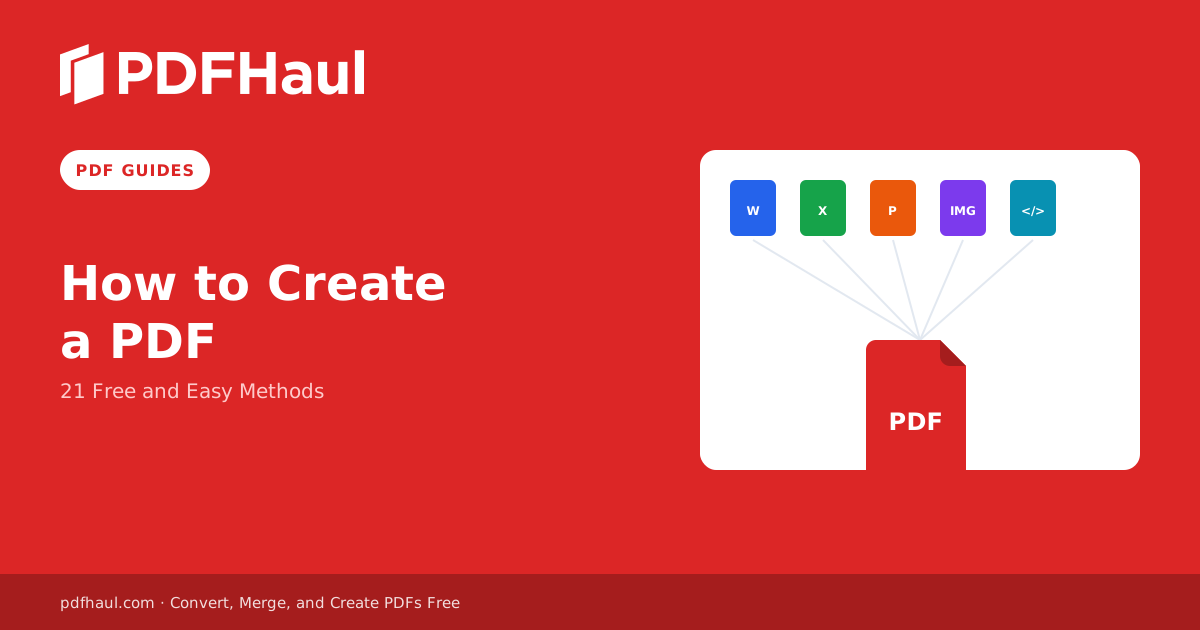
Creating a PDF doesn't require expensive software.
In fact, you can create a PDF from a Word document, photo, spreadsheet, web page, email, physical document, or even your phone, often using tools you already have.
And there isn't one "best" way to do it. The right method depends on what you're starting with and what you want the finished PDF to look like.
So if you need to create a PDF, here are 21 practical ways to do it.
Let's get started.
1. Create a PDF From Multiple Images
Have several JPG or PNG images that need to become one document?
Instead of adding every image to Word, resizing them, and exporting the document, you can convert the images directly into a PDF.
This is especially useful for receipts, photographed documents, assignments, portfolios, screenshots, and scanned pages. You can also arrange the images in the correct order before creating your PDF.
How to do it
Open an image-to-PDF converter.
Select the images you want to use.
Arrange them in the order you want them to appear.
Check the orientation of each image.
Start the conversion.
Download the resulting PDF.
Open it and make sure the pages appear in the correct order.
Quick tip: If you're combining photographs of a document, crop and straighten the images before converting them. You'll end up with a much cleaner PDF.
2. Turn Almost Anything Into a PDF With "Print to PDF"
Here's one of the most useful PDF tricks that many people overlook:
You don't actually need a printer to use the Print command.
Modern operating systems can create a virtual PDF instead. If an application can print something, there's a good chance you can turn it into a PDF using this method.
That means the same technique can work for documents, webpages, emails, receipts, images, and other printable content.
On Windows
Open the content you want to convert.
Press Ctrl + P or select File > Print.
Open the printer list.
Choose Microsoft Print to PDF.
Adjust the page range, orientation, and other settings.
Click Print.
Choose a filename and location.
Click Save.
Windows 10 and 11 include Microsoft Print to PDF as a built-in virtual printer.
On a Mac
Open the file.
Select File > Print.
Find the PDF menu in the print dialog.
Choose Save as PDF.
Enter a filename.
Choose where you want to save it.
Click Save.
macOS also provides PDF creation directly through its print dialog.
This is a great fallback method to remember because it works across so many applications.
3. Combine Several Files Into One PDF
Sometimes creating a PDF isn't about starting from scratch.
You may already have five PDFs that need to become one.
For example, you might have a cover page, application form, supporting documents, receipts, and an appendix stored separately.
Instead of sending five attachments, combine them into a single organized PDF.
How to do it
Open a PDF merge tool.
Add each PDF you want to combine.
Drag the files into the correct order.
Check that you haven't added the same document twice.
Merge the files.
Download the new PDF.
Review the final page order.
Quick tip: Rename your source files 01-cover, 02-application, 03-receipts, and so on before merging a large number of documents. That makes their intended order obvious.
4. Create a PDF From Microsoft Word
If you've written a report, resume, letter, essay, proposal, or other document in Microsoft Word, you don't need to copy it into a PDF editor.
Word can create the PDF for you, or you can convert your finished document to PDF afterward.
Using Word's PDF export functionality, or a dedicated converter, is generally preferable to taking screenshots or rebuilding the document because you're converting directly from the original source.
How to do it in desktop Word
Open your Word document.
Select File.
Choose Save As, Save a Copy, or the relevant export option for your Word version.
Choose where you want to save the document.
Select PDF as the file type.
Give the PDF a filename.
Save it.
Microsoft's web version of Word also provides a PDF download/export option.
Before exporting
Check your:
Margins
Page breaks
Headers and footers
Images
Hyperlinks
Page orientation
Don't assume that a document that looks right while editing will automatically look right as a PDF.
5. Download a Google Doc as a PDF
Google Docs makes PDF creation surprisingly simple.
Because Docs runs in your browser, this is also a convenient option when you don't have Microsoft Word installed. You can create the document online, collaborate on it, and download the finished version as a PDF.
This works particularly well for reports, notes, school documents, letters, and other text-heavy files.
How to do it
Open your document in Google Docs.
Select File.
Select Download.
Choose PDF Document (.pdf).
Wait for the file to download.
Open the PDF and inspect the formatting.
Google provides PDF downloads across Docs, Sheets, and Slides.
If the document is particularly large, printing it to PDF from the browser can provide an alternative route.
6. Create a PDF From Excel Without Cutting Off Columns
Excel can create PDFs too, but there's a catch.
A wide spreadsheet that looks perfect on your monitor can turn into a terrible PDF with columns split across pages.
The solution is to check your page layout before creating the PDF.
How to do it
Open your Excel workbook.
Select the worksheet you want to export.
Define the print area if you don't need the entire sheet.
Check the page orientation.
Adjust scaling if necessary.
Preview the pages.
Select File > Save As or Export, depending on your version, or use an Excel-to-PDF converter once your layout looks right.
Choose PDF as the format.
Save the file.
Inspect every page.
Quick tip: If your table is wider than it is tall, try landscape orientation before shrinking everything to fit.
7. Turn a PowerPoint Presentation Into a PDF
A PowerPoint presentation doesn't have to remain a .pptx file.
Converting your presentation to PDF can be useful when you want someone to read the slides without editing them or without needing PowerPoint.
It's also convenient for handouts, presentations, training materials, portfolios, and reference documents.
How to do it
Open the presentation in PowerPoint.
Review your slides.
Select File.
Choose Save As or Export, or run the finished file through a PowerPoint-to-PDF converter.
Select PDF as the output format.
Choose your save location.
Export the presentation.
Open the resulting PDF.
Remember that a PDF is static. Animations, transitions, embedded video, and other interactive presentation elements won't behave like they do during a PowerPoint presentation.
8. Download Google Sheets as a PDF
Google Sheets can also generate PDFs directly from your browser.
And like Excel, the most important part isn't clicking Download. It's making sure the spreadsheet fits properly on the PDF pages.
Google Sheets gives you options for things such as page size, orientation, scale, margins, and which part of the spreadsheet you want to export.
How to do it
Open your spreadsheet.
Select File.
Choose Download > PDF.
Choose what you want to export.
Set your paper size.
Select portrait or landscape orientation.
Adjust the scale.
Check the page breaks.
Export the PDF.
Review the downloaded file.
Google Sheets is therefore a convenient way to create PDF reports, tables, schedules, and other spreadsheet-based documents.
9. Turn Google Slides Into a PDF
Google Slides provides another browser-based route to PDF creation.
This can be useful when someone needs a copy of your presentation but doesn't need the editable Slides version.
It also means you can create a presentation on virtually any computer with a browser and export the finished document without installing dedicated presentation software.
How to do it
Open your presentation in Google Slides.
Check that every slide looks correct.
Select File.
Choose Download.
Select PDF Document (.pdf).
Wait for the PDF to download.
Open it and inspect the slides.
Like PowerPoint, remember that the resulting PDF consists of static pages. Interactive presentation features won't carry over in the same way.
10. Save a Web Page as a PDF
Found an online receipt, article, confirmation page, research source, or reference guide that you want to keep?
You can often save the webpage directly as a PDF.
The easiest method on a desktop browser is usually the browser's print function. Windows and macOS both support saving printable web content as a PDF.
In Chrome or another supported desktop browser
Open the webpage.
Press Ctrl + P on Windows or Command + P on Mac.
Select Save as PDF or the available PDF destination.
Choose your page range.
Set portrait or landscape orientation.
Adjust margins and scale if necessary.
Preview the pages.
Save the PDF.
Watch the preview carefully
Websites can use special print layouts.
That means menus, advertisements, backgrounds, navigation elements, or other parts of the page may look different in the PDF than they do in your browser.
Always inspect the preview before saving.
11. Save an Email as a PDF
Important emails have a habit of becoming difficult to find precisely when you need them.
Saving an email as a PDF gives you a standalone copy that can be stored alongside your other documents.
This can be useful for receipts, booking confirmations, important correspondence, project records, and other messages you want to archive outside your inbox.
Using Gmail on the web
Open the email.
Choose the print option.
Select Save as PDF as the destination.
Adjust the settings if necessary.
Save the PDF.
Using Outlook
Open the message.
Select Print.
Choose Microsoft Print to PDF or Save as PDF, depending on your platform.
Save the file.
Important: Don't assume email attachments will automatically become part of the PDF. Save important attachments separately when necessary.
12. Scan a Paper Document Into a PDF
Sometimes your starting point isn't digital at all.
It might be a signed letter, receipt, worksheet, contract, handwritten note, or another physical document.
In that situation, scanning lets you create a digital PDF while preserving the appearance of the original pages.
Using a scanner
Place the document on the scanner.
Open your scanner's software.
Select PDF as the output format.
Choose an appropriate resolution.
Scan the first page.
Add additional pages if needed.
Save the completed PDF.
Review every page.
Make scanned PDFs more useful
A basic scan can essentially be a picture of each page.
If you need to search, select, or copy the words inside the document, look for an OCR (optical character recognition) option when scanning, or run the finished scan through an OCR PDF tool afterward to make the text searchable.
13. Scan a Document to PDF With an iPhone
You don't necessarily need a traditional scanner.
An iPhone or iPad can capture paper documents and turn them into PDFs using built-in functionality.
This makes your phone especially useful for quickly digitizing receipts, forms, notes, and other documents when you're away from a computer.
Using Apple Notes
Open Notes.
Create a new note or open an existing one.
Tap the attachment control.
Choose Scan Documents.
Position the document in the camera view.
Capture the page.
Adjust the corners if necessary.
Continue scanning additional pages.
Finish the scan.
Apple Notes stores document scans as PDFs within the note.
For the cleanest result, place the document on a flat surface with good lighting and avoid casting a shadow over the page.
14. Create a PDF on Android
Android devices can create PDFs without requiring a desktop computer.
One of the most broadly useful options is Android's print functionality. Applications that support printing can generally pass their content to the system print interface, where Save as PDF may be available.
How to use Save as PDF
The exact menus can vary between apps and phone manufacturers, but the general process is:
Open the content.
Open the application's menu.
Choose Print, or find Print through the Share menu.
Open the printer selector.
Select Save as PDF.
Adjust the available settings.
Tap the PDF/save control.
Choose where to store the file.
Chrome for Android, for example, supports the Share > Print > Save as PDF workflow.
15. Create a PDF From a Paper Document With Google Drive
Here's another useful way to turn paper into a PDF without buying a scanner.
Google Drive includes document-scanning functionality on mobile devices. This is particularly convenient when you want the resulting scan stored in your Drive account rather than only on your device.
On Android
Open Google Drive.
Tap the camera/scan option.
Position the paper in front of your camera.
Capture the document.
Adjust the scan.
Add additional pages if necessary.
Finish the scan.
Name the file.
Select PDF where the format option is available.
Save it.
This is particularly handy when you're digitizing documents that you also want backed up online.
16. Create a PDF With Apple Pages
If you're a Mac, iPhone, or iPad user, you don't need Microsoft Word to create a polished document and turn it into a PDF.
Apple Pages can be used for letters, reports, resumes, flyers, and other documents, then exported to PDF.
How to do it
Create or open your document in Pages.
Finish your formatting.
Open the export options.
Choose PDF as the output format.
Select the available quality settings you need.
Choose where to save the file.
Export it.
Open the PDF and review it.
This method is especially useful if Pages is already your primary word processor because you can keep the editable Pages file as your master copy and distribute the PDF version.
17. Create a PDF for Free With LibreOffice
Don't have Microsoft Office?
LibreOffice provides another route.
It's a free, open-source office suite with applications for documents, spreadsheets, presentations, and more. That makes it useful if you regularly create documents but don't want your PDF workflow tied to a paid office subscription.
How to do it
Open or create your document in LibreOffice.
Finish editing and formatting it.
Find the PDF export option.
Review the available PDF settings.
Choose where to save the file.
Export it.
Inspect the result.
LibreOffice is particularly useful when you're working with editable office-style documents and want more control than you'd get from simply printing the screen to PDF.
18. Create a PDF With Dedicated PDF Software
Full office suites and browser exports cover most PDFs, but it's worth distinguishing them from dedicated PDF software like Adobe Acrobat or a browser-based tool such as PDFHaul.
Most of the methods above create PDFs as the final output of another application.
Dedicated PDF software becomes more useful when the PDF itself is the document you're working on, particularly when you need additional creation, conversion, editing, organization, or form-related capabilities beyond a one-time export.
General workflow
Open your PDF tool.
Choose the PDF creation tool you need.
Select the source file or content.
Create the PDF.
Review the resulting pages.
Make any necessary PDF-level changes.
Save the document.
You don't need dedicated PDF software for every PDF you create. If Word, Google Docs, or your operating system already does what you need, the simpler built-in method may be faster.
19. Create a PDF From a Screenshot
A screenshot can become a PDF too.
This is useful when you need to preserve something displayed on your screen and the original application doesn't provide a clean export option.
However, there's an important tradeoff: a screenshot captures pixels, not the underlying document structure. That makes this method better for visual records than for text-heavy documents that need to remain searchable and accessible.
One simple workflow
Take the screenshot.
Crop out unnecessary parts of the screen.
Save the image.
Open the image in an application that supports printing, or use an image-to-PDF tool directly.
Choose Print, or convert the image.
Select the PDF destination.
Save the file.
If you have multiple screenshots, combine them using an image-to-PDF workflow instead.
Use screenshots as a fallback, not your first choice when the original application can export directly to PDF.
20. Create a PDF From HTML
If you're building a website or application, you can generate a PDF from HTML content.
This approach is different from manually clicking Print because the PDF can be created as part of an automated workflow.
For example, an application could generate invoices, reports, tickets, certificates, or receipts from an HTML template and convert the rendered result into a PDF.
Basic workflow
Create the HTML document or template.
Add your CSS styling.
Insert the required data.
Render the document.
Use an appropriate PDF-generation library or browser-based rendering system.
Generate the PDF.
Save or return the resulting file.
Test the output across different content lengths.
Pay special attention to page breaks, margins, fonts, images, and content that spans multiple pages.
For developers, HTML-to-PDF can be one of the most flexible approaches because the document can be generated dynamically rather than manually created every time.
21. Automate PDF Creation With Code
If you repeatedly create hundreds or thousands of similar PDFs, manually exporting each one doesn't make sense.
Programmatic PDF generation lets you create documents automatically using data from your application, database, API, or another source.
This is useful for invoices, certificates, statements, reports, tickets, labels, and other documents that follow a repeatable structure.
The general process
Choose the language your application already uses.
Select a PDF-generation library or rendering approach.
Define your page dimensions.
Create the document layout.
Add text, images, tables, and other elements.
Insert dynamic data.
Generate the PDF.
Save it locally or to cloud storage.
Test unusual and long inputs.
Automate the process.
For example, a Python or JavaScript application can receive data, generate a document, and return a finished PDF without anyone manually opening a word processor.
If the workflow needs judgment as well as generation, deciding which pages to keep, whether a scan needs OCR, or how a messy input document should be cleaned up before the data even gets extracted, that decision-making can sit with an AI agent while PDFHaul's MCP server handles the underlying PDF operations as callable tools.
Don't forget edge cases
Automated documents need testing.
What happens when someone's name is unusually long?
What happens when a table has 200 rows instead of 10?
What happens when an image is missing?
What happens when text runs onto another page?
A PDF generator that works perfectly with sample data can break when it meets real-world input. Test those cases before relying on it in production.
Which PDF Creation Method Should You Use?
With 21 options, choosing one might sound more complicated than it needs to be.
It isn't.
Start with whatever you're creating the PDF from.
You're starting with... | Try this first |
|---|---|
Word document | Word's PDF export |
Google Doc | Download as PDF |
Excel spreadsheet | Excel PDF export |
Google Sheet | Download as PDF |
PowerPoint | PowerPoint PDF export |
Google Slides | Download as PDF |
Several images | Image-to-PDF converter |
Several PDFs | PDF merger |
Webpage | Browser Print > Save as PDF |
Print > Save as PDF | |
Paper document | Scan to PDF |
Paper + iPhone | Notes document scanner |
Paper + Android | Google Drive scanner |
Almost any printable file | Print to PDF |
Automated documents | Programmatic PDF generation |
There's a useful general rule here:
If the application that created your content has a native PDF export feature, try that first.
Native export can preserve more of the original document's structure and features than recreating it through a print workflow. Printing to PDF is an excellent fallback when direct export isn't available.
5 Things to Check Before Sharing Your New PDF
Creating the PDF isn't always the final step.
Before emailing, uploading, or publishing it, spend a minute checking the finished file.
First, check every page. Look for missing content, blank pages, unexpected page breaks, clipped spreadsheet columns, and incorrectly rotated pages.
Second, test the text. If the document is supposed to contain searchable text, try selecting a sentence. A scanned document may need OCR before its text can be searched.
Third, check the file size. Image-heavy PDFs can become surprisingly large. If necessary, compress the PDF before sharing it.
Fourth, check links. If your original document contained hyperlinks, click a few in the exported PDF and make sure they still work.
Finally, check sensitive information. Don't assume covering text with a shape or changing its color permanently removes the underlying information. If information genuinely needs to be removed, use a proper redaction tool instead.
Frequently Asked Questions
What is the easiest way to create a PDF?
If the content is already open in an application that supports printing, Print to PDF is one of the easiest universal methods. On Windows, choose Microsoft Print to PDF. On macOS, use the PDF option in the Print dialog.
If the application offers a direct Export as PDF or Download as PDF option, however, use that first.
Can I create a PDF for free?
Yes.
Many of the methods above don't require purchasing PDF software. Windows and macOS have built-in PDF printing, Google Docs can download documents as PDFs, mobile devices provide PDF creation options, and LibreOffice provides free document-export capabilities.
How do I create a PDF on Windows?
For content that can be printed:
Ctrl + P > Microsoft Print to PDF > Print > choose a filename > Save.
For applications such as Microsoft Word, use their native PDF export functionality when available.
How do I create a PDF on a Mac?
Open the document and select:
File > Print > PDF > Save as PDF.
Then choose the filename and location.
Can I create a PDF on my phone?
Yes.
iPhones and iPads can create PDFs through several built-in workflows, including document scanning. Android also supports Save as PDF through its print system, and Google Drive can scan physical documents into PDFs.
How do I make a PDF from photos?
Use an image-to-PDF converter or another application that can combine images into a PDF.
Put the photos in the correct order, convert them, and check the resulting page orientation before sharing the file.
Can I turn a webpage into a PDF?
Yes. On most desktop browsers, open the page, press Ctrl + P on Windows or Command + P on Mac, and select the PDF destination.
Can I create one PDF from multiple PDFs?
Yes. Use a PDF merge tool to combine the separate files and arrange them in the desired order.
This is preferable to printing each existing PDF into another PDF because unnecessary re-rendering can discard some of the original document's features.
Now Create Your PDF
You don't need to try all 21 methods.
Pick the method that matches what you have in front of you right now.
If it's a Word document, export it.
If it's a webpage, save it through your browser.
If it's paper, scan it.
If it's a collection of images, turn those images into one PDF.
And if you find yourself repeatedly creating the same type of PDF, consider automating the process instead.
Once you've created your PDF, open the finished file and check it before you send it anywhere.
That's usually all it takes.
Peter
Founder of PDFHaul and Bultech
Building tools that make working with documents faster and simpler.