How to Rotate PDF Pages: Complete Guide
Incorrect page orientation is one of the most common PDF frustrations. Whether dealing with scanned documents, imported files, or mixed-orientation presentations, knowing how to rotate PDF pages properly ensures professional document presentation and readability.
This comprehensive guide covers everything from basic single-page rotation to advanced batch processing techniques for optimal PDF orientation management.
Why PDF Page Rotation Matters
Proper page orientation is crucial for document usability:
Readability: Sideways or upside-down pages frustrate readers
Professionalism: Correct orientation reflects attention to detail
Printing efficiency: Proper orientation prevents wasted paper and ink
Screen viewing: Mobile and tablet users expect correct orientation
Accessibility: Screen readers and assistive technology require proper orientation
Presentations: Mixed orientations disrupt presentation flow
PDF rotation is permanent and lossless—pages are repositioned without quality loss or file corruption.
Understanding PDF Rotation Angles
Standard Rotation Angles
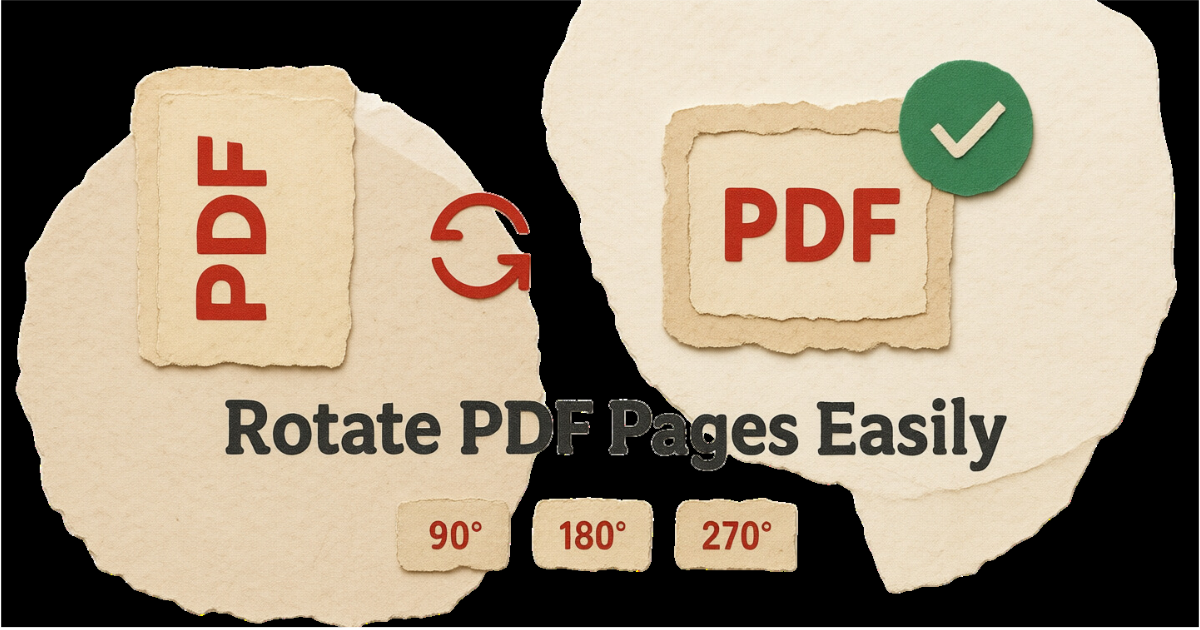
PDF pages can be rotated in 90-degree increments:
90° Clockwise (Right)
Portrait to landscape (right side up)
Most common for fixing scanned pages
Useful for sideways text
180° (Upside Down)
Flips pages completely
Fixes upside-down scans
Reverses page orientation
270° Clockwise (Left) / 90° Counter-Clockwise
Portrait to landscape (left side up)
Alternative to 90° rotation
Fixes opposite-direction scans
Portrait vs Landscape
Understanding page orientations:
Portrait Orientation
Vertical page layout (8.5" × 11")
Standard for letters, reports, documents
Typical book and article format
Landscape Orientation
Horizontal page layout (11" × 8.5")
Common for presentations, charts, tables
Wide-format content display
How to Rotate PDFs with PDFHaul
PDFHaul provides flexible PDF rotation with precision control. Watch this demonstration:
Step 1: Upload Your PDF
Visit the PDF Rotate tool and upload your document. PDFHaul supports:
Files up to 100MB
Multi-page documents
Mixed orientation PDFs
Scanned and digital PDFs
Step 2: Select Pages to Rotate
Choose which pages need rotation:
All Pages
Rotate entire document uniformly
Fix consistently misoriented scans
Quick correction for single-orientation issues
Specific Pages
Select individual pages (e.g., 1, 5, 10)
Rotate page ranges (e.g., 3-8)
Fix mixed-orientation documents
Odd or Even Pages
Rotate all odd pages (1, 3, 5...)
Rotate all even pages (2, 4, 6...)
Useful for duplex scanning corrections
Use the page preview to verify which pages need rotation before applying changes.
Step 3: Choose Rotation Angle
Select the appropriate rotation:
90° Right: Rotate clockwise quarter turn
180°: Flip upside down
90° Left: Rotate counter-clockwise quarter turn
Step 4: Apply and Download
Click "Rotate PDF" and download your corrected document. Changes are permanent and maintain all content quality.
Rotation Strategies
Rotate All Pages
When all pages need the same rotation:
Use Case: Consistently Oriented Scans
Document scanned sideways or upside down
All pages in same wrong orientation
Select "All Pages" option
Choose rotation angle (90°, 180°, or 270°)
Benefits
Quick one-click fix
Processes entire document at once
No need to identify individual pages
Rotate Specific Pages
When only certain pages need rotation:
Use Case: Mixed Orientations
Some pages upside down
Specific sections scanned incorrectly
Individual page corrections needed
How to Use
Identify page numbers that need rotation
Enter specific page numbers (e.g., 2, 5, 8-10)
Select rotation angle
Apply changes
Benefits
Precise control
Preserves correct pages unchanged
Handles complex documents
What Gets Rotated
When you rotate pages, all content rotates together:
Page Content
All text rotates with the page
Images and graphics rotate
Tables and charts rotate
Annotations and comments rotate
Maintained Quality
No quality loss during rotation
Text remains searchable
Links and bookmarks stay functional
Form fields remain interactive
Common Rotation Scenarios
Scenario 1: Fix Scanned Book Pages
Problem: Book pages scanned sideways Solution:
Determine if all pages need same rotation
Apply 90° or 270° to all pages
Verify text readability after rotation
Scenario 2: Correct Mixed Presentation
Problem: PowerPoint export with mixed orientations Solution:
Identify landscape vs portrait slides
Rotate landscape pages to match majority
Or rotate portrait pages to landscape
Scenario 3: Fix Upside-Down Pages
Problem: Some pages accidentally upside down Solution:
Select only affected pages
Apply 180° rotation
Verify page order remains correct
Scenario 4: Correct Duplex Scan Errors
Problem: Double-sided scan with alternating orientations Solution:
Rotate all even pages 180°
Keep odd pages unchanged
Or vice versa depending on scan direction
Rotation Best Practices
Before Rotating
Check these factors first:
Preview Pages
View each page orientation
Identify rotation patterns
Note any exceptions
Consider Final Use
How will document be viewed?
Print or screen viewing?
Portrait or landscape preference?
Check Content Type
Text-based documents
Image-heavy files
Forms and tables
Mixed content
During Rotation
Follow these guidelines:
Start with Sample
Rotate one page first
Verify result before batch rotation
Adjust if necessary
Use Consistent Angles
Don't over-rotate (360° = no change)
Use minimum necessary rotation
Maintain document flow
Verify Page Order
Rotation doesn't change page sequence
Check logical content flow
Ensure proper pagination
After Rotation
Verify these elements:
Content Integrity
Text remains readable
Images display correctly
Tables and charts oriented properly
Page numbers in right position
Functionality
Links still work
Bookmarks point correctly
Form fields functional
Annotations visible
File Properties
File size unchanged
Quality maintained
Metadata preserved
Compatibility intact
Always save rotated PDFs with new file names to preserve originals until you verify results.
Troubleshooting Rotation Issues
Pages Won't Rotate
If rotation fails:
Check PDF isn't password-protected
Verify file isn't corrupted
Ensure you have edit permissions
Try re-uploading file
Solution: Remove password protection or unlock PDF before rotating.
Rotation Applies to Wrong Pages
If wrong pages rotate:
Double-check page selection
Verify page numbering matches content
Review page ranges carefully
Solution: Use page preview to confirm selection before applying rotation.
Content Looks Distorted
If content appears wrong after rotation:
May be double-rotation issue
Could indicate corrupt source file
Might need different rotation angle
Solution: Undo rotation and try different angle, or use original file.
File Size Increased
If rotated file is larger:
Shouldn't happen with simple rotation
May indicate re-compression occurred
Could be due to metadata addition
Solution: Use PDF compression to optimize file size after rotation.
Combining Rotation with Other Operations
Maximize efficiency by combining rotation with:
Rotate + Merge
Rotate pages in multiple PDFs
Merge into single document
Ensure consistent orientation throughout
Create unified professional document
Rotate + Split
Rotate pages as needed
Split into separate files
Extract correctly oriented sections
Distribute oriented documents
Rotate + Compress
Rotate pages to correct orientation
Compress rotated document
Reduce file size while maintaining orientation
Optimize for distribution
Preventing Rotation Issues
Avoid orientation problems from the start:
Scanning Best Practices
Consistent Document Feed
Feed pages same direction
Use document feeder settings
Check scanner preview
Adjust before bulk scanning
Scanner Settings
Enable auto-rotation if available
Set orientation detection
Use OCR with orientation correction
Save in correct orientation
Creating PDFs
From Word/Office
Set page orientation before export
Preview before creating PDF
Use print preview to verify
Check page setup settings
From Scans
Preview scans before saving
Rotate in scanning software
Save with correct orientation
Verify before moving files
From Images
Check image EXIF orientation
Rotate images before PDF creation
Use consistent image orientation
Verify preview before conversion
Mobile vs Desktop Rotation
Desktop Rotation
Advantages:
Larger preview screens
Easier page selection
More precise control
Better for complex documents
Mobile Rotation
Advantages:
Convenient for quick fixes
Great for single-page corrections
Useful for on-the-go needs
PDFHaul works perfectly on mobile
PDFHaul's responsive interface works seamlessly on all devices, providing full rotation functionality whether you're on desktop, tablet, or mobile.
When Rotation Isn't the Solution
Some issues require different approaches:
Crooked Scans: Need image straightening, not rotation Partial Page Rotation: Need PDF editing software Text Direction: May need OCR with language settings Watermarks: Require specialized removal tools Page Size Issues: Need resizing or cropping instead
Conclusion
PDF page rotation is a fundamental document management skill that ensures professional presentation and optimal readability. With the right tools and techniques, you can fix orientation issues quickly and maintain document quality.
Key Takeaways:
Preview pages before rotating
Use appropriate rotation angle for each situation
Rotate in 90° increments only
Verify results before finalizing
Combine with other operations for efficiency
Ready to rotate your PDFs? Try PDFHaul's rotation tool now - free, fast, and precise.
Frequently Asked Questions
Q: Does rotating PDFs reduce quality?
A: No, rotation is completely lossless. Pages are repositioned without any quality degradation or data loss.
Q: Can I rotate pages back if I make a mistake?
A: Yes, simply apply the opposite rotation (e.g., if you rotated 90° right, rotate 270° right to undo).
Q: Will rotation affect PDF file size?
A: No, simple rotation doesn't change file size. The content remains identical, just repositioned.
Q: Can I rotate password-protected PDFs?
A: You must unlock password-protected PDFs before rotation. After rotating, you can re-apply password protection.
Q: How do I rotate just one page in a multi-page PDF?
A: Select the specific page number you want to rotate, choose your angle, and apply. Other pages remain unchanged.
Q: Will rotation break links and bookmarks?
A: No, internal links and bookmarks are preserved and continue to function correctly after rotation.
Written by PDFHaul Team
Expert team specializing in PDF processing and document management. We share practical tips, tutorials, and best practices to help you work smarter with PDFs.
View all articles