There are dozens of free PDF compressors online. Most work, but they differ in how much they reduce file size, how much quality they sacrifice to get there, whether they put your files behind a login wall, and how many free compressions they actually allow before pushing you toward a paid plan.
This comparison covers the best free options, what each one does well, and where each falls short.
What to Look for in a PDF Compressor
Before the comparison, three things matter most when choosing a compressor:
Compression ratio. How much does it actually reduce file size? A tool that cuts a 10 MB file to 9.5 MB is not useful. A good compressor should cut image-heavy PDFs by 50 to 80 percent at medium quality settings.
Quality at medium settings. Aggressive compression is easy. Compressing well without visible degradation is harder. The best tools let you choose a quality level and deliver predictable results at each setting.
Friction. Does it require an account? Does it limit free compressions per day? Does it add a watermark to free output? These are the real costs of “free” tools.
PDFHaul
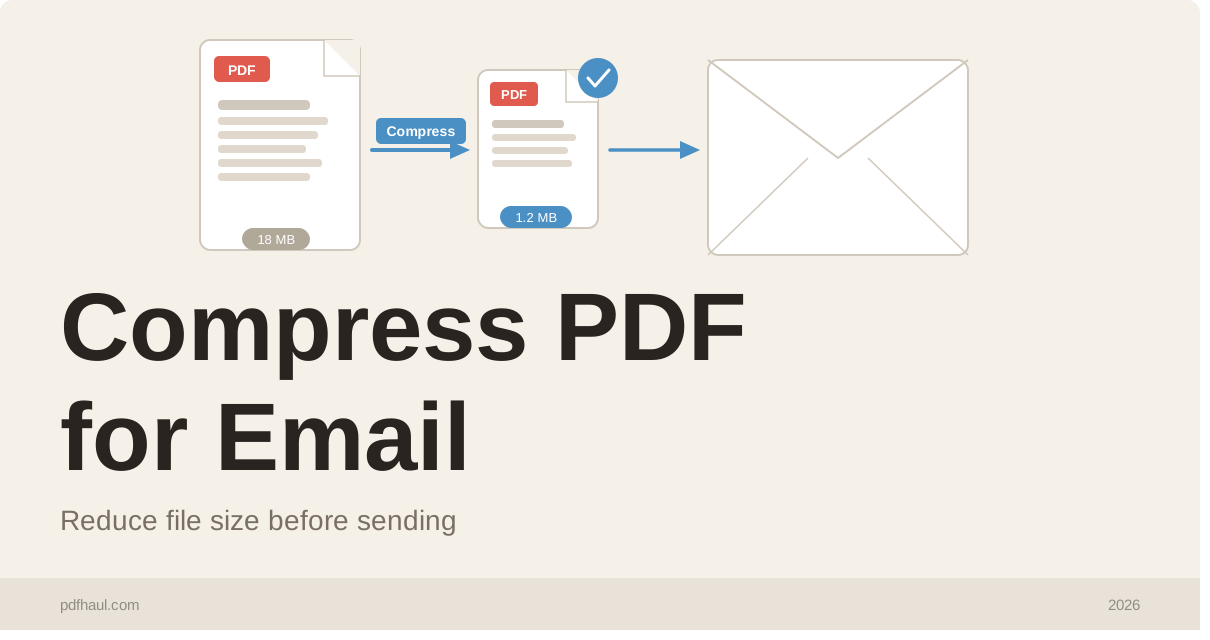
PDFHaul Compress PDF is the cleanest option for most users. Upload your file, choose a compression level (low, medium, or high), and download. No account required, no watermarks, no daily limits on the free tier.
The compression results are strong on image-heavy PDFs. A 15 MB scanned document compresses to around 2 to 3 MB at medium quality with no visible degradation on screen. Text-only PDFs compress to near-minimum size regardless of settings, since there is little to reduce beyond internal structure optimization.
Files are deleted from PDFHaul’s servers within 2 hours of upload, which matters if you are compressing documents with sensitive content.
Best for: everyday compression without friction, privacy-conscious users, mobile use.
Limitations: 50 MB file size limit on the free tier.
iLovePDF
iLovePDF is one of the most widely used PDF tools online and its compressor works reliably. The interface is straightforward and compression results are comparable to PDFHaul at similar quality settings.
The catch is friction. iLovePDF limits free users to a certain number of tasks per day and pushes account creation aggressively. The free tier also includes ads throughout the interface. For occasional use it is fine. For regular use the limits add up quickly.
Best for: users already in the iLovePDF ecosystem who use multiple tools in one session.
Limitations: daily task limits on free tier, ads, account pressure.
Smallpdf
Smallpdf has strong brand recognition and a polished interface. Its compressor delivers good results and the user experience is smooth. The problem is that Smallpdf is one of the most restrictive free tiers in the category. Free users get two tasks per day across all tools, and compression counts as one of them. If you compress two PDFs, you are done for the day.
For anyone compressing PDFs more than occasionally, Smallpdf’s free tier is effectively a trial rather than a usable free product.
Best for: one-off compressions when you need a polished experience.
Limitations: two free tasks per day across all tools, login required for some features.
PDF24
PDF24 is genuinely free with no task limits and no account required. It also offers a desktop app for Windows users who prefer offline processing. The compression results are decent, though the interface is cluttered and the web experience feels dated compared to newer tools.
PDF24 shows ads and the sheer number of tools on the page can make navigation confusing for first-time users. If you need unlimited free compressions and do not mind the interface, it is a solid option.
Best for: heavy users who need unlimited free compressions, Windows users who want an offline app.
Limitations: cluttered interface, ads, weaker mobile experience.
Adobe Acrobat Online
Adobe offers a free online PDF compressor at their website. The quality is good and the brand is trusted, but the free tier is limited to one compression every 24 hours, and the tool pushes Adobe account creation at every step. Adobe’s compressor makes sense if you are already paying for Adobe Creative Cloud or Acrobat. As a standalone free tool it is too restricted to be practical.
Best for: existing Adobe subscribers.
Limitations: one free compression per day, heavy account creation pressure, slower than alternatives.
Comparison at a Glance
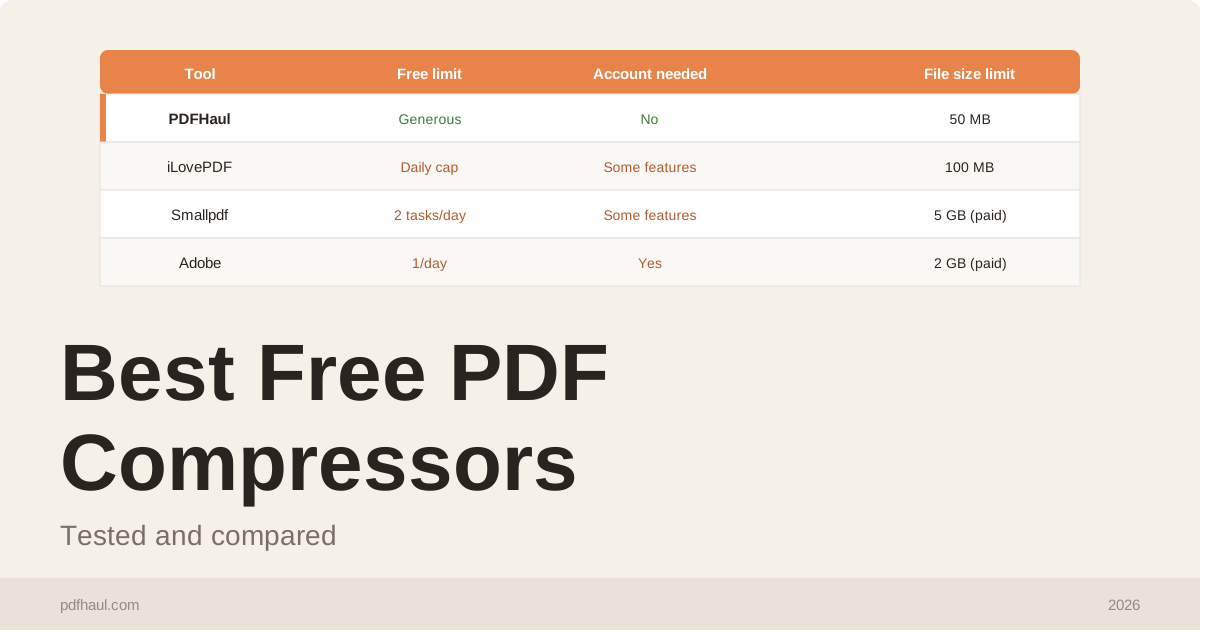
Tool | Free limit | Account required | Watermark | File size limit |
PDFHaul | Generous | No | No | 50 MB |
iLovePDF | Daily task cap | No (basic) | No | 100 MB |
Smallpdf | 2 tasks/day | Some features | No | 5 GB (paid) |
PDF24 | Unlimited | No | No | 200 MB |
Adobe Acrobat | 1/day | Yes | No | 2 GB (paid) |
Which One Should You Use?
For most people, PDFHaul is the right default. No account, no daily limits, no watermarks, strong compression results, and files deleted within 2 hours. It covers the common use cases cleanly.
If you regularly compress files over 50 MB, PDF24’s unlimited free tier with higher size limits is worth considering despite the interface.
If you are already paying for iLovePDF or Smallpdf for other tools, use their compressor as part of your existing subscription rather than switching tools.
Frequently Asked Questions
Do free PDF compressors reduce quality?
They can, depending on the settings you choose. Compression works by reducing image resolution inside the PDF. At low and medium settings, the difference is not visible on screen. At high compression, images may appear slightly softer. Text is never affected by compression since it is stored as vector data, not as an image.
Is it safe to upload sensitive documents to a free compressor?
It depends on the tool’s data policy. PDFHaul deletes files within 2 hours of upload and processes files in isolated environments. Before uploading anything confidential, check the privacy policy of the tool you are using and confirm how long files are retained.
Can I compress a PDF without losing any quality?
If a PDF contains only text and vector graphics, compression can reduce file size with zero quality loss by stripping redundant internal data. If the PDF contains images, some quality reduction is unavoidable at meaningful compression levels. Low compression settings keep quality very close to the original.
Why is my PDF still large after compression?
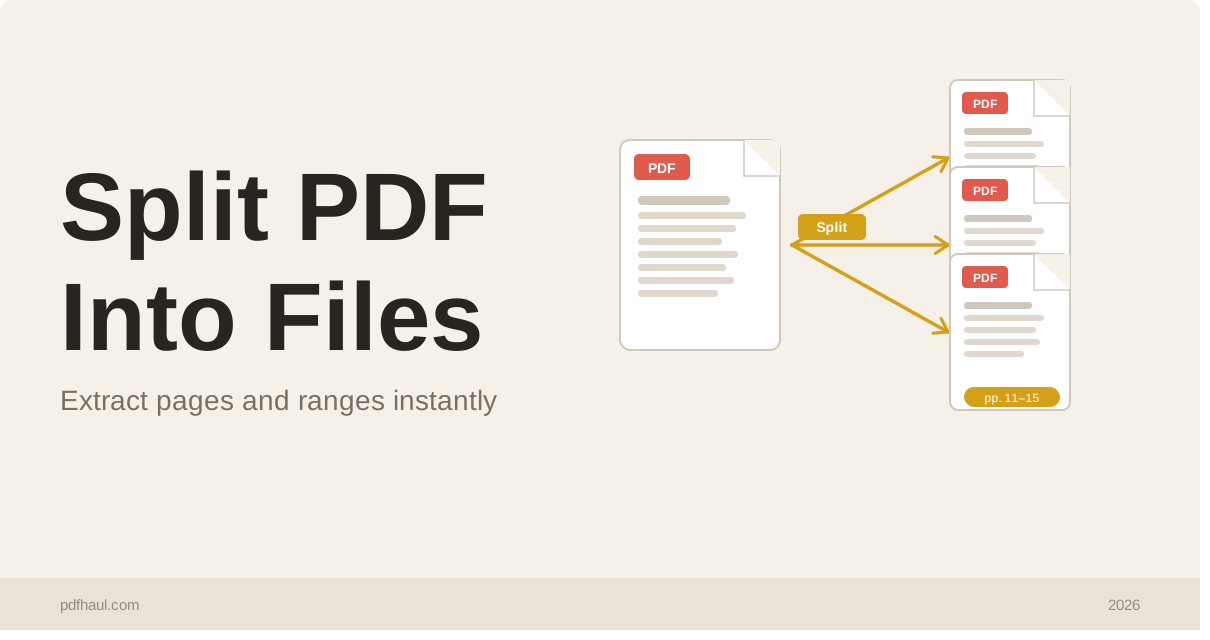
Some PDFs are already well optimized and cannot be reduced much further. PDFs containing very high resolution images or a large number of scanned pages compress more dramatically. If a PDF is still large after medium compression, try high compression or consider splitting it into smaller files using PDFHaul’s split tool.
Related Tools
Compress PDF — compress your PDF directly
Split PDF — reduce size by splitting into smaller files
Merge PDF — combine files before or after compressing
Tags
Written by PDFHaul Team
Expert team specializing in PDF processing and document management. We share practical tips, tutorials, and best practices to help you work smarter with PDFs.
View all articles