Splitting a PDF is useful in more situations than most people realize. Sending one chapter of a report without the rest. Extracting a single invoice from a batch export. Breaking a large scanned document into smaller files that fit within an email attachment limit. Separating a combined contract into individual agreements for different signatories.
All of these come down to the same action: taking one PDF and producing two or more smaller ones from it. This guide shows you how.
How to Split a PDF Using PDFHaul
PDFHaul’s split tool runs in your browser with no installation required.
Step 1: Go to pdfhaul.com/split-pdf.
Step 2: Upload your PDF by clicking the upload area or dragging the file in.
Step 3: Choose how you want to split. PDFHaul gives you two options:
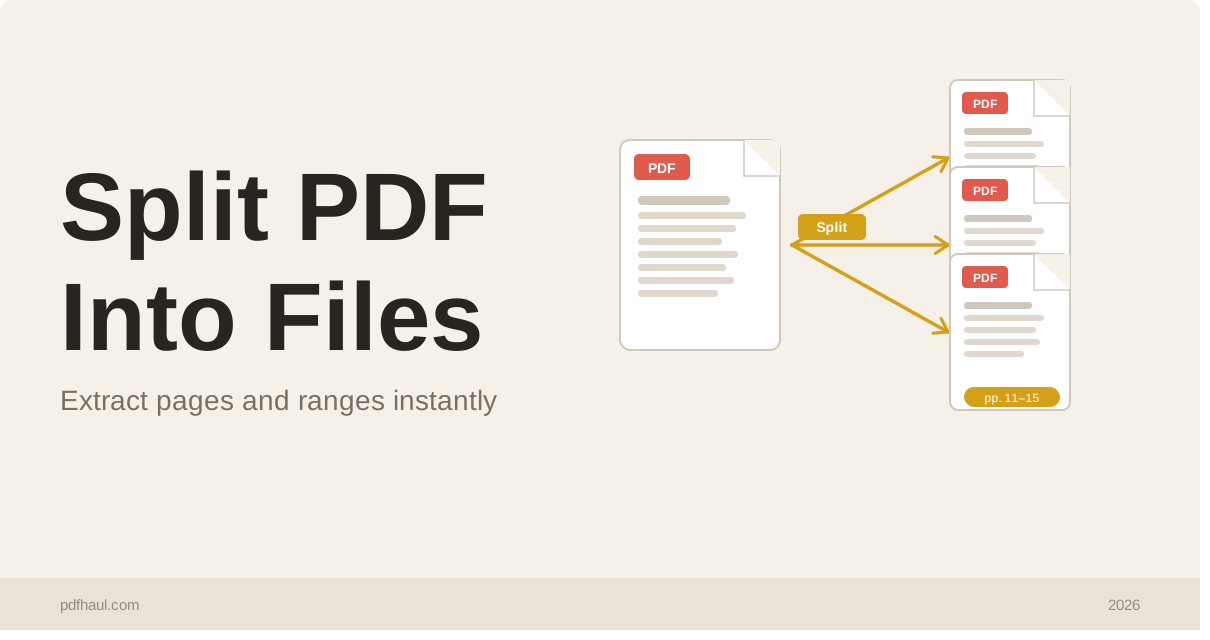
Split by range: Define which pages go into each output file. For example, pages 1 to 5 as file one and pages 6 to 12 as file two.
Extract individual pages: Split every page into its own separate PDF file. Useful for scanned documents where each page is a standalone item.
Step 4: Click Split and download the output files.
If you split into multiple files, PDFHaul packages them into a zip archive for download. Unzip on your device to access the individual files.
Splitting by Page Range
Splitting by range is the most common use case. A few examples of when you would use it:
Extracting a section: A 40-page report where you only need to send pages 8 to 15 to a colleague. Set the range to 8-15 and download that section as its own file.
Dividing a document evenly: A 20-page document you want to split into two 10-page halves. Set range one as pages 1 to 10 and range two as pages 11 to 20.
Isolating a single page: A contract where page 3 is the signature page that needs to be sent separately. Set the range to page 3 only.
You can define as many ranges as you need in a single pass. Each range becomes its own output file.
Extracting Every Page as a Separate File
The extract all pages option turns a multi-page PDF into individual single-page files. This is particularly useful for:
Scanned receipts or invoices where each page represents a separate document
Photo PDFs where you want the images back as individual files
Archiving documents where each page needs its own filename
Each output file is named sequentially so the original order is preserved.
Splitting a Large PDF for Email
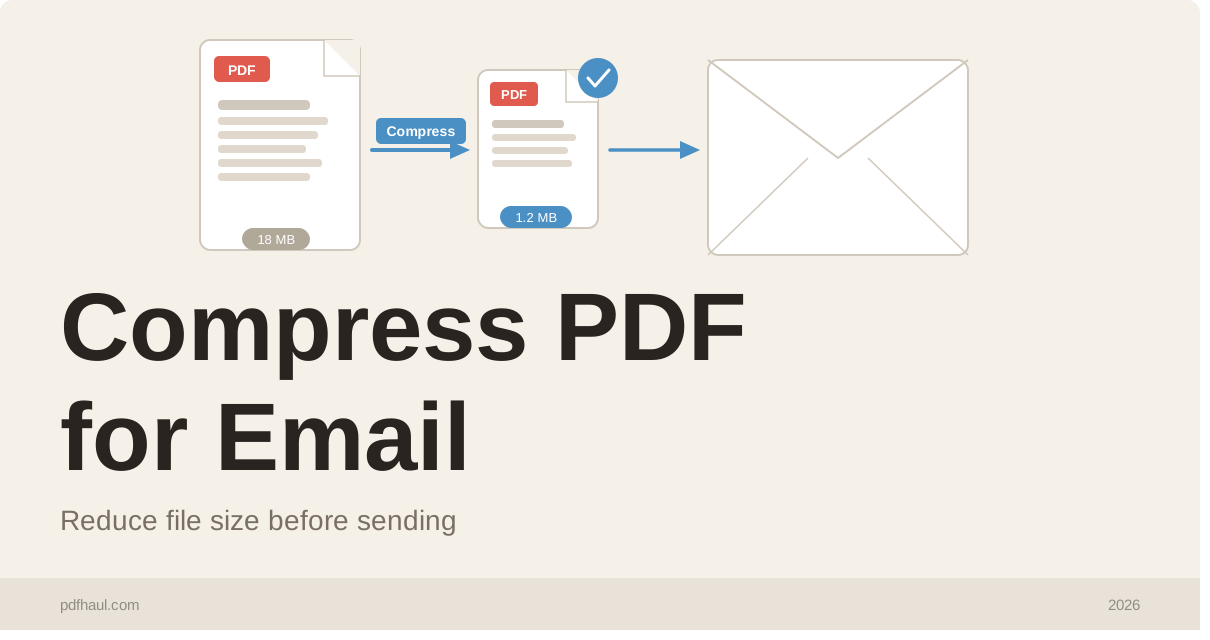
If a PDF is too large to send as an email attachment, splitting it is an alternative to compression. This is especially useful when you need to preserve image quality and compression would degrade it.
Split the document into sections of roughly equal size, name each file clearly (Part 1 of 3, Part 2 of 3, and so on), and send them as separate attachments or in separate emails. The recipient reassembles them using a merge tool.
For most cases, compressing the PDF is faster than splitting. But when quality cannot be compromised, splitting is the right call.
Splitting vs. Removing Pages
These two actions are different and it is worth knowing when to use each.
Splitting creates new files from defined page ranges. The original structure of each section is preserved. Use splitting when you want to produce multiple usable documents from one source file.
Removing pages (or removing empty pages using PDFHaul’s remove empty pages tool) modifies a single document by deleting unwanted pages. Use this when you want one clean output file with certain pages gone.
If you want to keep pages 1 to 5 and discard the rest, splitting to extract pages 1 to 5 achieves the same result as deleting pages 6 onwards. Either approach works. Splitting is often more intuitive when you know what you want to keep rather than what you want to remove.
Splitting on iPhone or Android
PDFHaul’s split tool works in mobile browsers. The upload and range-selection interface is touch-friendly and the download goes directly to your phone’s Files app or Downloads folder.
If you use PDFHaul regularly on mobile, the app is available on the App Store and Google Play and gives a faster experience than the browser for repeated tasks.
Frequently Asked Questions
Will splitting a PDF affect the quality of the output files?
No. Splitting is a structural operation. It divides the file at page boundaries without touching the content of any page. Text, images, and formatting are identical in the output files.
Can I split a password-protected PDF?
PDFHaul cannot process password-protected files. Remove the password protection first by opening the file in a PDF reader, entering the password, and saving an unlocked copy.
Can I split a PDF and then merge the parts back together?
Yes. Use PDFHaul’s merge tool to recombine files in any order. This is also a useful way to reorder large sections of a document: split into sections, rearrange, then merge.
Is there a page limit for splitting?
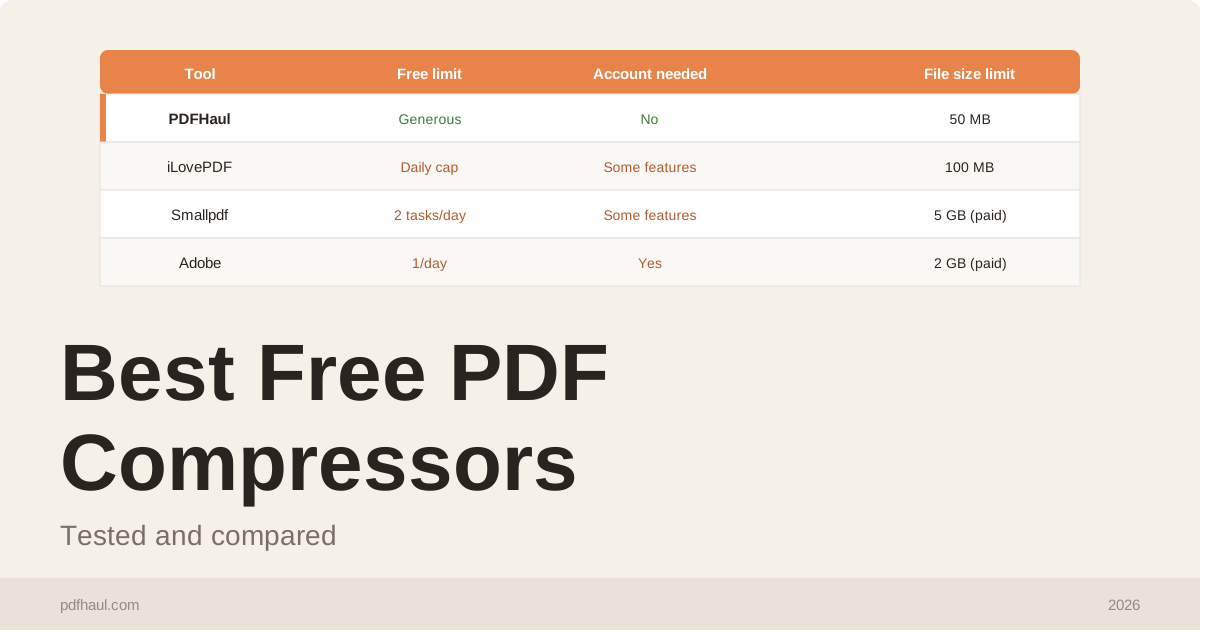
No. PDFHaul handles documents of any page count as long as the file is under 50 MB.
How do I split a scanned PDF into individual pages?
Upload the file and choose the extract all pages option. Each page is saved as a separate PDF. If the scanned pages are large image files, you may want to compress the output files afterward using PDFHaul’s compress tool.
Related Tools
Merge PDF — combine files after splitting or reorder sections
Compress PDF — reduce the size of split files before sending
Remove Empty Pages — clean up blank pages before or after splitting
Reorder Pages — rearrange pages within a file instead of splitting
Tags
Written by PDFHaul Team
Expert team specializing in PDF processing and document management. We share practical tips, tutorials, and best practices to help you work smarter with PDFs.
View all articles