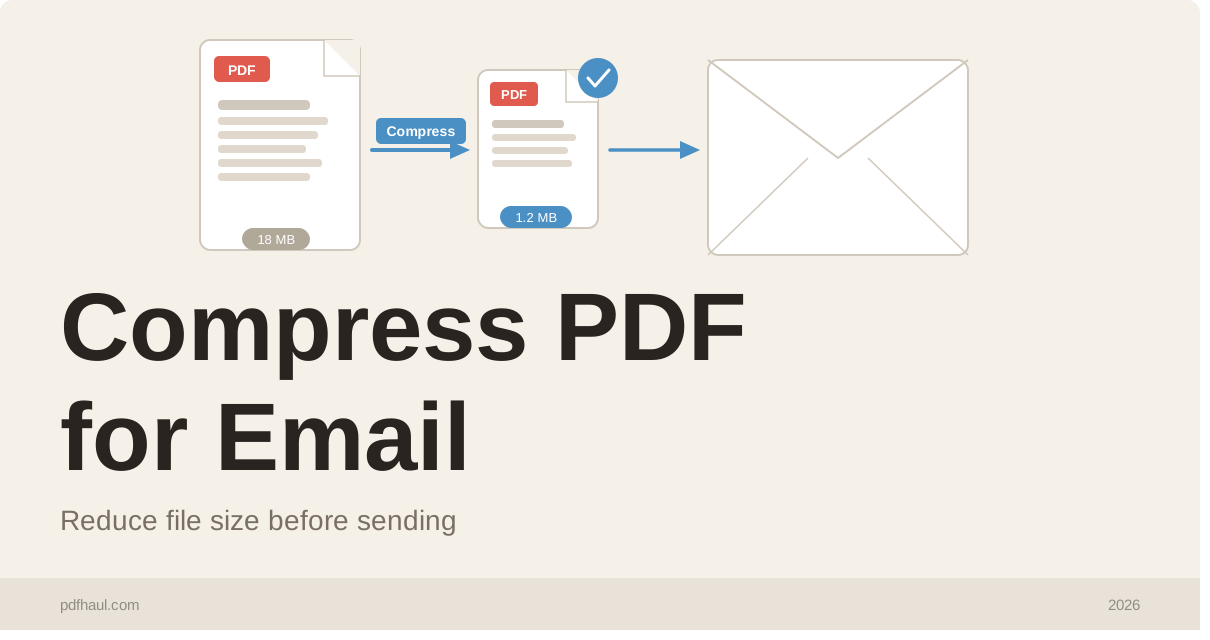
Most email providers cap attachments at 25 MB. Gmail, Outlook, and Yahoo all enforce this limit, and many corporate mail servers set the bar even lower at 10 MB. If your PDF is too large to send, you have two options: use a file transfer service like WeTransfer, or compress the PDF down to a size that fits in an attachment.
Compression is almost always the better choice. The recipient gets the file directly in their inbox, no extra steps, no link expiry, no account required.
This guide covers how to compress a PDF for email quickly, what size to aim for, and what affects quality when you reduce file size.
What File Size Should You Aim For?
For email attachments, target under 5 MB. This gives you a comfortable buffer below most provider limits and ensures the file is small enough to open quickly on a mobile device.
As a rough guide:
Under 1 MB: ideal, will send and open anywhere
1 MB to 5 MB: fine for most recipients
5 MB to 10 MB: risky depending on the recipient’s mail server
Over 10 MB: likely to bounce or hit spam filters
If your PDF contains mostly text, it should compress down to well under 1 MB regardless of page count. If it contains high-resolution images or embedded fonts, compression will have a larger impact on file size and you may notice some quality reduction at aggressive settings.
How to Compress a PDF for Email Using PDFHaul
PDFHaul’s compress tool runs in your browser, requires no installation, and lets you choose how aggressively you want to reduce the file size.
Step 1: Go to PDFHaul Compress PDF.
Step 2: Upload your PDF by clicking the upload area or dragging the file in.
Step 3: Choose a compression level. PDFHaul offers three settings:
Low compression preserves near-original quality. Best for documents with fine print or detailed diagrams where you need the output to look identical to the original.
Medium compression reduces file size significantly while keeping the document readable and professional. This is the right setting for most emails.
High compression achieves the smallest possible file size. Text remains legible but image quality drops. Use this when the file absolutely needs to get under a size limit.
Step 4: Click Compress and download the result.
The compressed file downloads directly to your device. Nothing is stored after your session ends.
Why PDFs Are Large in the First Place
Understanding what makes a PDF large helps you make a better compression decision.
Embedded images are the biggest culprit. A PDF exported from a design tool or created from scanned pages can contain images saved at 300 DPI or higher. That resolution is necessary for print but far exceeds what any screen displays. Compression works by downsampling those images to screen resolution (typically 72 to 150 DPI), which dramatically reduces file size with minimal visible impact on screen.
Embedded fonts add size, especially if a document embeds a complete font file rather than a subset. This is common with PDFs exported from design software.
Unoptimized metadata and structure can also add unnecessary bulk. A well-compressed PDF strips redundant internal data during the compression pass.
Scanned documents tend to be the largest of all because each page is essentially a full-resolution photograph. A 10-page scanned document can easily reach 30 to 50 MB. Compression is especially effective here.
How to Check File Size Before Sending
Before attaching a PDF to an email, check its size:
Mac: Right-click the file in Finder, select Get Info. The file size appears at the top.
Windows: Right-click the file, select Properties. The size is shown on the General tab.
After compressing with PDFHaul: The download page shows the compressed size and the percentage reduction before you download.
If the compressed file is still over 10 MB, try increasing the compression level. If it is still too large at maximum compression, the document likely contains a large number of high-resolution scanned pages and a file transfer service may be a more practical option.
Compressing vs. Splitting
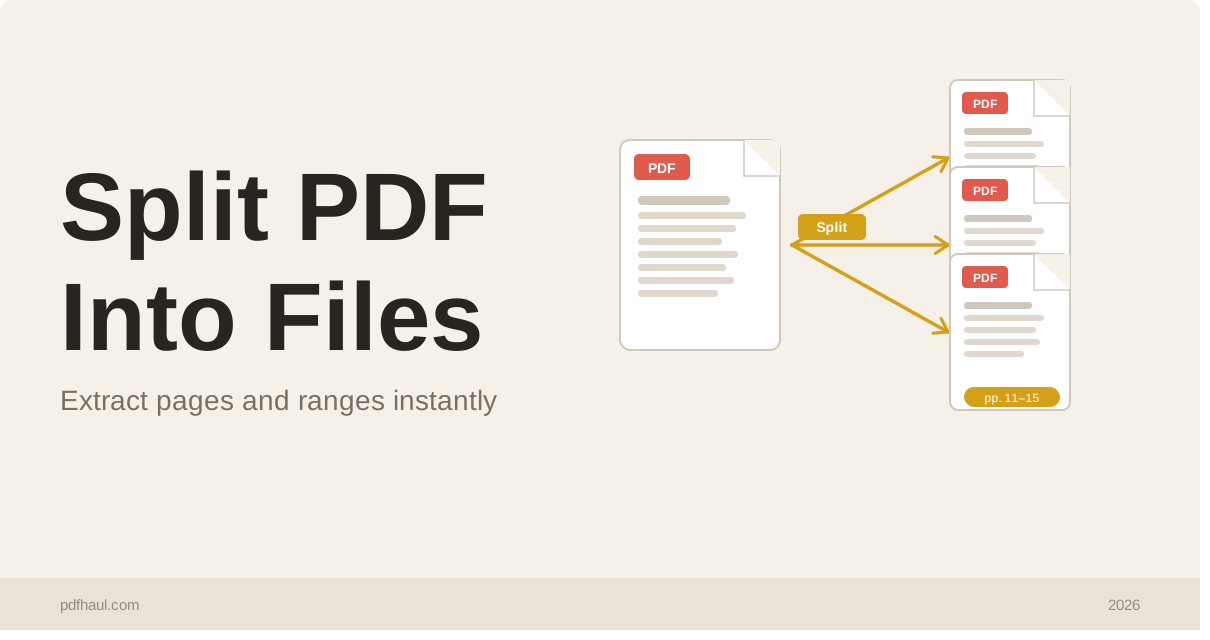
If the PDF is a long document, splitting it into smaller parts is an alternative to compression. This is particularly useful for contracts, reports, or proposals where you want to keep image quality intact.
You can split a PDF into separate files using PDFHaul’s split tool. Send each part as a separate attachment, clearly numbered in the filename so the recipient knows the order.
For most situations though, compression on a medium setting will get the file to an email-friendly size without any noticeable quality loss.
Tips for Keeping Email PDFs Small From the Start
If you are regularly sending large PDFs, it is worth addressing the problem at the source.
When exporting from Word or Google Docs: Choose the “Optimize for web/screen” or “Minimum file size” export option rather than “Best quality” or “Print”. This alone can reduce file size by 60 to 80 percent before any compression tool is involved.
When exporting from design tools like Figma or Illustrator: Flatten transparency, subsetting fonts, and reducing image DPI to 150 at export will produce a much smaller file.
When scanning documents: Most scanners default to 300 or 600 DPI. For documents being sent by email and read on screen, 150 DPI produces a completely readable scan at a fraction of the file size.
Frequently Asked Questions
Will compressing a PDF damage the text?
No. Text in PDFs is stored as vector data, not as an image, so compression does not affect its sharpness or readability. Only embedded raster images (photos, scans, screenshots) are affected.
Is there a file size limit for PDFHaul’s compress tool?
PDFHaul supports files up to 50 MB for compression.
Does the compressed PDF look the same as the original?
At low and medium compression settings, the difference is not visible on screen. At high compression, images may appear slightly softer, but text and layout remain unchanged. For standard business documents, medium compression is indistinguishable from the original when read on a screen.
Can I compress a scanned PDF?
Yes. Scanned PDFs are image-based and compress very well. A 40 MB scanned document can often be reduced to under 5 MB at medium compression without meaningful quality loss at screen resolution.
What is the best compression level for email?
Medium compression is the right default for most email use cases. It balances file size reduction with quality. Only move to high compression if medium does not get the file under your target size.
Related Tools
Split PDF — break a large PDF into smaller files
Merge PDF — combine multiple PDFs into one before sending
Convert Image to PDF — create a PDF from images and compress it in one workflow
Tags
Written by PDFHaul Team
Expert team specializing in PDF processing and document management. We share practical tips, tutorials, and best practices to help you work smarter with PDFs.
View all articles