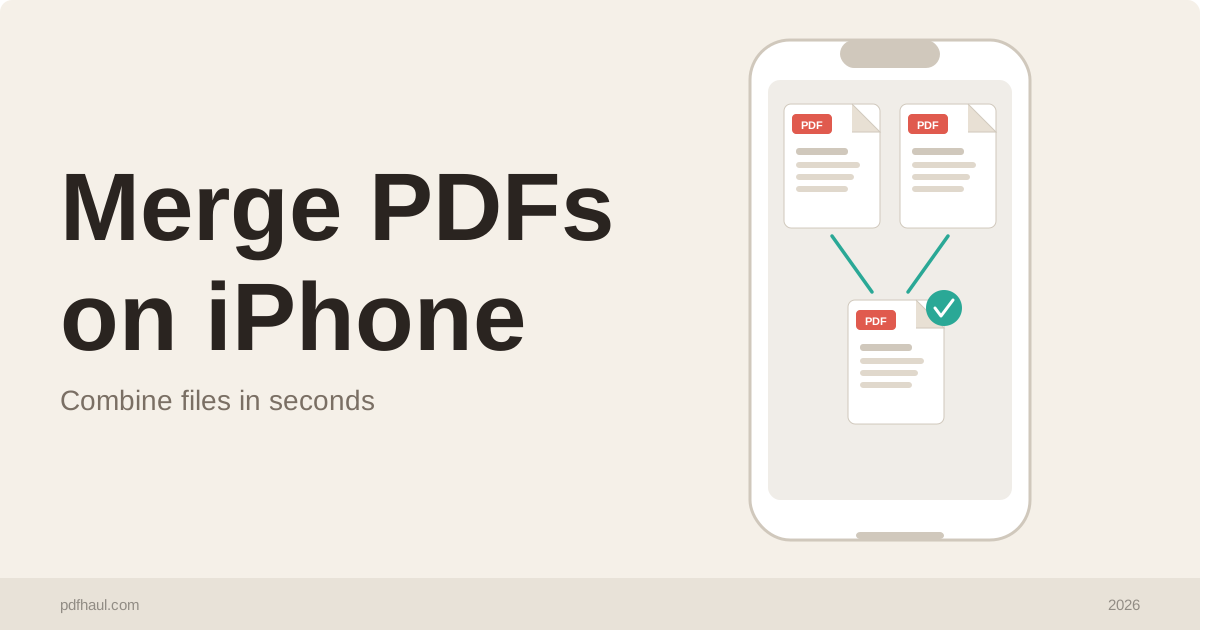
Merging PDFs on iPhone is something most people assume requires a computer. It does not. Whether you need to combine a signed contract with supporting documents, merge several scanned pages into one file, or assemble a multi-part form before sending it, you can do all of this directly from your iPhone in under a minute.
This guide covers three ways to merge PDFs on iPhone, starting with the fastest.
Method 1: Use PDFHaul in Your Browser (No App Required)
PDFHaul works in Safari and Chrome on iPhone without any download or installation.
Step 1: Open Safari or Chrome on your iPhone and go to pdfhaul.com/merge-pdf.
Step 2: Tap the upload area. Your iPhone will ask where to find the files. You can pull from Files, iCloud Drive, Google Drive, Dropbox, or your Downloads folder.
Step 3: Select your first PDF, then tap to add more. PDFHaul lets you upload multiple files and arrange them in the order you want before merging.
Step 4: Tap Merge. When processing is complete, tap Download to save the merged PDF to your iPhone.
The downloaded file lands in your Downloads folder and is immediately available to share via AirDrop, Mail, WhatsApp, or any other app.
This method works on any iPhone running iOS 14 or later and requires no account for basic use.
Method 2: Use the Files App
Apple’s built-in Files app has a hidden merge feature that most iPhone users do not know exists.
Step 1: Open the Files app and navigate to the folder containing your PDFs.
Step 2: Tap and hold the first PDF until the context menu appears, then tap Select. Tap each additional PDF you want to merge.
Step 3: With all files selected, tap the Share button in the bottom toolbar, then look for Create PDF or use a PDF workflow shortcut if you have one set up.
The Files app method works without any third-party tool but has limitations. You cannot control the order of pages from different documents easily, and the feature behavior varies slightly across iOS versions. For straightforward merges of two or three files where page order does not matter, it gets the job done. For anything more precise, the browser method above is more reliable.
Method 3: Use the PDFHaul App
If you merge PDFs regularly on your phone, the PDFHaul app gives you a faster experience than the browser with the same tools.
Download the PDFHaul app from the App Store.
Once installed, open the app, select Merge PDF, and follow the same steps as the browser method. The app stores your recent files so you do not need to re-navigate to them each time.
How to Control Page Order When Merging on iPhone
When you merge multiple PDFs, the order you add the files determines the order of pages in the output. In PDFHaul, you can drag files up or down in the list before merging to set the correct sequence.
If you merge three files and realize afterward that the second and third are in the wrong order, the fastest fix is to go back, reorder them in the file list, and merge again. It takes about 30 seconds.
Merging PDFs From Different Apps on iPhone
A common scenario on iPhone is having PDFs spread across different apps. One is in your Mail downloads, one is in Google Drive, one was just saved from Safari. The Files app on iPhone acts as a central hub for all of these.
Before merging, move all the PDFs you need into a single folder in Files. Tap and hold a file, tap Move, and choose a destination. Once everything is in one place, uploading them to PDFHaul takes a single tap per file.
Merging a Scanned Document With an Existing PDF
If one of the files you need to merge is a physical document, you can scan it directly on your iPhone and merge it without ever leaving your phone.
Scan the document using Notes or the Files app camera scan feature. Both save the scan as a PDF automatically. Then upload that scanned PDF alongside your existing file in PDFHaul and merge.
Frequently Asked Questions
Can I merge PDFs on iPhone for free?
Yes. PDFHaul’s merge tool is free to use in the browser on iPhone with no account required.
Is there a limit to how many PDFs I can merge on iPhone?
PDFHaul supports files up to 50 MB each. You can merge multiple files in one pass as long as the total stays within that limit.
Will the merged PDF look different on iPhone vs desktop?
No. PDF is a fixed-format file type. A PDF merged on your iPhone will look identical when opened on a Mac, Windows PC, or any other device.
Can I merge a PDF with images on iPhone?
Yes. You can convert images to PDF first using PDFHaul’s image to PDF tool, then merge the resulting PDF with your other files.
What if my PDFs are in iCloud but not downloaded to my phone?
When you tap to upload in PDFHaul’s browser tool, selecting iCloud Drive will show files stored in the cloud. iOS downloads them automatically when you select them. You do not need to manually download them to your phone first.
Related Tools
Split PDF — break a merged document back into separate files
Compress PDF — reduce the size of your merged PDF before sending
Image to PDF — convert photos or scans to PDF before merging
Tags
Written by PDFHaul Team
Expert team specializing in PDF processing and document management. We share practical tips, tutorials, and best practices to help you work smarter with PDFs.
View all articles