![PDF MCP Server: The Complete Guide [2026] - Step-by-step tutorial with visual examples](https://pub-cfb494f07a9d48e6bdfb4fb05a785f42.r2.dev/1792723063923-cvloro.png)
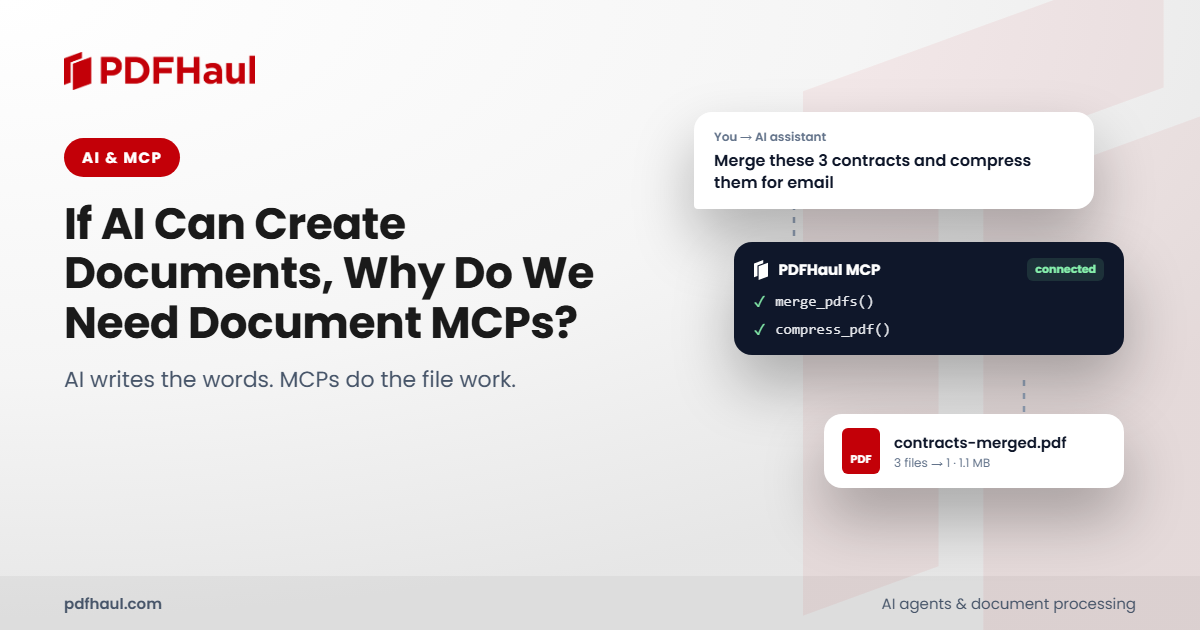
A PDF MCP server lets an AI assistant like Claude or Cursor work on your PDF files directly. You ask in plain English: shrink this file for email, merge these three reports, make this scan searchable. The assistant does the job and hands you the finished file. You never open a browser tab, upload a file or copy a result back by hand.
This guide explains what a PDF MCP server is, what to look for in one, and how to use one from start to finish. For the hands-on parts I use PDFHaul's MCP server as the example, because I built it and ran every workflow below through the live server on real files. You will see actual numbers, including the places where I have not checked the output or where a tool has limits. The same ideas carry over to any PDF MCP server. Here is what you will learn:
What a PDF MCP server is and what to look for in one
How to connect one with a sign-in or an API key
How to shrink an oversized PDF
How to merge, split, reorder and rotate pages
How to clean up a combined PDF by finding duplicate and blank pages
How to convert PDFs to Word, Excel and images, and pull tables out
How to make a scanned PDF searchable
How to chain several jobs into one request
The limits, the privacy rules and what to do when something fails
Twelve prompts you can copy
In this guide
Chapter 1: What a PDF MCP server is, and what to look for
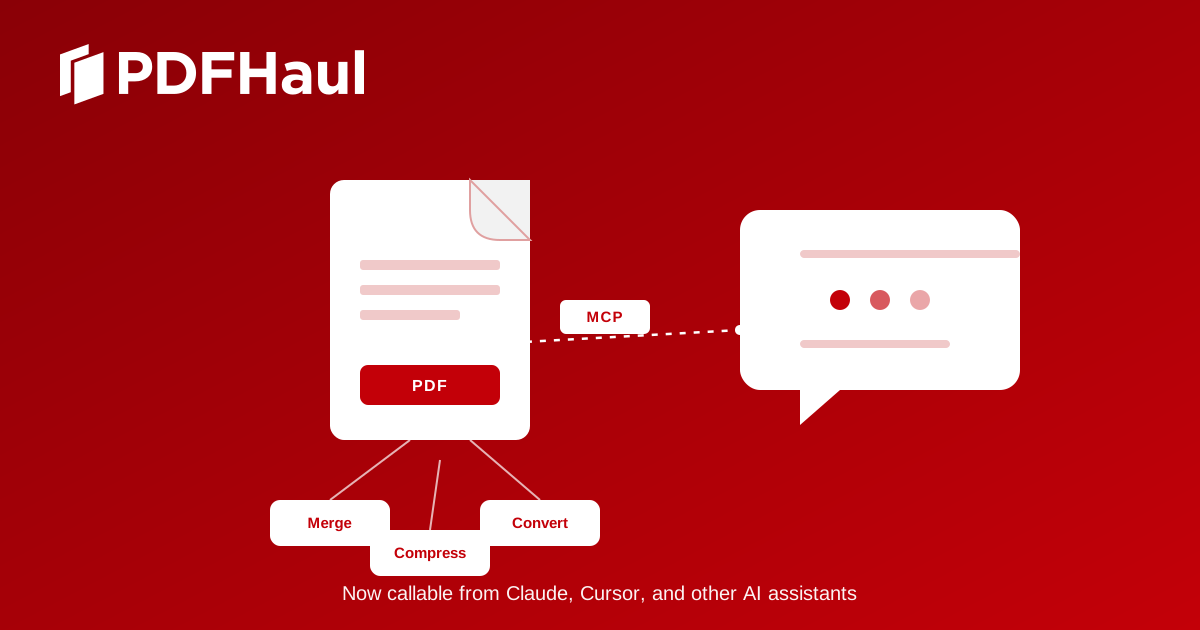
MCP, the Model Context Protocol, is an open standard that lets an AI assistant call outside tools. Without it, an assistant can talk about your PDF but it cannot touch the file. With it, the assistant can see a menu of tools, pick the ones your request needs, run them in order and report back.
What to look for in any PDF MCP server
Not every server is built the same way. Before you rely on one, check these:
Which jobs it covers. Compression, merging and splitting are common. Conversion, OCR and table extraction are less so.
How you sign in. Some servers use OAuth, where you approve a connection and never handle a key. Others need an API key. Support for both is the easiest.
Whether it can run safely. Look for tools that report before they delete, and results that come back as new files instead of overwriting your originals.
Limits and retention. Know the rate limits, the file size limits and how long your files are kept.
Where your files go. A hosted server processes files on its servers. Read the privacy terms before you send anything sensitive.
How it behaves on bad days. Timeouts and retries should not create duplicate files.
I have not tested other PDF MCP servers, so I cannot compare them. The rest of this guide shows these points in practice with PDFHaul's server.
PDFHaul's server as the example
PDFHaul's server offers 23 tools. They fall into three groups:
Files (4 tools). list_files, get_file_info, get_file_url and upload_from_url. These find your files, tell the assistant how many pages a file has, bring in a file from a public web address and produce a download link for results.
Page editing (10 tools). merge_pdfs, split_pdf, compress_pdf, rotate_pages, reorder_pages, delete_pages, duplicate_pages, remove_duplicate_pages, remove_empty_pages and edit_metadata.
Conversion (9 tools). pdf_to_word, word_to_pdf, pdf_to_excel, extract_tables, pdf_to_powerpoint, powerpoint_to_pdf, excel_to_pdf, pdf_to_images and ocr_pdf.
You do not need to memorize any of those names. You describe the result you want and the assistant chooses the tools. The names matter only when you want to understand what happened, or when you want to be exact. For example, duplicate_pages makes a copy of a page, while remove_duplicate_pages finds pages that are repeated in a file. They sound alike and do opposite jobs.
One design choice is worth knowing about now, because it shapes everything that follows. The tools that can destroy something work in two steps. remove_duplicate_pages and remove_empty_pages only report what they found. They change nothing. A separate call to delete_pages removes pages, and it returns a new file while leaving your original untouched. That gap between finding and deleting is where you get to look at the list and say yes or no.
Chapter 2: How to connect it in a few minutes
The server address is the same for every client:
https://mcp.pdfhaul.com/mcp
You can connect in one of two ways.
Option 1: Sign in with OAuth (no key)
If your assistant supports OAuth, which includes Claude Desktop, this is the easiest route. Add the server address as a connector. Your client registers itself with PDFHaul automatically through dynamic client registration, then shows a sign-in prompt. Sign in to your PDFHaul account, approve the connection and you are done. There is no key to create, copy or rotate.
Option 2: Use an API key
Some clients do not support OAuth. For those, use a key:
Create a free account at pdfhaul.com if you do not have one.
Open the Developer page and create an API key. You can hold up to 10 keys per account, so give each assistant its own. If one leaks or you stop using a tool, revoke that single key and the others keep working.
Add the server to your client's configuration with the address above and your key. In Claude Desktop's
claude_desktop_config.json, this is a server namedpdfhaulthat runsnpxwithmcp-remote, points at the address and sends your key as a bearer token in the Authorization header. Cursor, Windsurf and other clients take the same address and key in their own MCP settings. Copy the exact configuration block, with macOS, Linux and Windows versions, from pdfhaul.com/mcp-server so you do not mistype it.
Check that it works
Restart your assistant and ask it: "List my PDFHaul files." You may get an empty list on a fresh account. That is fine. An answer of any kind, including "you have no files", means the connection works. An error means the address or the key needs another look.
The server is free to use, like every other PDFHaul tool.
Chapter 3: How to shrink a huge PDF with one sentence
Compression is the most common reason people reach for a PDF tool, and it is the simplest job to hand to an assistant.
The prompt:
Compress this PDF so I can email it.
Behind the scenes, the assistant calls compress_pdf. It takes one setting, quality, with four levels. low keeps the best quality and the largest file. medium is the default. high squeezes harder. extreme gives the smallest file with the most visible loss. The original is never modified, so you can try a stronger level if the first result is still too large.
I tested it on two files at the default medium setting:
File | Before | After | Reduction |
|---|---|---|---|
A 19-page test PDF with scanned pages | 13.2 MB | 0.53 MB | 96% |
A 31-page research paper | 28.1 MB | 2.1 MB | 92% |
Both are large reductions, and both files were image-heavy, which is where compression gains the most. A text-only PDF will shrink far less because there is little to remove.
I then opened the compressed files and read the pages. In the challenge set, headings and body text were still sharp, and the scanned "rescan" pages stayed legible, tilt, speckle and all. The image test pages kept their pictures. In the research paper, the body text was crisp and even the small labels on a chart were readable. That is a spot check of the pages I looked at, not every page, and a 96% reduction will not look this good on every file. Before you send a compressed file anywhere that matters, open it and read a page or two. If it is too rough, ask the assistant to redo it at low.
A good habit is to name the target in your prompt: "Compress this to under 5 MB; if medium doesn't get there, go one level stronger." The assistant can run the tool, compare the new size with your limit and decide whether to go again.
Chapter 4: How to merge, split, reorder and rotate pages
Page-level work is where an assistant earns its keep, because these jobs are tedious by hand and trivial to describe.
Merging. "Merge these three PDFs into one, in this order: the cover letter, the report, the appendix." The assistant calls merge_pdfs with the files in the order you gave. Say the order out loud, because the order of the files decides the order of the pages.
Splitting. "Take pages 1 to 10 out of this report as their own file." split_pdf takes page ranges. I split a 19-page file into pages 1 to 10 and pages 8 to 19 during testing. The ranges overlapped on purpose, and the tool did not mind.
Reordering. "Swap the first two pages." The assistant calls reorder_pages with the complete new sequence of page numbers. In my test I swapped pages 1 and 2 of a 19-page file, and the new file came back with all 19 pages. I did not open the result to eyeball the order, so check it yourself for anything that matters.
Rotating. "Pages 4 and 5 are sideways, fix them." rotate_pages takes the page numbers and a rotation of 90, 180 or 270 degrees. Ninety is clockwise, and 270 is counter-clockwise. Say which way a page looks wrong and the assistant works out the angle.
Deleting. "Delete pages 3 and 7." delete_pages returns a new file with those pages removed.
All of these lean on one small tool: get_file_info. It returns the page count, and it tells the assistant whether the file is encrypted. A good assistant calls it first so that it never guesses at page numbers. If you ask for page 25 of an 18-page file, the right behavior is for it to say so rather than fail halfway.
A practical tip: always say "keep the original". Every one of these tools already leaves your input alone and creates a new file, but saying it makes the assistant name the new file clearly, so you know which one to download.
Chapter 5: How to clean up a combined PDF
This is the job that sold me on the whole idea. Combine two exports of the same report, or a scan with a rescan, and you end up with repeated pages and blank ones. Cleaning that by eye in a 22-page file is slow and easy to get wrong.
I ran the whole sequence with PDFHaul's public Duplicate Detection Challenge file, a 19-page PDF with a published answer key. Here is exactly what happened.
Step 1: make a messy file. I split the challenge set into pages 1 to 10 and pages 8 to 19, so pages 8, 9 and 10 existed in both files. Then I merged them into one 22-page PDF, which is what you get when two overlapping exports are combined.
Step 2: detect. I asked the assistant to find repeated pages. remove_duplicate_pages flagged 10 of the 22 pages and changed nothing. It labels each match as either exact or content:
Flagged page | Duplicate of | Match type |
|---|---|---|
2, 3 | 1 | content |
6 | 5 | content |
9, 10 | 8 | content |
11, 12, 13 | 8, 9, 10 | exact (the overlap I created) |
16, 17 | 15 | exact (blank pages) |
An exact match is a byte-for-byte copy. A content match is a page that looks the same but was produced differently, for example by a different generator or after recompression. I treated them differently on purpose. Exact copies I was ready to remove. Content matches I held back for a human decision.
Step 3: delete only what I approved. I asked for pages 11, 12, 13, 16 and 17 to be deleted. delete_pages returned a new 17-page file and left the 22-page original in place.
Step 4: check. I ran detection again on the 17-page file. It flagged only the five content-match pages I had held back. Every flag agreed with the answer key.
Two things did not happen, and both are known and published. The simulated rescans of a page were not flagged, because noisy rescans are a gap in the detector. And the near-identical invoice pages, which differ only in an invoice number and a small amount, were correctly left alone.
This is one test set that PDFHaul built itself, so it shows the workflow works and tells you nothing about how detection performs on your files. Treat flagged pages as candidates, not verdicts.
Blank pages. A separate tool, remove_empty_pages, finds blanks in the same report-then-delete way. On the unmodified 19-page challenge set it flagged pages 12, 13 and 14 as empty. That matches the blank pages the duplicate run treated as copies of each other earlier. After a flag like that, the assistant should show you the page numbers and wait before calling delete_pages. Blank in this sense means no content, so a page that is nearly empty apart from a faint scan mark may or may not count. Look at the list.
A prompt that sets this up well:
Merge these two PDFs. Then check the result for duplicate pages and blank pages. Show me the page numbers and which pages they repeat. Don't delete anything until I say so.
Chapter 6: How to convert PDFs and extract tables
PDFHaul converts in both directions. pdf_to_word makes an editable .docx. pdf_to_excel converts the whole document to a spreadsheet. pdf_to_powerpoint and pdf_to_images produce slides and one image per page, in PNG or JPG. Going the other way, word_to_pdf, excel_to_pdf and powerpoint_to_pdf turn Office files into PDFs.
I tested Word conversion on a real document and opened the result.
A real document with tables. I converted a two-page science worksheet with three tables (SEDL's data tables sample) and the result was good. All three tables arrived as real, editable Word tables. The 12-row land speed records table had every value in the right row and column, and the other two tables matched the original as well. Headings, bold text, the red safety notes and the web link survived, and so did the footer and page numbers. It was not flawless. Text alignment inside the cells was uneven, one table ran slightly past the right margin so the last digits of a few cells were clipped, and a long cell value wrapped awkwardly. Expect to spend a minute tidying layout, not retyping data.
Try it on your own files. This was a clean, text-and-tables document, which is the kind of file Word conversion handles best. Layouts vary a lot, so run it on the PDF you actually need converted and look over the result. Reports, contracts, forms and worksheets are a good place to start, and your results on harder layouts are what tell you how far to lean on it.
Whole document or just the tables?
This is the choice most people miss. There are two spreadsheet tools:
pdf_to_excelconverts the whole document.extract_tablespulls out only the tables, one sheet per table.
If you want to analyze figures, extract_tables is usually the better pick. If you want the whole page layout carried over, use pdf_to_excel.
What a good extraction looks like
I ran extract_tables on a public sample PDF with two tables (samplelib's sample-table.pdf) and checked the workbook against the source cell by cell. The result was clean: one sheet per table, correct headers and all 16 data rows matching. The ID, value and money columns were stored as numbers, with the dollar formatting kept, so the figures can be summed straight away.
That is an easy file: two ruled tables and a single header row. It proves the workflow, and it does not promise your document will behave the same way. When I pushed it on a scientific paper with grouped, multi-level column headers, the tables came out split across sheets, with the group labels pulled out as separate one-cell sheets and the row labels separated from their values. I did not verify the values against the paper itself, and the structure was not usable without rebuilding it by hand.
One more finding connects the two tools. On that same science worksheet, extract_tables pulled out only one of the three tables as a proper table, while pdf_to_word rebuilt all three as real tables. If table extraction misses tables in your file, try Word conversion and copy the tables from there.
So here is the honest rule: simple tables with clear rows and columns extract well. Grouped headers, merged cells and tables that run across pages are harder for any extractor. Open the workbook and compare a few rows with the page before you trust a total.
A prompt to try:
Extract all the tables from this PDF into a spreadsheet, one sheet per table. Then compare the first and last rows of each table with the PDF and tell me if anything looks wrong.
The assistant cannot see the finished workbook unless it can download it, so the check is only as good as what it can read. When it matters, open the file yourself.
Chapter 7: How to make a scan searchable
A scanned PDF is a picture of a page. You cannot select the words, search for a name or copy a paragraph. ocr_pdf runs optical character recognition and returns a new PDF with a real text layer behind the image, so the page looks the same but behaves like text.
I ran it on the challenge set, which contains scanned pages. The tool reported that OCR had been applied and returned a searchable PDF of about 10.6 MB, down from 13.2 MB.
A few details that save time:
It skips files that don't need it. If the PDF already has a usable text layer, the tool does not run OCR and tells you so. The result reports whether OCR was applied, so a good assistant relays that rather than claiming it did work it did not do.
You can force a second pass. If the existing text layer is garbled, ask for a forced re-recognition.
Set the language. The tool supports 15 languages, including English, Spanish, French, German, Portuguese, Italian, Arabic, Chinese (simplified), Japanese, Korean, Russian, Hindi, Indonesian, Turkish and Dutch. English is the default, so say so if your document is in another language.
You do not need it before Word conversion.
pdf_to_wordalready runs OCR on scanned pages by itself. Useocr_pdfwhen you want the result to stay a PDF, for example to make it searchable or before another PDF-only step.
Chapter 8: How to chain several jobs into one request
Once you trust the individual tools, the real saving is combining them. A single message can drive a whole workflow, and the assistant works out the order.
Bring in a file from the web. upload_from_url fetches a PDF from a public address. The address must point straight at the PDF file. A web page that merely links to a PDF will be rejected, and so will a link that redirects somewhere else. In my testing, a link that turned out to be an HTML page failed with an "invalid or corrupt PDF" error. If an upload fails, open the address in a browser. If you see the PDF itself, the link is good. If you see a page, find the direct file link.
Get the result. get_file_url returns a signed download link for any file in your account. Most assistants will give you that link at the end of a job.
Put it together. A few chains that work well:
Download the PDF at this address, compress it to under 5 MB, and give me the link.
Merge these four PDFs in this order, find duplicate and blank pages, and show me the list before you delete anything.
Make this scan searchable, then pull the tables out of it into a spreadsheet.
Split this 80-page PDF into four files of 20 pages each and tell me the name of each file.
For anything with a deletion in it, put the review step in the prompt itself. "Show me before you delete" is a sentence that costs nothing and prevents most mistakes.
There is one more tool worth knowing: edit_metadata. It changes document properties such as the title and author. That is useful for cleaning up a file before you share it, especially one that was exported with the wrong title.
Chapter 9: Limits, privacy and troubleshooting
Usage limits. Each API key is limited to 60 calls an hour across all tools, and upload_from_url is limited to 10 calls an hour. A long chain that touches many files can use up the allowance, so plan big jobs accordingly. If the limit is hit, wait for the rolling hour to move along.
File retention. Files are deleted two hours after processing, whether you use the website or an assistant. I saw this in practice. When I came back to my earlier test files a few hours later, every one was gone and I had to upload them again. Download your results when a job finishes. Do not treat the account as storage.
Originals stay safe. The editing tools create new files and leave their inputs unchanged. Destructive steps are split into a report call and a delete call, so nothing disappears without a request for it.
What to expect when things go wrong:
"Invalid or corrupt PDF" on upload. The link probably points at a web page, or redirects. See Chapter 8. Files that are password-protected or restricted may also be refused. I have not confirmed which restrictions trigger this, so if a file you can open on your own computer is rejected, try removing its protection first.
"File not found". The file has probably passed the two-hour limit. Upload it again.
A timeout or a gateway error. On a large job you may see a "Bad Gateway" message even though the converted file was created. Ask the assistant to list your files before running the job again. If no file appears, try a smaller file or split the PDF first.
Results look worse than expected. Compression, OCR and conversion all depend on the quality of the source. Check the output, and say so when it is wrong. The assistant can retry with different settings.
Duplicate detection missed a page. Noisy rescans are a known gap. The detector reports candidates, and you decide.
Privacy. A file you give the assistant is processed by PDFHaul and deleted within two hours. The assistant itself is a separate service, so whatever it reads or summarizes is governed by its provider's rules. If a document is sensitive, check that policy as well.
Chapter 10: Twelve prompts to copy
Paste these into your assistant and change the details.
"List my PDFHaul files, with page counts."
"Compress this PDF to under 5 MB. Start with medium and go stronger only if you need to."
"Merge these PDFs in this order: [list]. Keep the originals."
"Split pages 1 to 10 into one file and the rest into another."
"Pages 3 and 4 are upside down. Fix them."
"Put the last page first and keep everything else in the same order."
"Check this file for duplicate pages and blank pages. Show me page numbers and which pages are repeated. Don't delete anything yet."
"Delete pages 11, 12 and 13 and give me the new file."
"Make this scanned PDF searchable. The language is [language]."
"Convert this PDF to Word and tell me which pages might have formatting problems."
"Extract the tables from this PDF into a spreadsheet, one sheet per table, then check the first and last rows against the PDF."
"Download the PDF at this address and tell me how many pages it has."
Try it on the file you have open right now
Pick the PDF that is annoying you today: too big, in the wrong order, scanned or full of repeats. Connect your assistant using Chapter 2, then paste the matching prompt from Chapter 10. If it does something surprising, tell me. Setup details and the full tool reference are at pdfhaul.com/mcp-server. If you want to understand when a dedicated server beats a one-off script, read If AI Can Create Documents, Why Do We Need Document MCPs?
Peter
Founder of PDFHaul and Bultech
Building tools that make working with documents faster and simpler.