OCR, short for optical character recognition, reads the text in a scanned or photographed page and adds it back to the PDF as real text you can search, select and copy. This guide covers what it does, how to tell if your PDF already has it, when you need it and how to run it. We also ran 8 scans through PDFHaul's OCR and scored the results against exact answer keys, so you can see where it works and where it breaks. We make PDFHaul, and the misses are shown too.
In this guide
1. What OCR does to a PDF
A scanned PDF is a picture of a page. To you it looks like text, but to the computer it is only pixels, so you cannot search it, select a sentence or copy a number out of it.
OCR looks at the picture, works out which letters and digits are in it and where, and stores that text in a hidden layer on top of the page image. The page looks the same afterwards. The difference is that the words can now be found with a search, selected with the mouse and copied into another document.
Two things follow from this. OCR is a guess, not a copy, so it can get letters wrong. And the text layer is only as good as the picture underneath it, which is why the quality of your scan matters so much (see chapter 5).
2. How to tell if your PDF already has OCR
You do not need any special software. Open the PDF and try these three checks, in this order.
Select text. Click and drag across a sentence. If the words highlight line by line, the file has a text layer. If you select a whole block or a rectangle, or nothing at all, the page is an image.
Search. Press Ctrl+F (Cmd+F on a Mac) and search for a word you can see on the page. If the viewer finds it, the text is there.
Copy and paste. Select a paragraph, copy it and paste it into a notes app. Check that the pasted words match the page. A file can have a text layer that is wrong, and this is how you spot it.
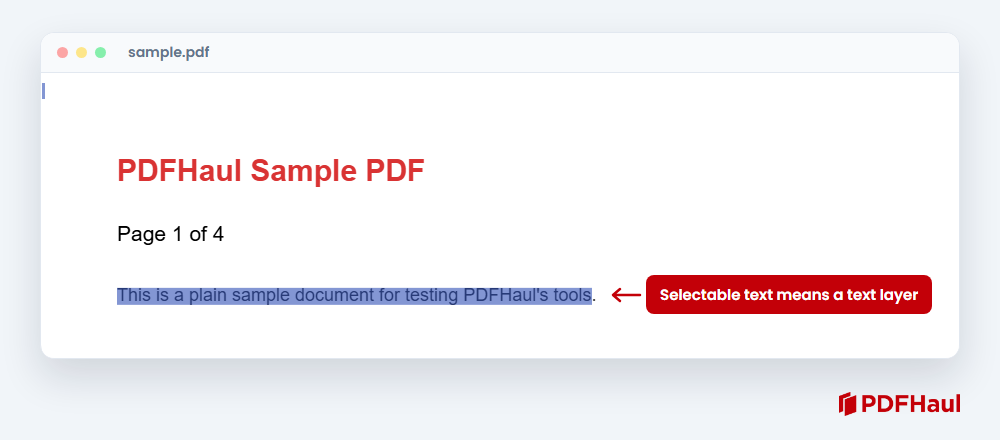
The third check matters more than it looks. A PDF that was scanned and OCR'd years ago can search badly and paste nonsense, so having a text layer does not mean having a good one.
3. When you need OCR, and when you do not
You need OCR when the PDF came from a scanner, a phone camera or a fax, and you want to search it, copy from it, convert it to Word or Excel, or feed it to another tool. Old archive scans, signed paper contracts, receipts and photographed pages are the usual cases.
You can skip OCR when the PDF was exported from Word, Excel or a website, because its text is already real. The select-text check in chapter 2 tells you in seconds. You can also skip it if you only need to read or print the page.
PDFHaul's OCR tool checks this for you: if the file already has usable text, it skips the OCR and tells you no OCR was needed.
4. How to run OCR on a PDF
Running OCR takes a few minutes. The harder part is picking a route that fits your file and your privacy needs. There are four common ones:
A PDF editor with OCR built in. Adobe Acrobat has an OCR tool, and Adobe also offers a free online one.
A free online tool. Several sites offer OCR for PDFs, usually with limits on file size or number of files.
Open-source software. Tesseract is the best-known OCR engine, and many tools are built on it. It needs some comfort with the command line.
PDFHaul. The steps below use our OCR PDF tool.
With PDFHaul:
Upload your scanned PDF.
Choose the language of the text. It supports 15, including English, Spanish, French, German, Arabic, Chinese (Simplified), Hindi, Japanese, Korean and Russian.
Run the tool and download the result. You get a new PDF with a text layer, and your original file is not changed.
Run the three checks from chapter 2 on the new file, especially copy and paste.
If the file already has usable text, PDFHaul skips the OCR and tells you no OCR was needed, so you do not need to check first.
What to check before you choose a tool
Limits. Look at the maximum file size, the number of pages and how many files you can run in a day. Free tools differ a lot here.
Language. Make sure your document's language is on the list. Many tools default to English.
Output. Some tools give you a searchable PDF, some give you a Word file or plain text, and some do both. Decide what you want at the end before you start.
Your original. Check whether the tool keeps your file or replaces it. Keep a copy either way.
Privacy. A scanned contract or medical record is sensitive. Read what the tool says about how long it keeps files before you upload anything private.
Whatever tool you pick, set the language correctly. OCR reads a page against a language, and the wrong setting gives worse text.
5. How to get better results
Most of what decides your result happens before you run OCR. OCR can only read what is in the picture, so a better picture beats a better setting. These tips come from the tests in the next chapter and general practice.
Before you scan
Keep the page clean. In our test, the biggest drop came from noise and blur, not from small size or a slight tilt. Use a clean scanner glass, even lighting and a flat page.
Do not worry about a small tilt. A page rotated by 3.5 degrees cost only 2 characters out of 841. Straightening is still worth doing if it is quick.
Use a reasonable resolution. A clean page of 11-point type read perfectly at 100 dpi in our test, and so did the same page at 300 dpi. Smaller type, fainter print and worse paper will need more, so scan at 200 to 300 dpi if you can.
Scan in black and white or grayscale. Colored backgrounds and shadows from a phone camera add noise.
When you run it
Set the language. It is the cheapest fix there is.
Run one page first. A single page shows you straight away whether the scan is good enough, before you wait on a 200-page file.
After you run it
Check numbers against the page. A misread digit is easy to miss, and it is the error that costs the most. In our test, one report page came back with "336" as "836".
Expect problems with columns. Our two-column page came out with the lines of both columns mixed together (see chapter 6). If reading order matters, check it.
Rescan instead of re-running. If the text is badly garbled, running OCR again on the same image is unlikely to help, because the picture has not changed. A cleaner scan will.
6. What OCR gets wrong: 8 scans tested
We tested PDFHaul's OCR on 8 scanned pages in two sets: 6 pages we built so we know the exact right answer, and 2 pages from real government reports. Every result below is what PDFHaul's OCR tool returned, scored by comparing the text layer with a typed answer key. We changed nothing by hand.
Set 1: six scans with a known answer
These pages were made from original text and saved as image-only PDFs, so nothing in them is searchable until OCR runs. Four are damaged on purpose, to see which kind of damage matters. They use a plain serif font at 11 points, so they are easier than most real documents.
Scan | What is different | Characters right | Words right |
|---|---|---|---|
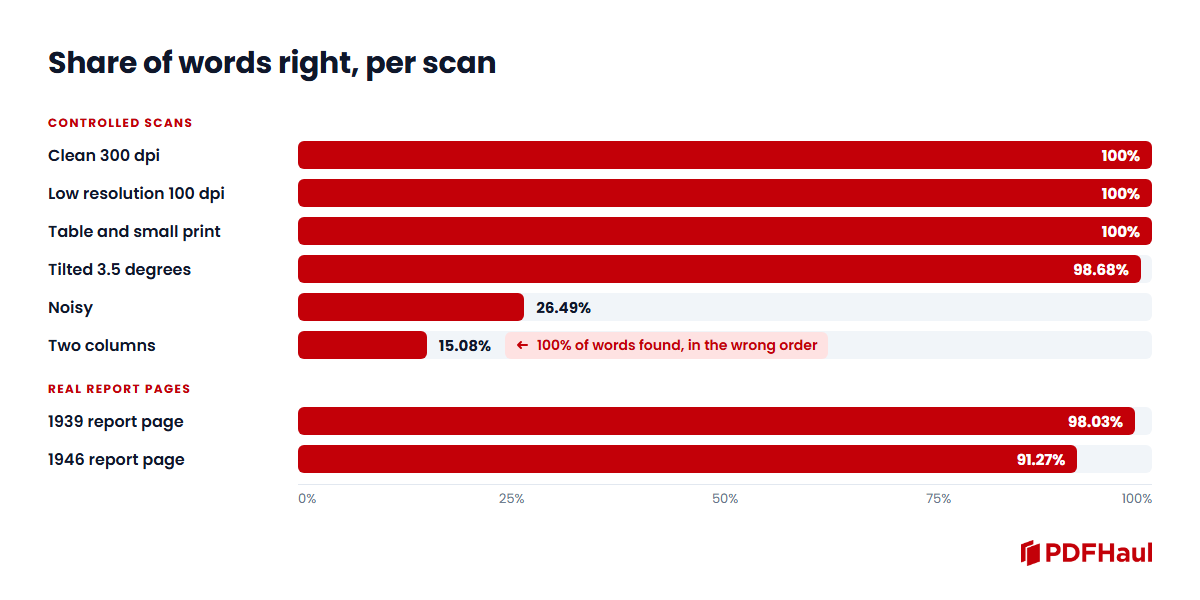
1. Clean | 300 dpi | 100% | 100% |
2. Low resolution | 100 dpi | 100% | 100% |
3. Tilted | Rotated 3.5 degrees | 99.76% | 98.68% |
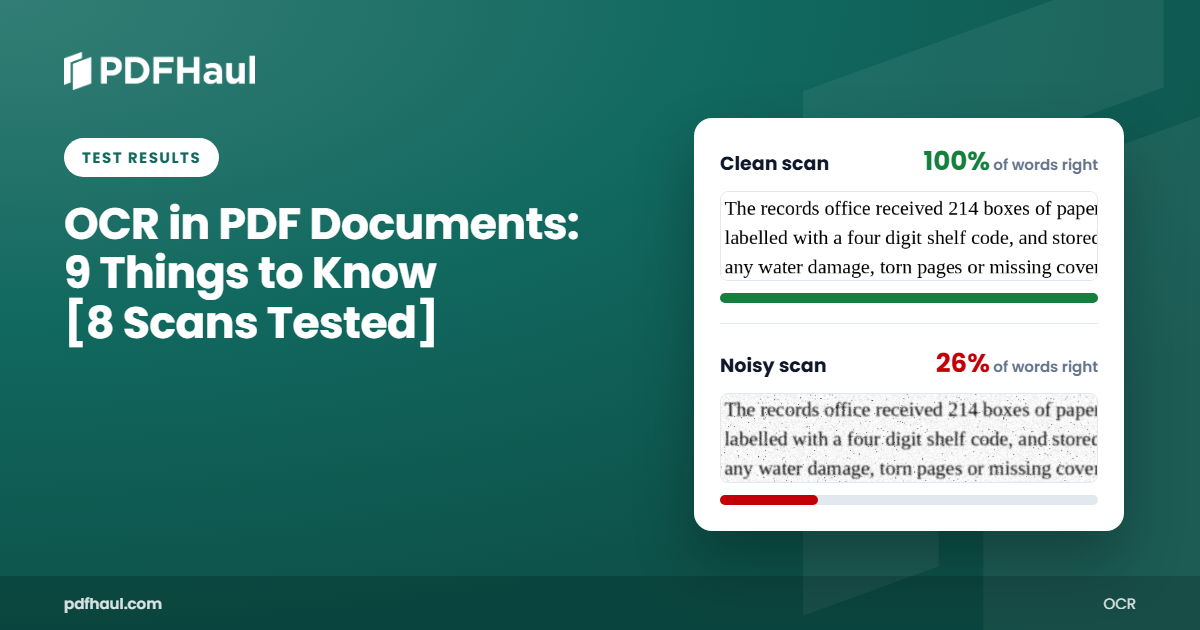
4. Noisy | Blur and speckle noise | 60.76% | 26.49% |
5. Two columns | Two text columns | 29.42% | 15.08% |
6. Table and small print | 4-column table, 6.5-point footer | 100% | 100% |
Clean pages read perfectly, even at 100 dpi. Scans 1, 2 and 6 had no errors, including the table text and the small print.
A small tilt costs almost nothing. Scan 3 had two character errors.
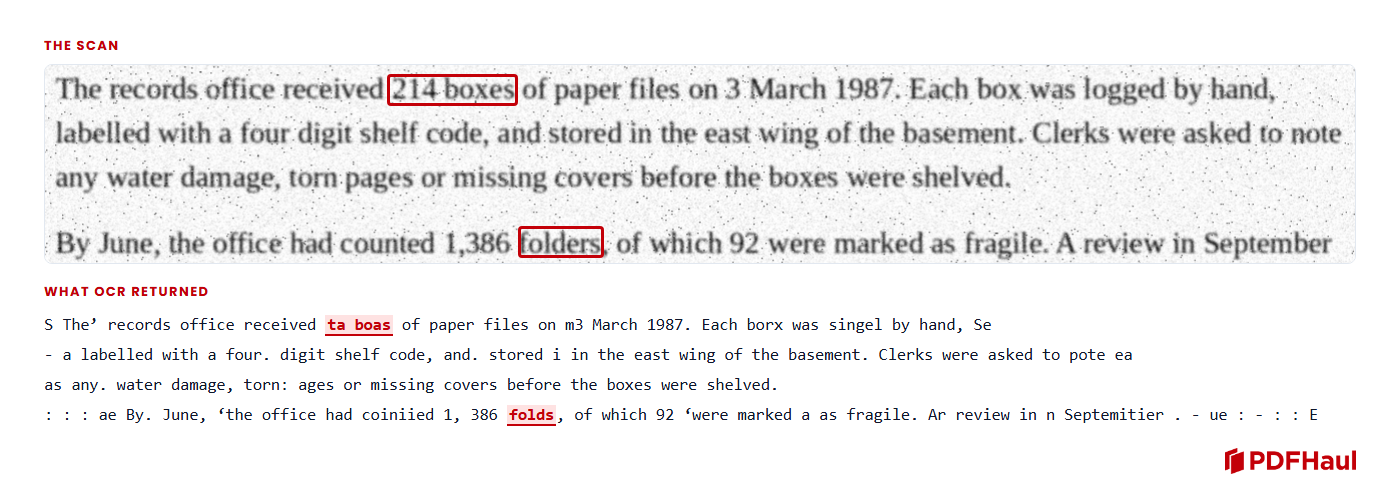
Noise is the weak spot. On scan 4, 73.5% of the words appear somewhere in the output, but only 26.5% are exactly right. It turned "boxes" into "boas" and "folders" into "folds". The output also picked up stray fragments from the speckle. Do not use text like this without checking it, or rescan the page.
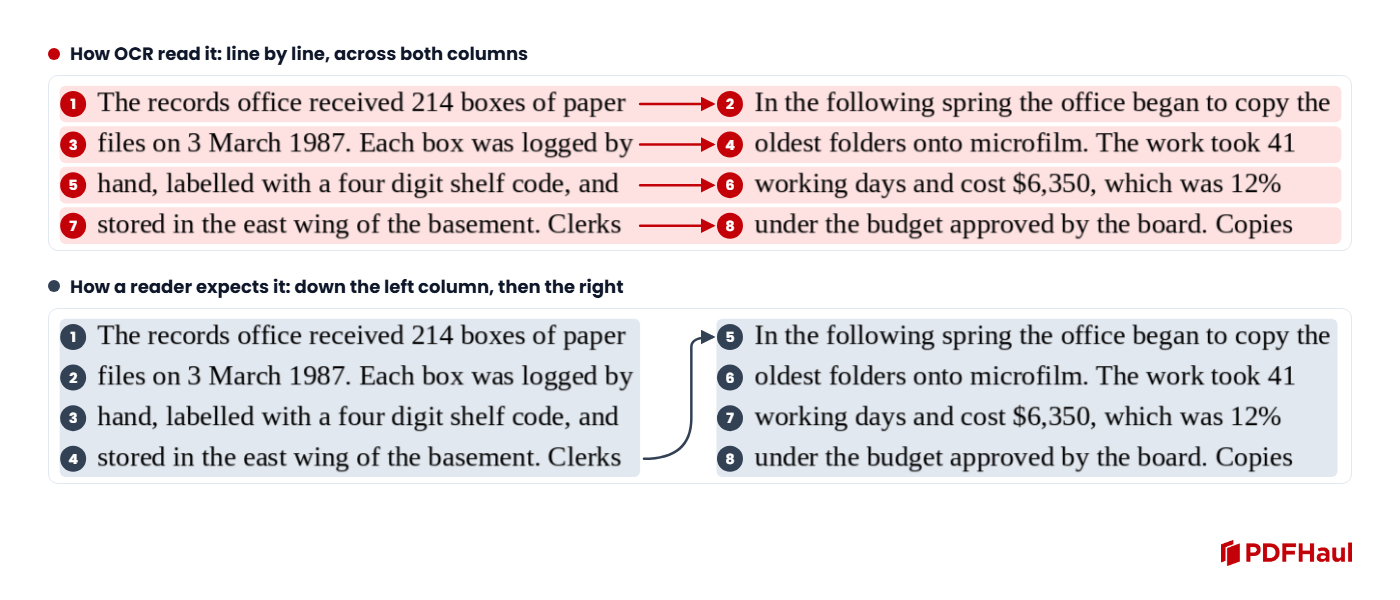
Two columns came out line by line across both columns. Every word was recognised: 100% of them are in the output. But the text layer reads straight across the page, so a sentence from the left column is followed by a sentence from the right. Search works. Copy and paste reads wrong. This is a reading-order problem, not a recognition one, and it is why the table shows 15% for words in order next to 100% found.
The table in scan 6 came back as plain text, not as cells. If you need a spreadsheet, use a tool that outputs one (see chapter 9).
Set 2: two pages from real reports
These are two pages from US Coast and Geodetic Survey reports, one on the 1939 fiscal year and one from 1946, both US government publications. The files already contained an old text layer, so we forced a fresh OCR pass to measure PDFHaul's own reading. We scored two paragraphs from each page against a typed answer key.
Page | Characters right | Words right | Errors |
|---|---|---|---|
1939 report, printed page 98 (152 words) | 99.55% | 98.03% | "336" read as "836", "Fathomer" as "Yathomer", one stray period |
1946 report, printed page 89 (229 words) | 98.16% | 91.27% | Lost or changed the first letter of several lines, and dropped one digit |
The first page was nearly perfect, but the two errors are the dangerous kind: a number changed by one digit, and a name changed by one letter.
On the second page, the errors cluster at the start of lines, where the printing in this scan sits raised or clipped at the left edge. "Furthermore" came out as "urthermore", "World" as "'orld" and "have" as "&ve". The "5" in "5 years" disappeared, and "time" was read as "have". Twenty of 229 words were wrong, and none of them stands out unless you read closely.
What the results do and do not show
Eight scans and one run each is a small test. The first set is clean apart from the damage we added, and the second is two pages of typed text. We did not test handwriting, forms, stamps over text, colored backgrounds or other languages. A different set of pages could give different numbers. The files, the answer keys and the raw output are in the download at the end of this guide, so you can run your own tool on the same pages.
7. Can you remove OCR?
Usually you do not need to. The OCR text sits in a hidden layer, and the page looks the same with or without it. What people really want when they ask this is one of three things, and each has a different answer.
You want your original back
Keep the file you had before OCR. PDFHaul's OCR tool always writes a new file and leaves the original as it was, so you can go back to it any time. Some tools replace your file instead of making a copy, so check before you overwrite anything.
You want a smaller file
OCR makes the file bigger, because the text layer is added on top of the page image. In our tests the OCR'd files grew from about 5% on a clean page to as much as 25 times the original on one real report page: a file of 50 KB came back at 1.27 MB. If size matters, keep the original for storage and use the OCR'd copy only when you need to search or copy. A compression tool can shrink the result afterwards.
The OCR text is wrong
The fix is a better scan and a fresh run, as chapter 5 explains. It is rarely worth editing the hidden layer by hand. If you only need a few passages, copy them out and correct them in a document instead.
8. OCR and accessibility
People who use screen readers cannot read a scanned page, because to a screen reader it is an image. OCR fixes that part: the words are now there to be read aloud. But it fixes only that part.
A text layer is not the same as an accessible document. A screen reader also needs to know what is a heading, where a table starts and in which order to read the page. Our tests show two ways this goes wrong:
Wrong order. On the two-column page every word was recognised, but the lines from both columns were mixed. A screen reader would read the page that way.
Wrong words. On the noisy scan, most words were wrong. Read aloud, "folders" becomes "folds", and "214 boxes" becomes nonsense. A reader cannot tell which words to doubt.
After OCR, check these
Reading order. Listen to a page, or tab through it, and confirm the sequence makes sense, especially with columns, sidebars and captions.
Headings. OCR does not mark headings. Add them in the editor you use.
Tables. OCR gives you text, not table structure. Our table test came back as plain lines of text.
Images. Describe pictures and charts in words, because OCR only reads text in them.
Language and title. Set the document language and title in the file's properties.
If you are making documents for the public, treat OCR as the first step. Your organisation's accessibility guidance will say what is required.
9. What to do after OCR
Search or copy it. That is what a searchable PDF is for. Run the copy-and-paste check from chapter 2 first.
Turn it into Word. PDF to Word runs OCR on scanned pages itself, so you do not need to run OCR first.
Get the tables into a spreadsheet. PDF to Excel and Extract Tables work on scanned tables too. In our PDF data extract test, PDFHaul read 90.3% of the cells on four scanned tables, and no tool read all of them. Check every number.
Clean the data in Excel. If a conversion left stray spaces or numbers stored as text, the functions of Excel guide shows how to fix them.
Try the select-text check from chapter 2 on one of your own PDFs now. If it is a scan, run it through OCR PDF, then paste a paragraph into a notes app and compare it with the page. That check takes a minute and shows you exactly what OCR did to your file.
What we did not test
Other OCR tools. This guide tests PDFHaul only.
Handwriting, forms, stamps over text, colored backgrounds and very small or faint print.
Languages other than English.
Speed and file size limits.
Repeat runs. Each page was run once.
Download the test files and answer keys
The download has the 8 scans, the typed answer keys, the OCR text that PDFHaul returned for each, the scoring script and a README that explains how each number was calculated, including two scoring changes we made after the first run.
Download the OCR test files, answer keys and results (ZIP)
Which result surprised you most? If there is a kind of scan you want us to test next, leave a comment below.