how-to
How to Create a PDF: 21 Free and Easy Methods
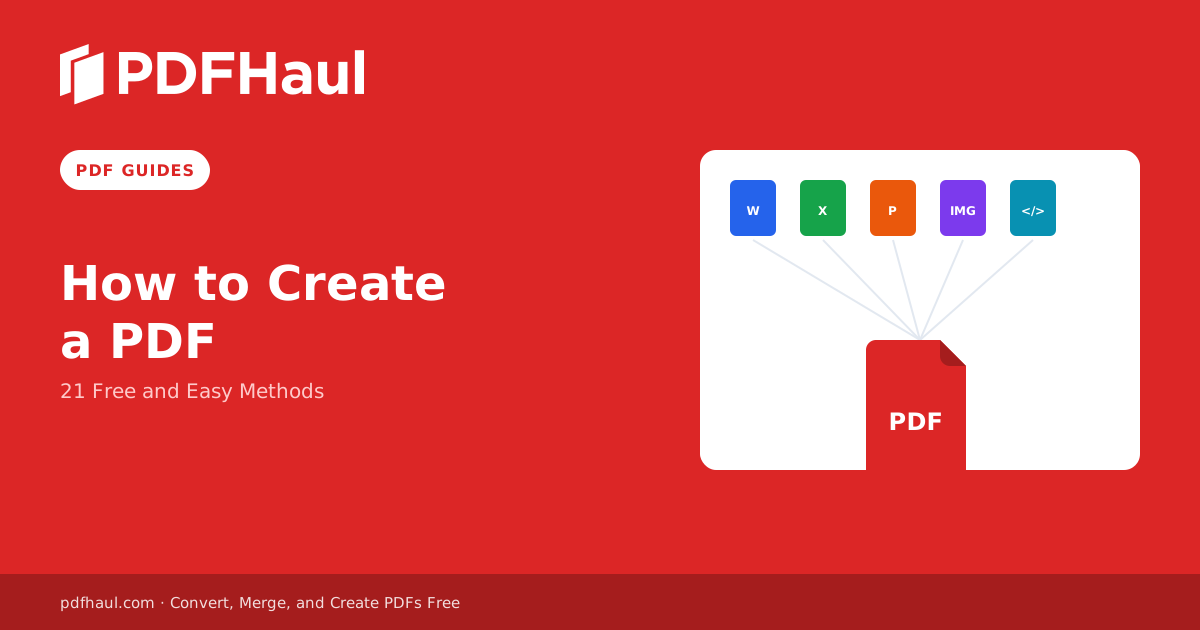
How to create a PDF for free: 21 methods covering Word, Excel, images, scans, webpages, and more, plus a quick guide to picking the right one.
Aug 28, 2026·18 min read
PDFHaul Blog
Expert guides, tips, and tutorials on working with PDFs.
A researched, honest comparison of the best free PDF editors in 2026, including real usage limits, OCR support, and privacy.
A scanned PDF cannot be edited directly. Here are the two real paths, depending on whether you need to change the text or just mark it up.
How to create an exact copy of any page in a PDF, including duplicating several pages at once in a single action.
How to place a logo, photo, or stamp onto an existing PDF page, without rebuilding the document from scratch.
How to type text directly onto a PDF page, and when to save it as editable versus permanent.
PDFHaul's OCR runs on Tesseract, the open source engine behind free and unlimited scanning, without the per page fees that limit most free competitors.
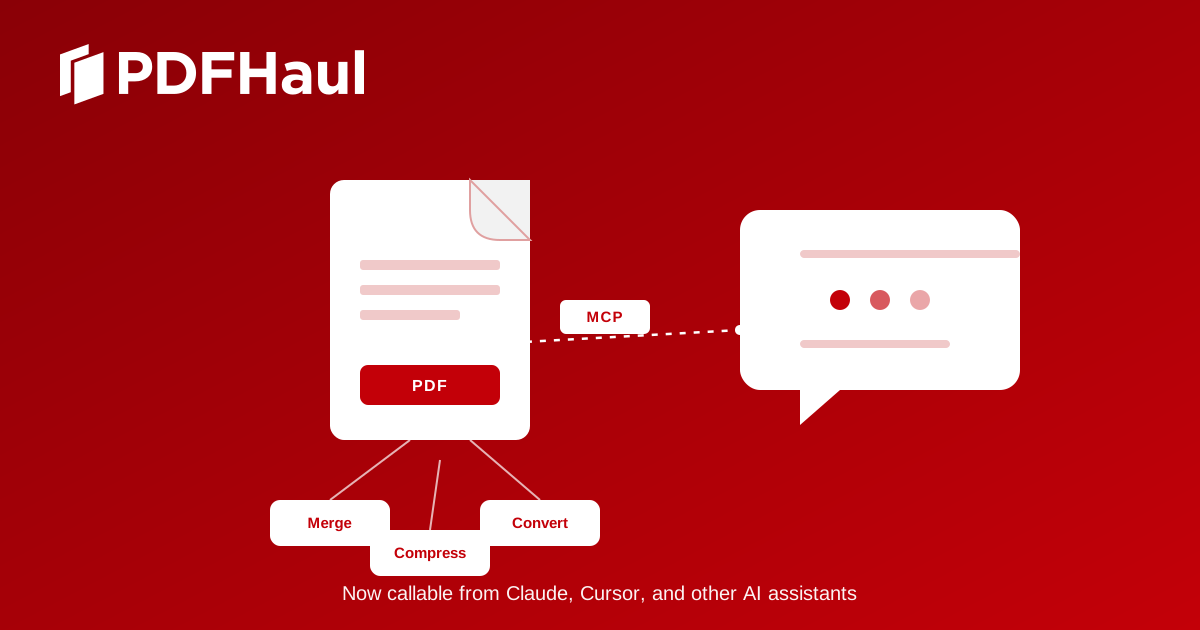
Connect PDFHaul to Claude, Cursor, or any MCP-compatible AI assistant. Merge, split, compress, and convert PDFs directly from your AI, free.
The best free PDF to Word converters in 2026, compared on OCR support, accuracy, and file size limits, not marketing claims.
Smallpdf and iLovePDF both gate OCR behind a paid plan. Here is what each one actually charges, and how PDFHaul's free, unlimited OCR compares.
Canva and PDFHaul solve genuinely different problems. Here is an honest breakdown of what each is actually built for.
Five everyday PDF tasks that do not require downloading software or creating an account, all handled in a browser tab.
Five different reasons a PDF might refuse to be edited, and the actual fix for each one.
Five different reasons a PDF might refuse to be edited, and the actual fix for each one.
A step by step guide to turning a scanned PDF into a searchable one, for free, with no page limits and no software to install.
OCR reads clean printed text almost perfectly, but handwriting, stamps, and low quality scans are a different story. Here is what to actually expect.
Compare 5 free iLovePDF alternatives, including PDFHaul and PDF24. See which tools have no batch limits, no account required, and clear file-deletion policies.
Converting a PDF to a Word document sounds simple until you try it. The file comes back with scrambled tables, fonts replaced by something generic, or paragraph spacing that bears no resemblance to the original. This is not a software bug. It is a consequence of how PDFs work, and understanding that distinction will help you get better results and avoid wasting time on conversions that were never going to work.
Word to PDF conversion is one of the most common document tasks and one of the most misunderstood. Most people treat it as a simple export, but the method you use affects whether your fonts embed correctly, whether your images stay sharp, whether your hyperlinks work in the output, and whether the file is accessible on any device without Word installed.
Adding a signature to a PDF comes up constantly: a lease agreement, an employment contract, a consent form, a purchase order. The question is always whether you need a legally binding electronic signature or just a visual signature that shows your name or initials on the document.
Redacting a PDF means permanently obscuring content that should not be visible to the recipient. Common reasons include removing personal information before sharing a document publicly, blocking out confidential details in legal discovery, or stripping sensitive data from a file before archiving.
Sharing a presentation as a PDF makes sense in most situations. The recipient can view it on any device without PowerPoint installed, the layout is locked so nothing shifts, and the file size is usually smaller than the original .pptx. The question is how to convert it without losing design quality.
PDF to PowerPoint conversion comes up most often in one of two situations: someone sent you a presentation as a PDF and you need to edit the slides, or you need to incorporate a PDF document into a presentation and want to pull content directly rather than recreating it from scratch.
Getting data out of a PDF and into a spreadsheet is one of the most common and most frustrating PDF tasks. The numbers are right there in the document but copying them manually means re-keying every value, reformatting columns, and checking for errors. A good PDF to Excel converter eliminates that entirely. The challenge is finding one that actually works on your specific document.
Highlighting text in a PDF is one of the most common annotation tasks. Whether you are marking up a research paper, flagging clauses in a contract, or reviewing a report, highlights let you call out specific passages for later reference without altering the underlying document.
Most people dealing with tables in a PDF do one of two things: take a screenshot or retype everything manually. Both work but neither is efficient when the table has dozens of rows or you need the data in a spreadsheet for analysis. What most people do not know is that free tools exist specifically for this problem.
Converting an Excel spreadsheet to PDF is straightforward in principle but produces surprisingly inconsistent results depending on how your spreadsheet is set up. Columns get cut off, the print area includes more or less than you intended, or the formatting shifts in ways that look fine on screen but wrong on paper
PDF metadata is information stored inside the file that describes the document: title, author, subject, and keywords. Most people never look at it, but it matters in specific situations: search indexing, document management systems, compliance requirements, and professional document delivery where the properties should reflect the actual document.
PDF annotation covers a broad set of tasks: leaving a comment for a colleague, marking up a contract before signing, highlighting research for later reference, or drawing attention to a specific section of a report. The right tool depends on what you are trying to do and whether you need the annotations to be editable or permanent
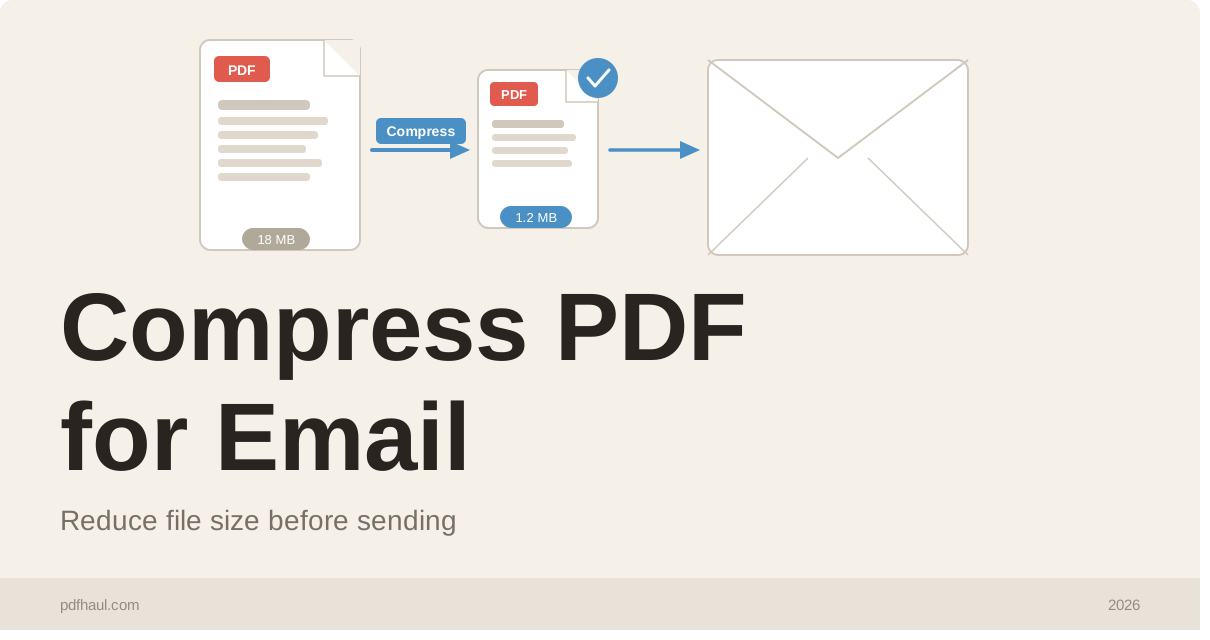
Most email providers cap attachments at 25 MB. Here is how to get your PDF under the limit without losing quality.
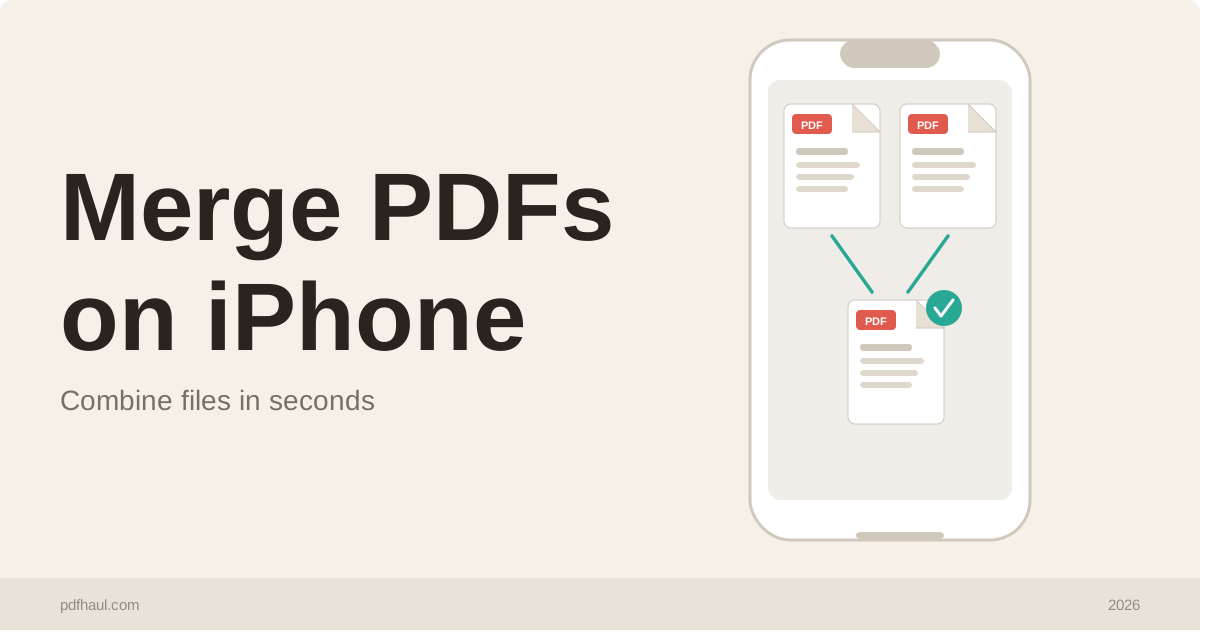
You do not need a computer to combine PDFs. Here is how to merge PDF files directly from your iPhone in under a minute.
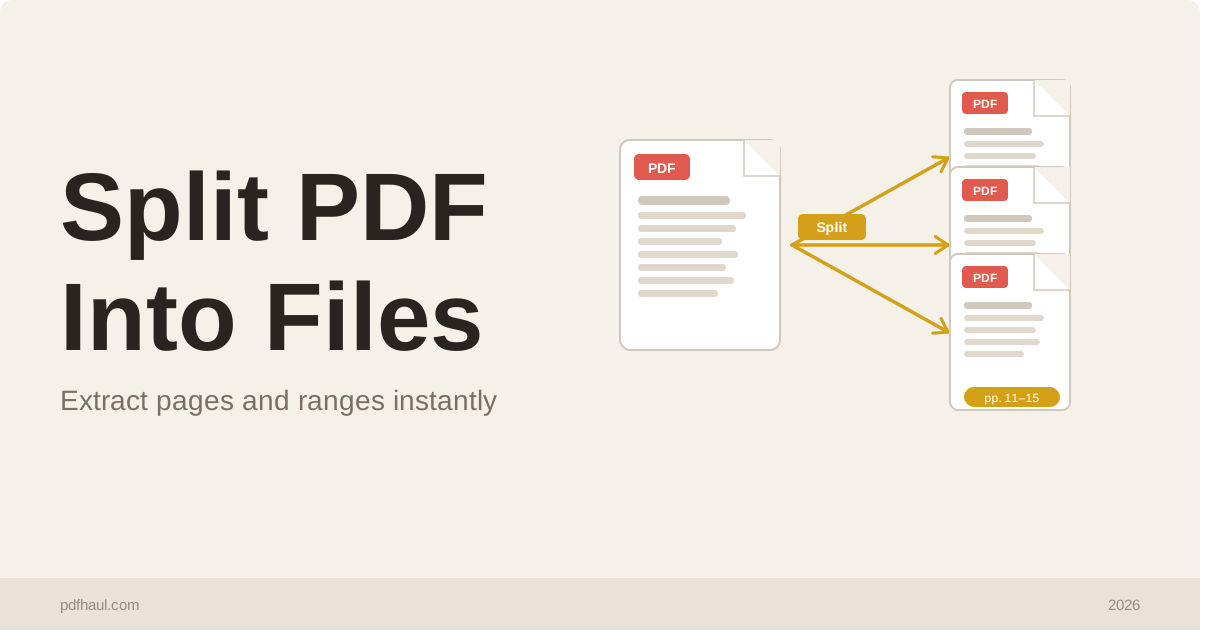
Need to send one section of a document, or break a large file into smaller parts? Here is how to split a PDF into separate files by page range.
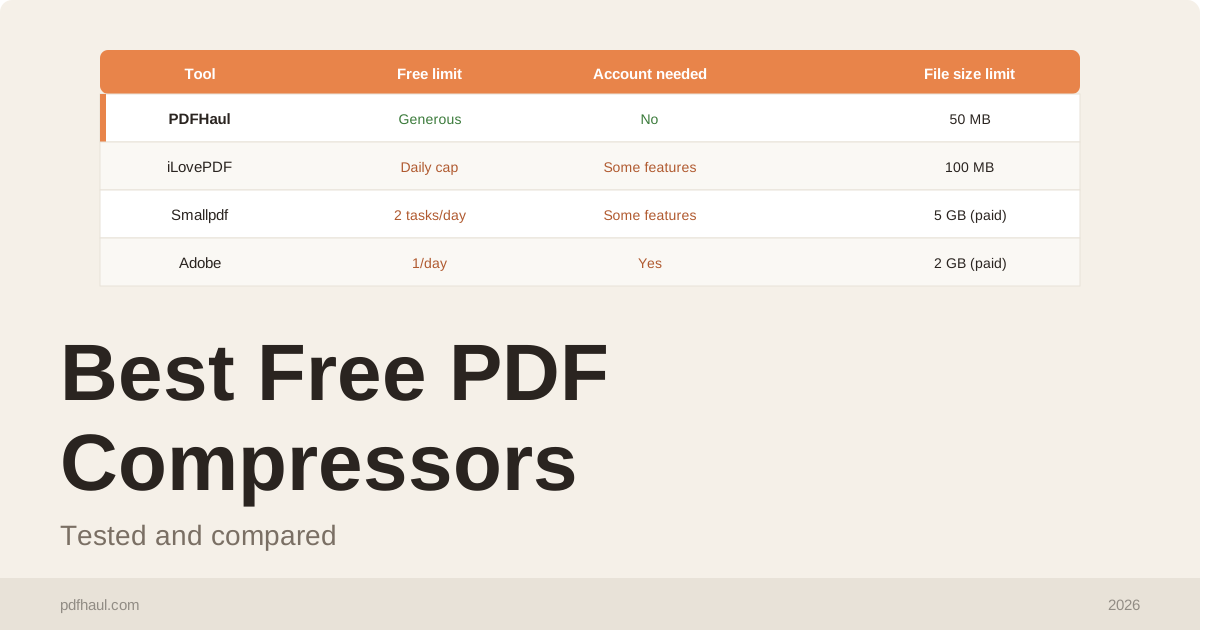
There are dozens of free PDF compressors online but most have hidden limits, daily caps, or login walls. Here is how the most popular ones actually compare.
Compare free Adobe Reader alternatives that edit, merge, and sign PDFs without an Acrobat subscription. No installation, no account required.
Compare 5 free Smallpdf alternatives, including PDFHaul and PDF24. See which tools skip the 2-task daily limit, with no watermarks and no account required.
Compare 5 free PDFgear alternatives, including PDFHaul and PDF24. See which tools work entirely in your browser with no installation, no signup, and no daily limits.
Compare free Nitro PDF alternatives, including PDFHaul and PDFgear. No per-seat subscription, no installation, full editing and e-signing.
Compare 5 free PDF24 alternatives, including PDFHaul and PDFgear. See which tools offer a cleaner interface with no daily task limits or account required.
Compare free Foxit PDF Editor alternatives, including PDFHaul and PDFgear. No subscription, no installation, full editing included.
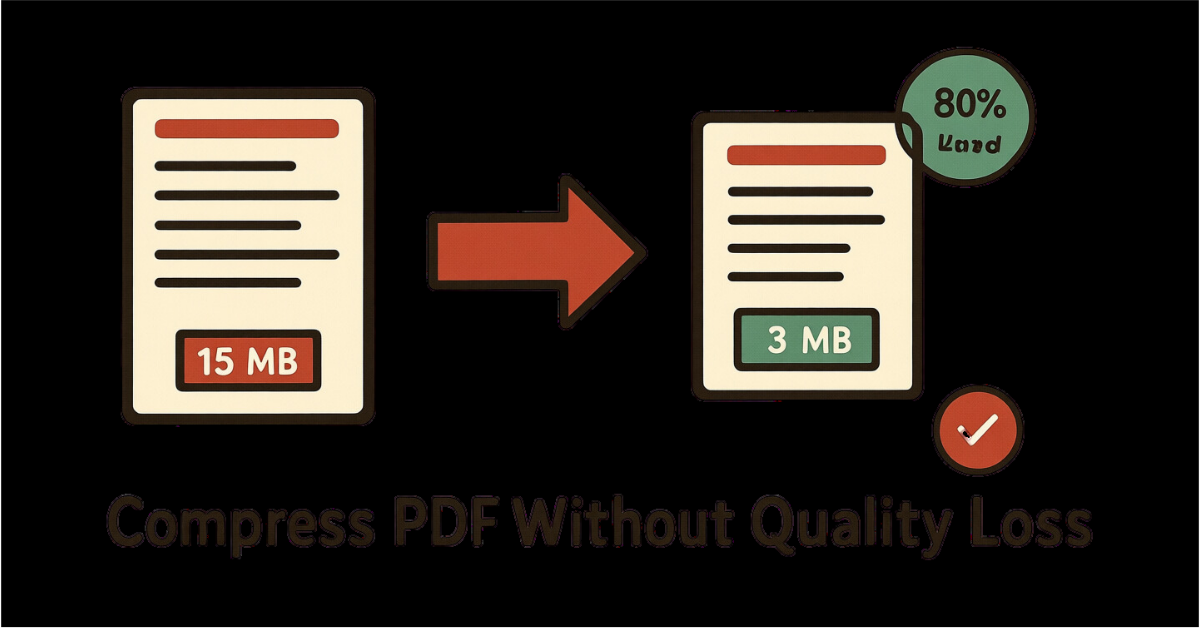
Learn the best techniques to reduce PDF file size while maintaining quality.
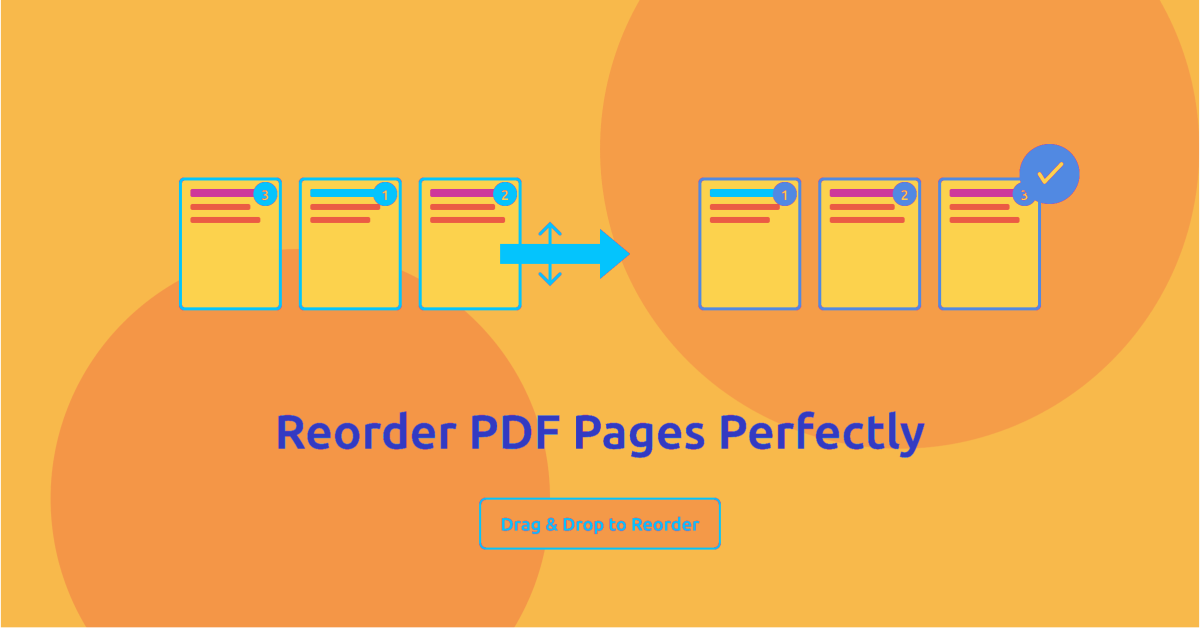
Learn how to reorder, rearrange, and organize PDF pages efficiently. Complete guide with drag-and-drop techniques, bulk reordering, and best practices for perfect page sequencing.
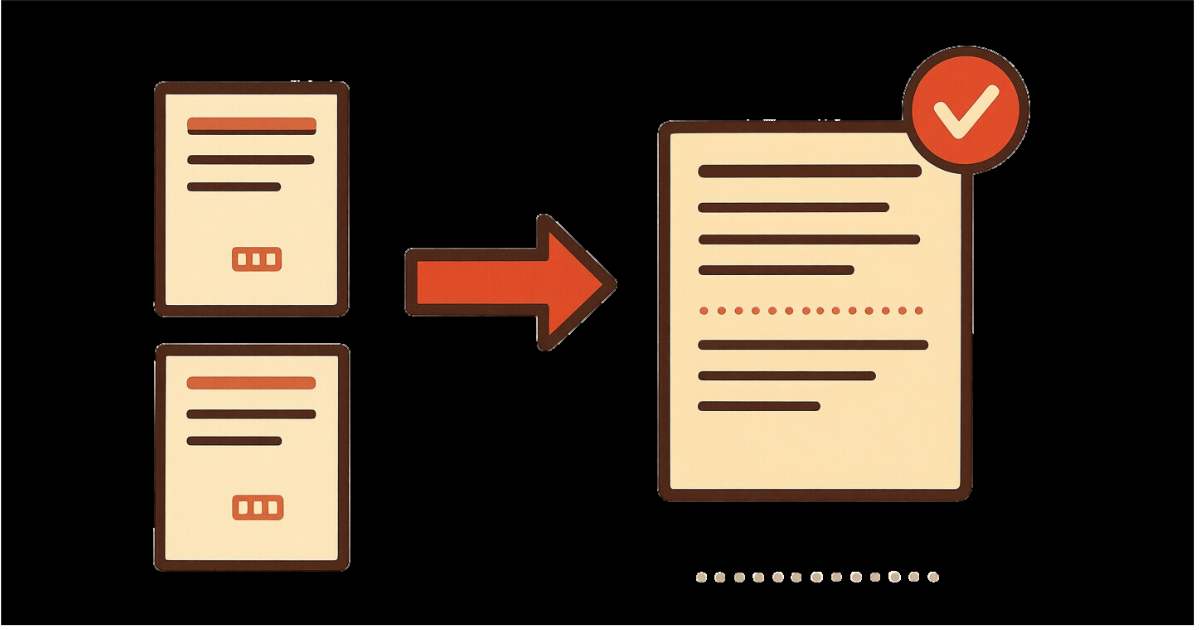
Learn how to combine multiple PDF files into one document quickly and easily. Step-by-step tutorial with tips for organizing and merging PDFs efficiently.
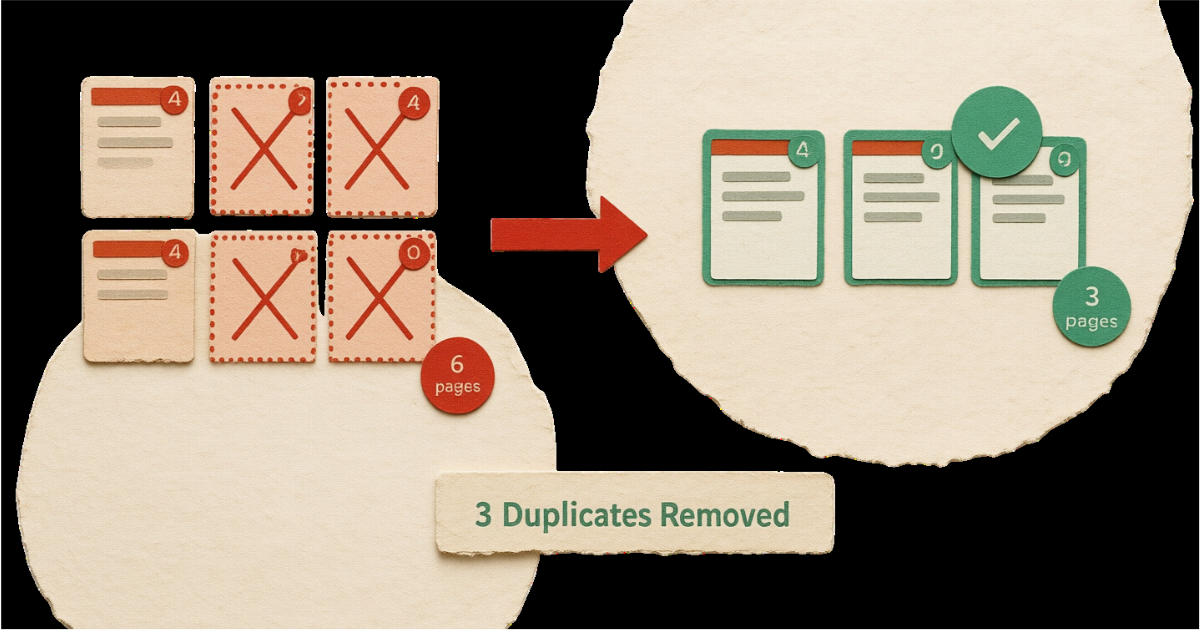
Learn how to identify and remove duplicate pages from PDF documents automatically. Complete guide with detection methods, comparison algorithms, and best practices for eliminating redundant pages.
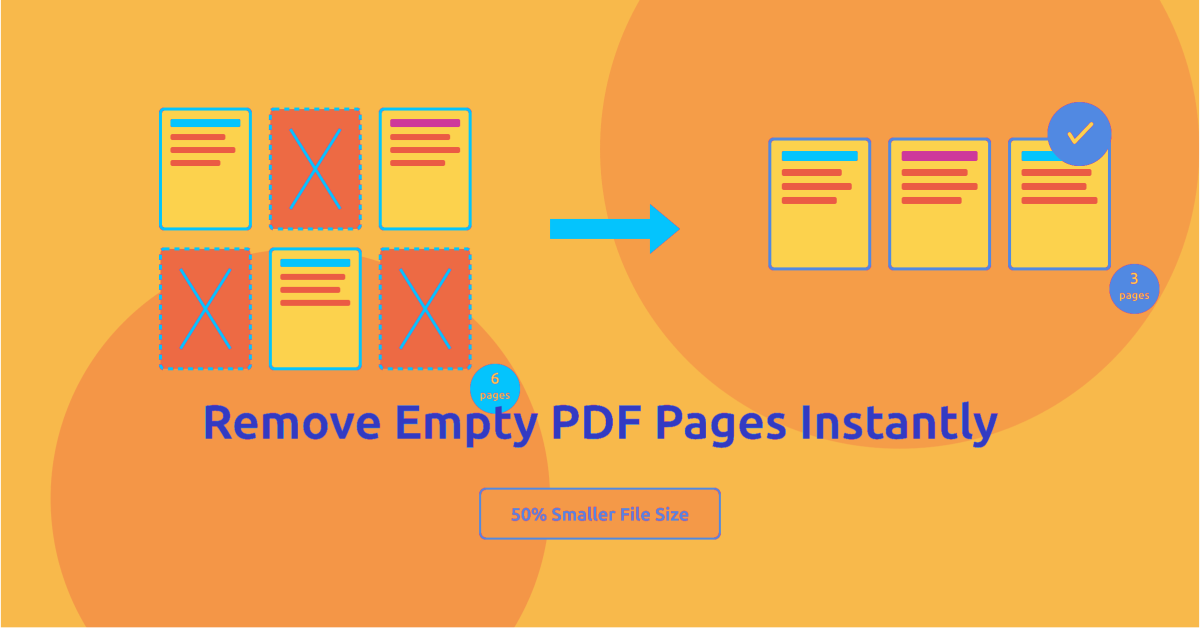
Learn how to remove empty and blank pages from PDF documents automatically. Complete guide with batch deletion, detection settings, and best practices for cleaner PDFs.
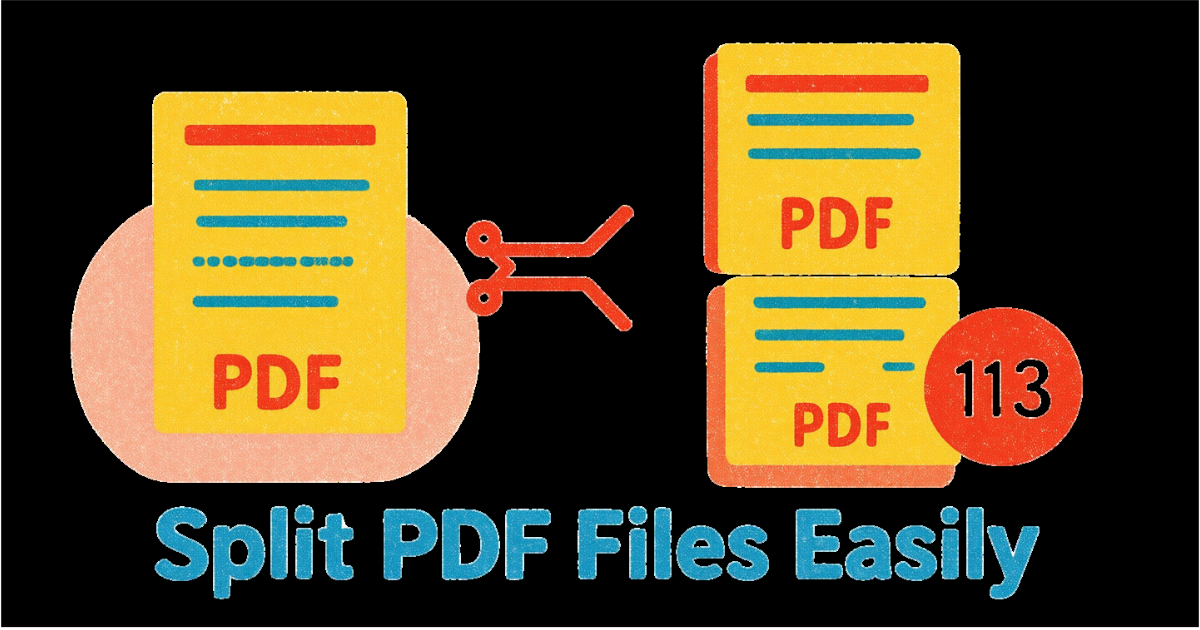
Learn how to split PDF files into separate documents, extract specific pages, and divide large PDFs efficiently. Complete guide with expert tips and step-by-step instructions.
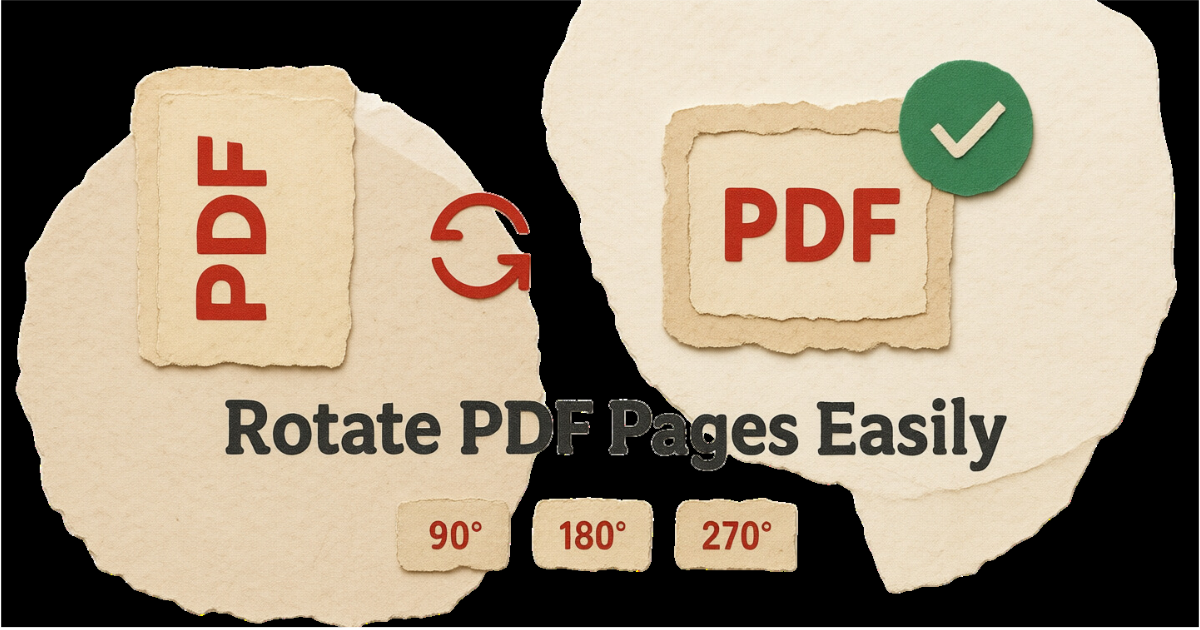
Learn how to rotate PDF pages 90, 180, or 270 degrees to fix orientation issues. Complete guide with tips for rotating single pages, multiple pages, and entire documents.
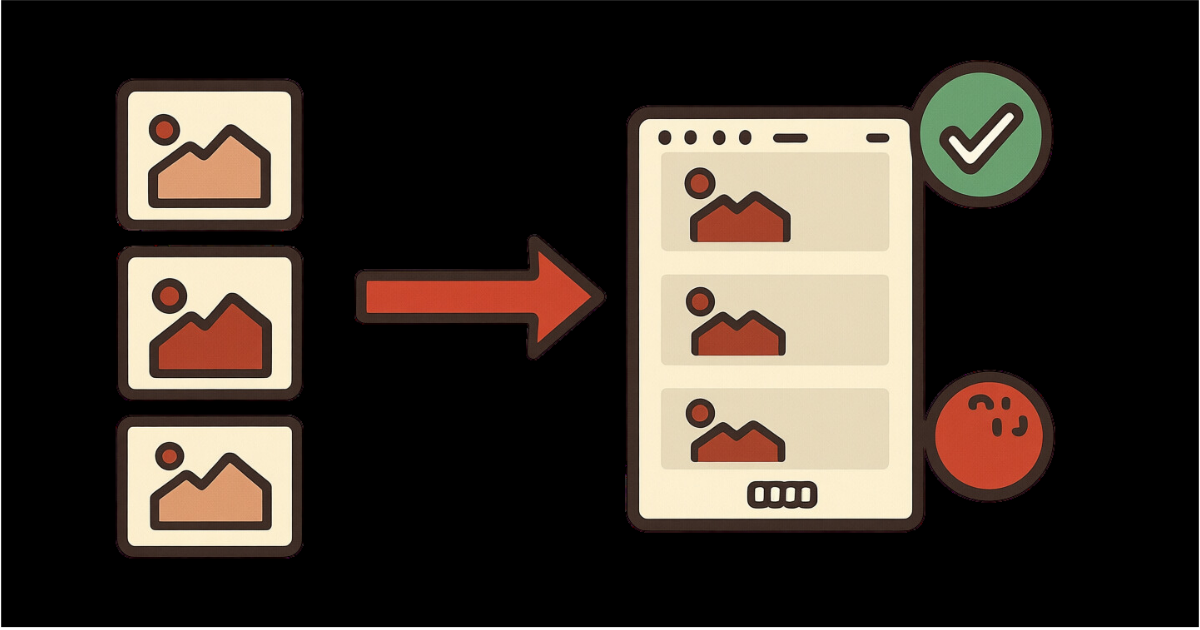
Learn how to convert JPG, PNG, and other images to PDF documents. Complete guide with quality settings, multi-image merging, and best practices for creating professional PDFs from images.
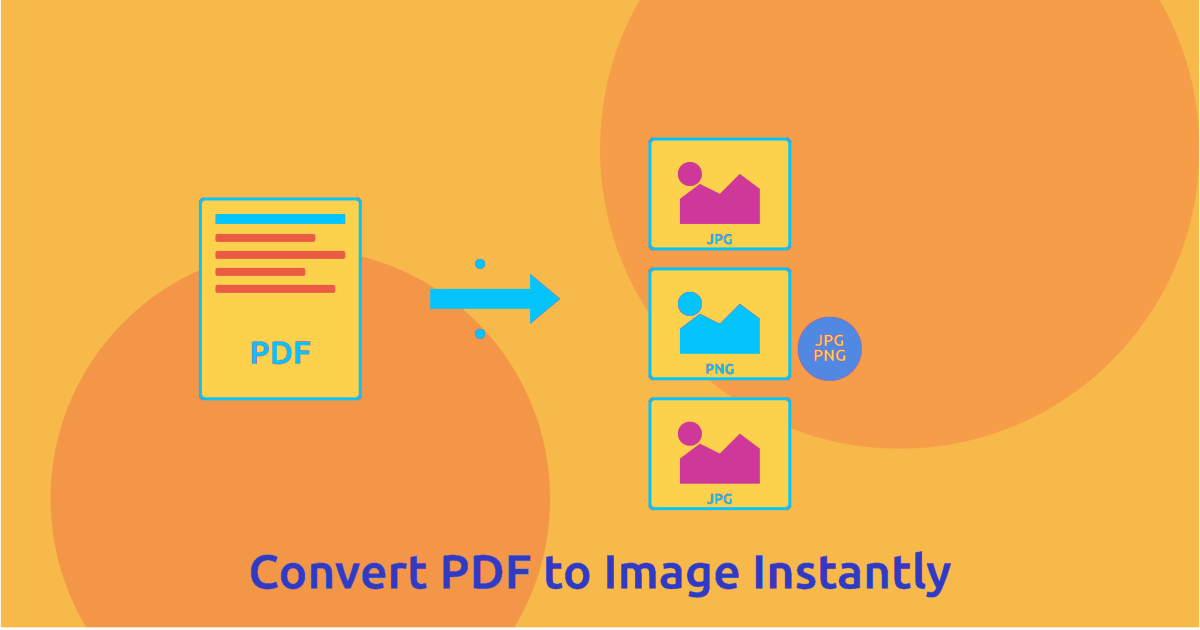
Learn how to convert PDF to JPG, PNG, and other image formats. Complete guide with quality settings, batch conversion tips, and best practices for extracting PDF pages as images.