
Reorder PDF Pages Online

Drop your PDF here
or click to browse
 Select Files
Up to 50 MB
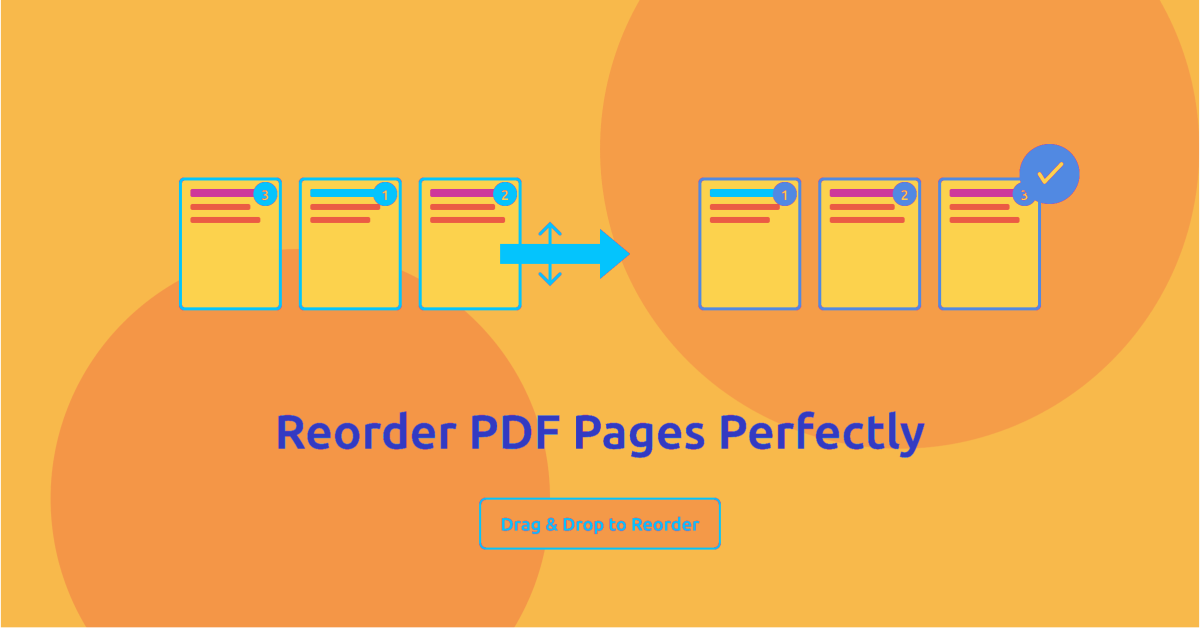
Drag and drop pages into exactly the order you need. Delete unwanted pages at the same time. No software to install, no account required.
How to Reorder pages
- 1
Upload your PDF
Click the upload area or drag and drop your PDF. All pages are displayed as thumbnails so you can see the full document at a glance.
- 2
Drag pages into your desired order
Drag and drop page thumbnails to rearrange them. Select multiple pages to move them together. Delete any pages you no longer need.
- 3
Save your reordered PDF
Click Save Changes and download your PDF with the new page order applied. No quality loss, no watermarks.
Why use PDFHaul
to reorder pages?
Visual drag-and-drop
Every page is shown as a thumbnail so you can see exactly what you are moving. Drag individual pages or select a group and move them all at once.
Delete pages while you reorder
Remove unwanted pages in the same step as reordering. No need to run a second operation. Organise and trim your document at the same time.
Original quality preserved
Reordering is completely lossless. Pages are repositioned without re-rendering. Text stays sharp and images stay clear.
Files deleted in 2 hours
Your documents are automatically purged from our servers within 2 hours. Not stored, not analysed, not sold.
Who needs to
reorder PDF pages?
Out-of-order pages happen more often than you'd think, especially with scanned documents and files assembled from multiple sources.

01
Scanned documents
Scanners fed pages in the wrong order are one of the most common sources of page chaos. Reorder the entire scan in seconds rather than rescanning the whole document from scratch.
02
Legal bundles and filings
Court bundles and legal submissions require pages in a precise order, whether chronological, by exhibit number, or by section. Get the exact sequence right before filing without reprinting anything.
03
Reports and proposals
Restructuring a proposal or report often means moving sections around. Reorder entire chapters or subsections, or just move the executive summary to the front where it belongs.

04
Students and researchers
Consolidate notes and reading materials from multiple sources into a single, logically ordered PDF. Move the most important reference pages to the front for quick access during an exam or presentation.
What happens when you reorder PDF pages
Reordering creates a new PDF where the pages appear in the sequence you specify. The original page content is preserved exactly. Text, images, and formatting on each individual page are unchanged. Only the order in which pages appear in the document changes.
Internal hyperlinks that reference specific page numbers may break after reordering. A link that says "see page 15" in the body text refers to a fixed page number that was accurate before reordering. After moving pages around, the content that was on page 15 may now be on page 9. The link text is part of the page content and does not update automatically.
Bookmarks tied to specific page numbers are similarly affected. If the original PDF had a bookmark pointing to "Chapter 3, page 24", and you moved the pages that made up Chapter 3, the bookmark now points to whatever page 24 contains in the new order.
For documents without internal links or bookmarks (such as scanned reports, photo collections, or assembled exhibits), reordering is clean and complete.
Frequently asked questions
Everything you need to know about reordering PDF pages
Related posts from our blog
More PDF tools
After reordering, continue editing in the PDFHaul viewer. No re-uploading needed.